

If you're running multiple monitors on Windows 11, it's easy to move an existing app window between two or more monitors. Here's how to do it, using your mouse or a keyboard shortcut.
See also: How to Backup Windows 11 and 10 with File History and OneDrive

To move windows between more than one monitor, you’ll need a special multi-monitor feature called “Extend,” which extends desktop across all available monitors. To do this, press Windows+P on your keyboard to open the “View” menu. Select “Extend” in the menu when it appears.
It's important to note that some games that support multiple monitors have their own settings . Be sure to check the mode for display options after switching to extend mode to make sure they're working properly.
See also: Windows 11 security: How secure is your password?
With this extend feature, it's easy to move application windows between two or more displays with your mouse. Click the title bar of the window you want to move and drag it to the edge of the screen toward the screen . When the window meets the edge of the first screen, it will begin to appear on the other screen. Release the mouse button once the application is where you want it.
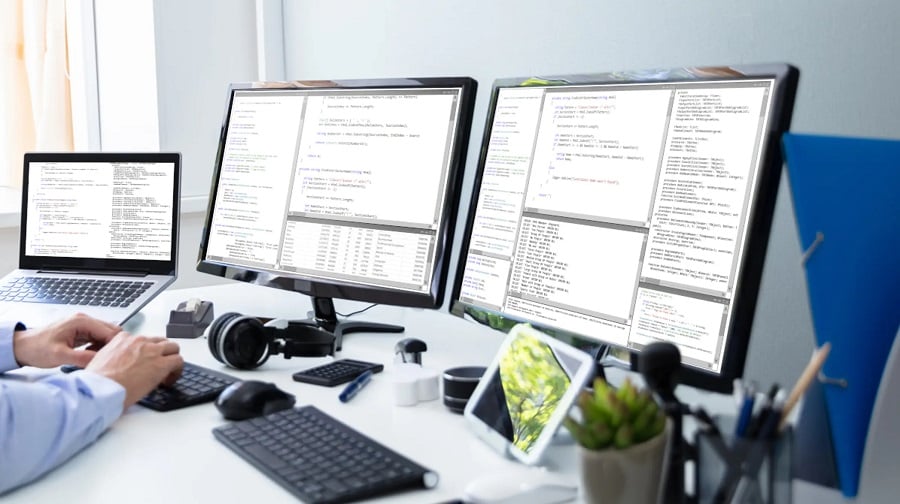
To reverse the process, simply drag the window back to the edge of the screen again.
See also: New features coming soon to Windows 11
In Windows 11, you can also move a window to another screen instantly thanks to a handy shortcut :
- To move a window to a screen oriented to the left of your current screen, press Windows + Shift + Left Arrow.
- To move a window to a screen oriented to the right of your current screen, press Windows + Shift + Right arrow.
This keyboard shortcut method works on as many monitors as you have connected to computer . If a window reaches the highest-numbered monitor while moving, it will wrap and appear on the lowest-numbered monitor, and vice versa.
