

If you plan to give away or sell your iPhone 13, you'll need to completely erase your data and account information first. This process is known as a "factory reset," and it's easy to do in Settings on the iPhone 13, iPhone 13 Mini, iPhone 13 Pro, and iPhone 13 Pro Max.

See also: iPhone 13: When will the lack of noise cancellation for phone calls be solved?
Whenever you perform a factory reset, it's a good idea to make sure you have a backup of your iPhone 13. You can do this using Finder on Mac, iTunes on Windows , or iCloud. You can also transfer your iPhone 13 data directly to a new device using Quick Start.
If you're giving your iPhone 13 to a new owner, you'll also need to turn off Find My iPhone, which tracks your iPhone's location if it's stolen or lost. To do this, open the Settings app and tap your account name near the top. Under Apple ID, go to Find My > Find My iPhone and turn the switch next to Find My iPhone to the "Off" position.
See also: iPhone users are having trouble accessing WhatsApp
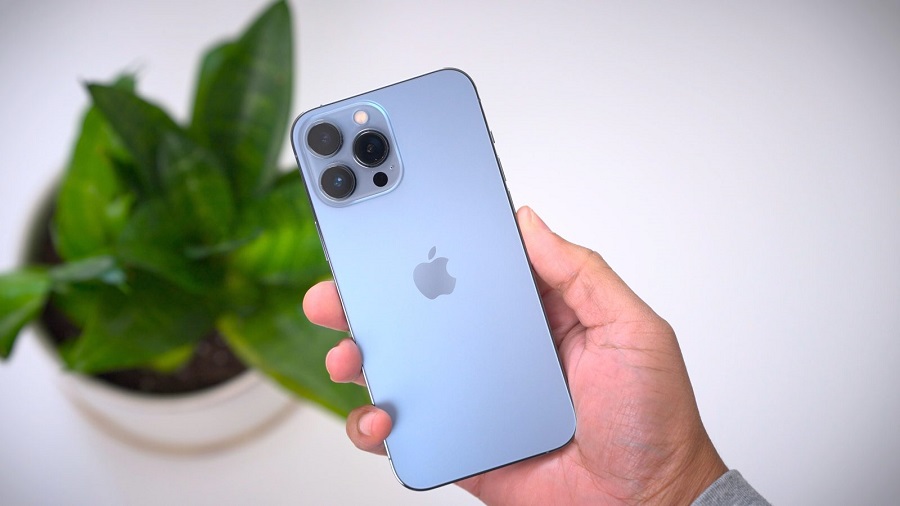
To erase all content on your iPhone 13 and perform a factory reset, first open the Settings app.
- In Settings, select “General”.
- Under General, scroll down and select “Transfer or Restore iPhone.”
- In the transfer or reset settings, tap "Erase all content and settings."
- On the next screen, confirm by clicking "Continue".
See also: iPhone/iPad: How to find your downloaded files
If necessary, enter your device passcode or Apple ID. The restore process will begin immediately. When it's complete, you'll see a welcome screen that will allow you or the next owner to set up the device from scratch.
