


By default, Windows 11 doesn't display special icons (like "This PC" or "Recycle Bin") on desktop . However, if you want these or other special icons to give your desktop a more classic Windows look, you can easily add them to your desktop. Here's how to do it.
See also: Windows 11: With the new “Voice Access” feature you can control the OS with your voice
First, right-click on an empty spot on the desktop. In the menu that appears, select Personalize.

The Windows Settings app will open to the “Personalization” page. In the list of categories related to Personalization, click “Themes.”

There (in Themes) scroll down and click on “Desktop Icon Settings”.
A special window titled “Desktop Icon Settings” will appear. Using the “Desktop Icons” section (at the top of the window), select the special icons you want to appear on the desktop in Windows 11. For example, if you want to see the Recycle Bin on your desktop, select “Recycle Bin.” When you have selected all the icons you want, click “OK.”
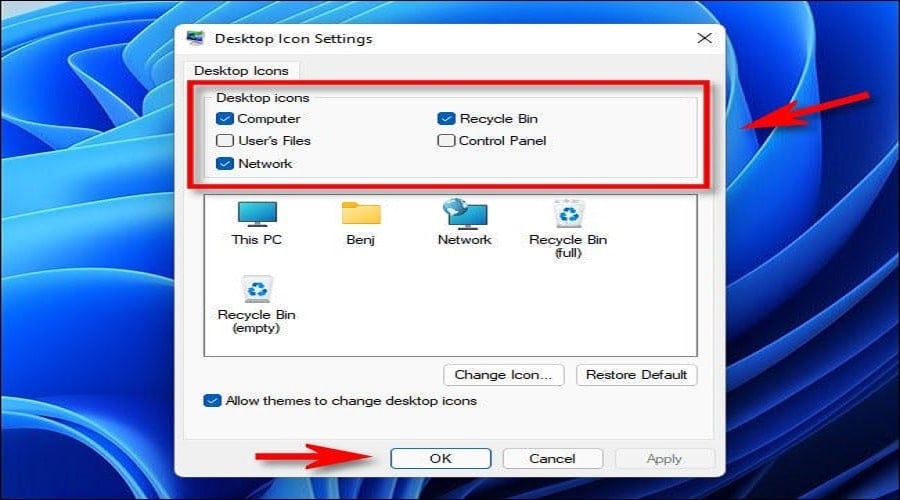
The window will close. You can also close Settings. Look at your desktop and you will see the special icons you selected.
See also: Windows 10/Windows 11: How to convert PNG images to PDF?
If later, you want to remove some of these icons from your desktop, you can simply go to Settings > Personalization > Themes > Desktop Icon Settings and deselect the icons you no longer want to see.
See also: How to use classic Screen Savers in Windows 11
Additionally, if you want to hide all the icons on your desktop in Windows 11, right-click on the desktop, point to “View” and click on “Show Desktop Icons.” The change will be made and no icons will be visible on the desktop anymore.
Source: How-to-geek
