

It's important to update Microsoft Teams regularly to get the best experience possible. If you're not sure how to do this, we'll show you how to update Teams on Windows, Mac, Linux, iPhone, iPad, and Android devices.
See also: Windows 11: How to set which icons appear on your desktop?
Ways to update Microsoft Teams
On Windows and Mac, the Teams app updates automatically, so you don't need to do anything. However, if you're having problems or want to make sure you have the latest version, you can manually force the app to check for updates, as we'll explain below.
If you're using Linux, your app won't update automatically. You'll need to use your package manager to download and install newer Teams updates.
On mobile devices like iPhone, iPad, and Android, you can use the corresponding app store to update the app on your phone.
See also: How to delete a branch on GitHub
Update Microsoft Teams on Windows and Mac
To force an update check in Teams on Windows 10 or Mac, use the method below. The process for the built-in Teams app in Windows 11 is slightly different, as explained below.
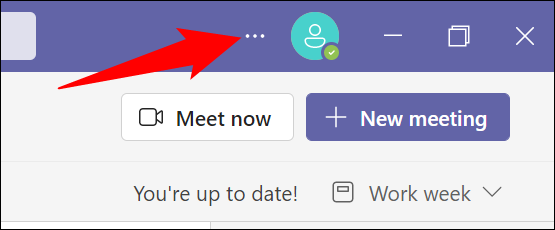
First, open the Teams app on your computer. At the top of the app interface, next to your profile picture, click the three dots.
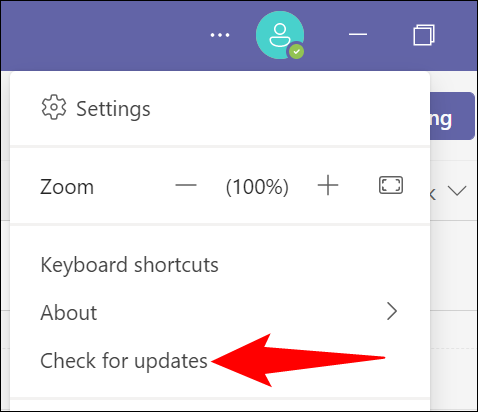
In the menu that opens, click "Check for Updates".
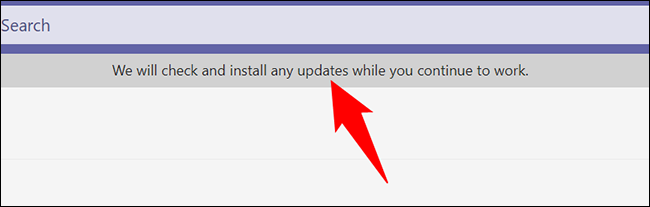
Teams will display a message saying “We Will Check and Install Any Updates While You Continue to Work.” This means you can continue using Teams while updates are checked in the background.
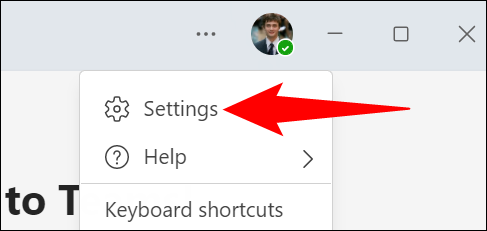
If you're using Windows 11, first open the built-in Teams app. In the top-right corner of the app, click the three dots.

In the three-dot menu, click on “Settings”.
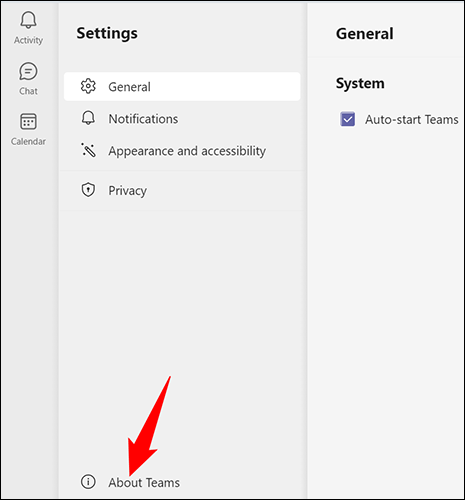
On the “Settings” page, in the lower left corner, click “About Teams.”.
Teams will check for available updates. In the “About Teams” section on the right, under “Version,” you will see if there are any available updates.
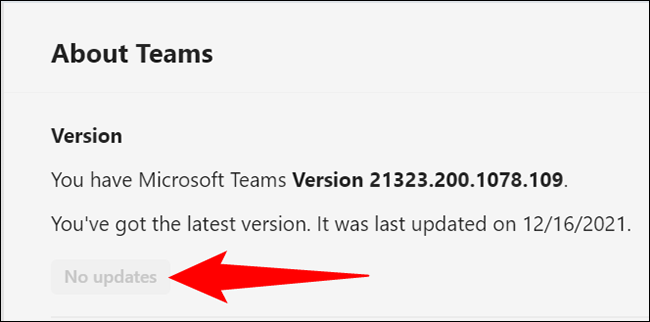
If an update is available, click “Update Now” to start updating the app.
And this way you keep Teams up to date on your computer.
See also: Oculus Quest 2: How to delete your browser history
Update Microsoft Teams on Android
To update the Teams app on your Android phone, use the official Google Play Store. That's where you also get updates for all your other apps.
To get started, open the Play Store on your phone. Tap the search box in the Store, type “Microsoft Teams,” and press Enter.
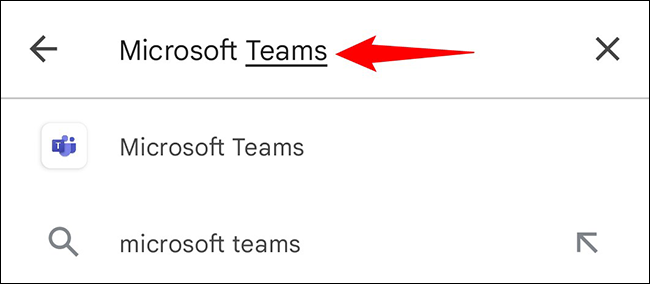
In the search results, select "Microsoft Teams.".
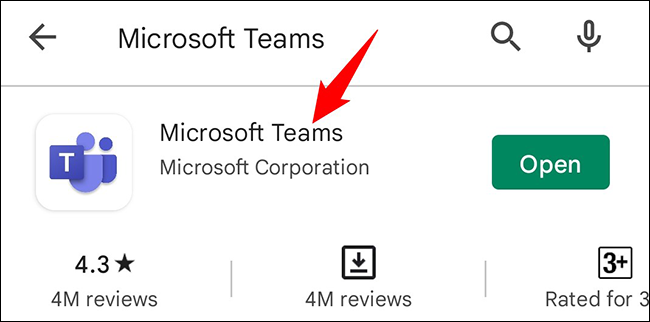
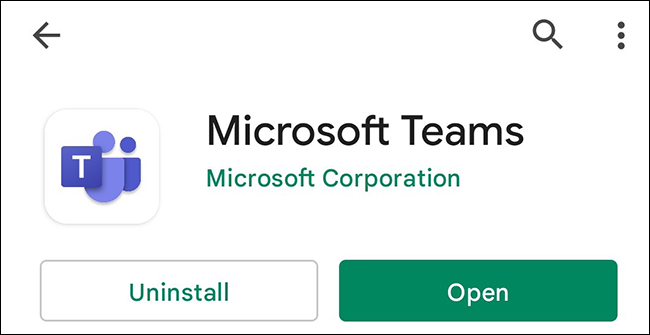
On the Teams app page, tap “Update” to update the app to the latest version. If you don’t see this button, your app is already updated.
Update Microsoft Teams on iPhone and iPad
If you're using an iPhone or iPad, use the Apple App Store to install updates for Teams.
To do this, first open the App Store on your phone. At the bottom of the Store, tap the “Updates” tab.

On the “Updates” screen, find “Microsoft Teams” and tap “Update” next to it. If you don’t see Teams on this page, your app is already up to date.
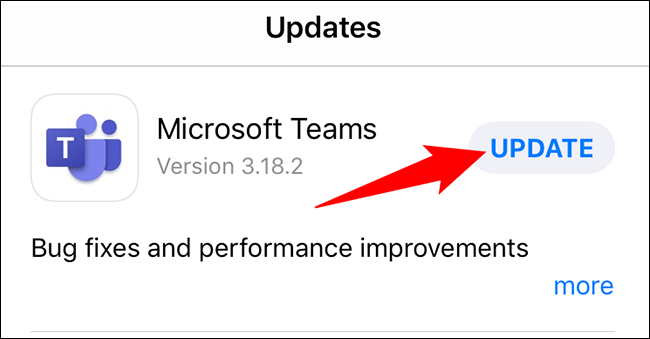
If you clicked the “Update” button, wait until the App Store finishes updating the app. You will then be running the latest version of Teams on your phone.
And that way you keep Teams bug-free and loaded with new features across your devices.
Information source: howtogeek.com
