

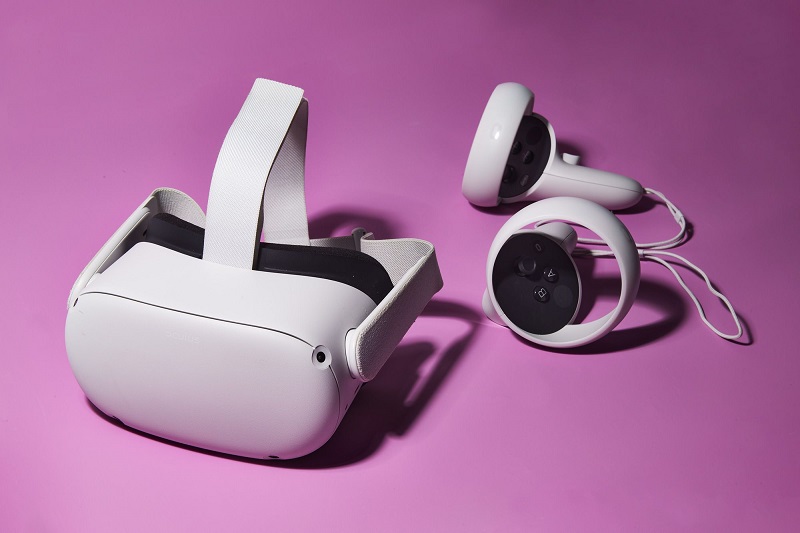
The Oculus browser on the Oculus Quest 2 keeps a record for each website you visit on the History page. If you don’t delete it, people using your headset after you can see which sites you visited. See how you can delete this browsing data.
See also: Microsoft Teams: How to join a meeting?
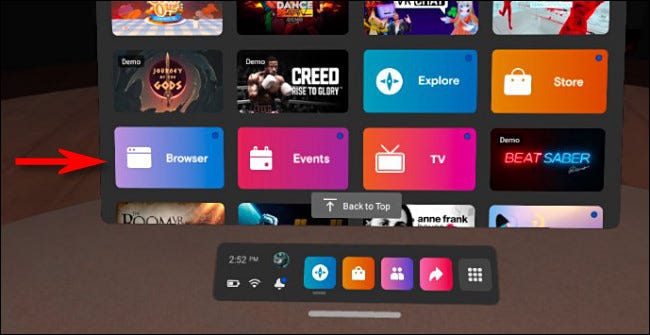
First, open the Oculus Browser on your Quest 1 or 2 headset (these instructions work for both models). You'll find the browser in your app library.
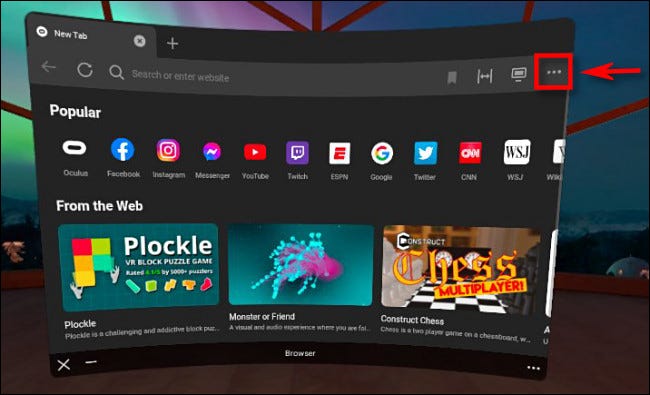
In the Oculus browser window, select the menu button (three dots) in the top right corner.
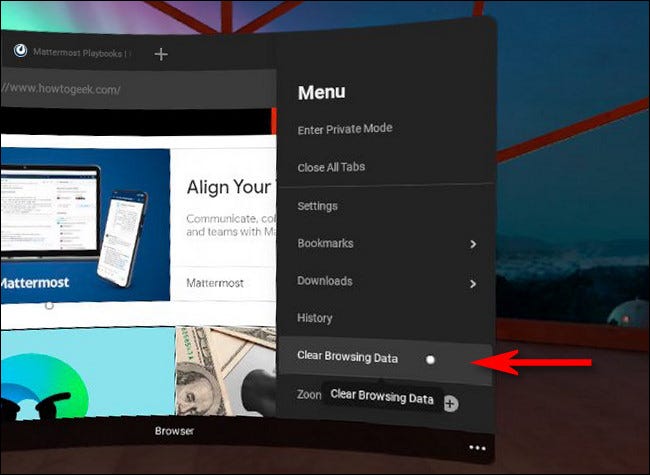
In the menu that appears on the side of the window, select “Clear Browsing Data”.
See also: How to import data from a PDF into Microsoft Excel
After that, a small “Clear Data” window will open. If necessary, place a checkmark next to “Browsing History” (and any other items you want to delete) and then click the “Clear Data” button.
The Oculus browser will delete the browsing data you selected. You can repeat this process whenever you want.
See also: How to enable Dark Mode in Microsoft Outlook?
In the future, if you do not want to manually delete your browsing data after each period of use of the Oculus browser, you can use Private Mode by clicking the browser menu and selecting «Enter Private Mode». Private mode will prevent the browser from tracking your browsing history.
Information source: howtogeek.com
