

A custom wallpaper matches very well with custom app icons and custom widgets. It's not particularly difficult to create your own wallpaper. All you need is the Shortcuts app on your iPhone and iPad.
Using the WallCreator shortcut from MacStories, you can create a wallpaper directly on your iPhone or iPad. You can create the wallpaper randomly or you can specify a particular color.

WallCreator is incredibly simple to use. It automatically detects which device you're using and creates a wallpaper that's the perfect size, so you don't need to know the screen resolution of your iPhone or iPad.
What's nice is that the shortcut supports both Hex codes and simple colors (written with simple English names). So if you want to create a top-to-bottom wallpaper with purple and blue, you can do it in a matter of seconds.
Before you begin, you'll need to enable the Untrusted Shortcuts feature for the Shortcuts app. This setting allows you to run shortcuts downloaded from the internet.
Once that's done, open the WallCreator shortcut link in Safari (or your default browser of choice). Then, press the “Get Shortcut” button.

This shortcut in the Shortcuts app. Scroll to the bottom of the page and tap the “Add Untrusted Shortcut” button.

The shortcut will now be added to the “My Shortcuts” tab. From here, tap the “WallCreator” shortcut to start using it.

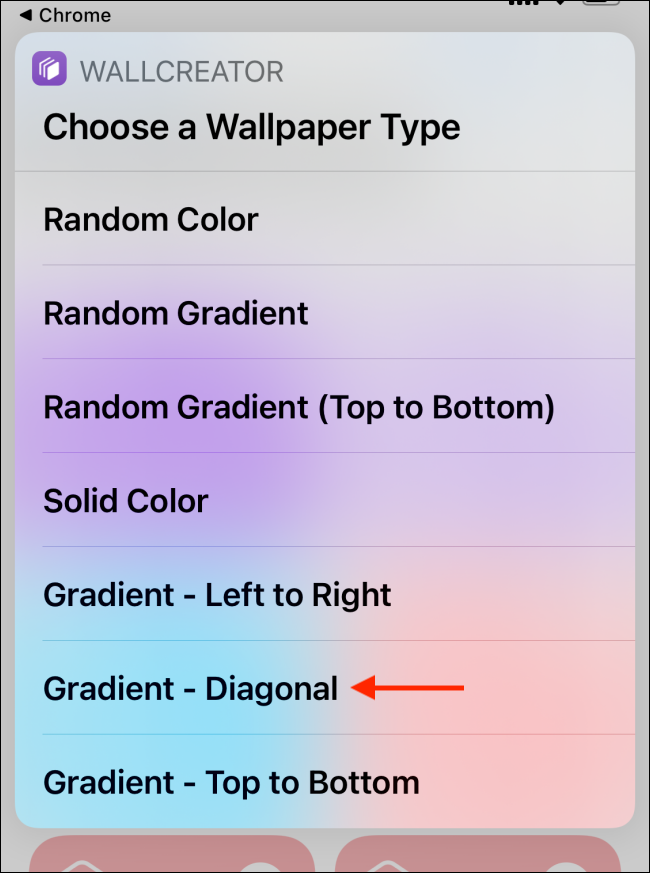
The first step is to choose the type of wallpaper. Here, you can choose a random color, random gradient, or you can specify a solid or gradient color.
Creating a random wallpaper is very simple. For this example, let's create a diagonal gradient. Select “Gradient – Diagonal”.
Enter the first color name or the Hex code and then press the “Done” button.

Next, enter the second color name or the hex code, and again, press the “Done” button.

Now you will see the preview of the wallpaper. Here, tap on the “Done” button.

If this is your first time using the shortcut, WallCreator will ask for access to photos . Press the “OK” button to grant the shortcut permission to your images.

From the next banner , tap the “Yes, Save It” option to save the wallpaper to your photo library

Once the wallpaper is saved, press the “OK” button to end the shortcut process

You can repeat this process to create as many wallpapers as you want.
Once you have created the wallpaper, it's time to set it on your iPhone or iPad.
To do this, open the “Photos” app and go to the image. Here, tap the Share button from the bottom left corner of the screen.

Now, select the “Use As Wallpaper”.

From the next screen, press the “Set” button.

Now you can choose whether you want to set the wallpaper for the lock screen only, the home screen , or both.

And now, the wallpaper has been set.
Information source: howtogeek.com
