

A Google Docs document usually has a white background on each page. If you want to customize the page color in Google Docs, you can do so in the page settings menu. See below for exactly how to do it.

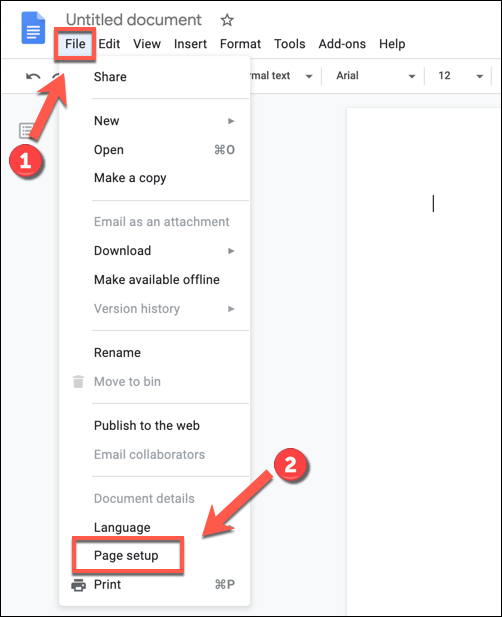
To get started, open an existing Google Docs document or create a new one to edit. In the open document, click File > Page Setup to access the page settings menu.
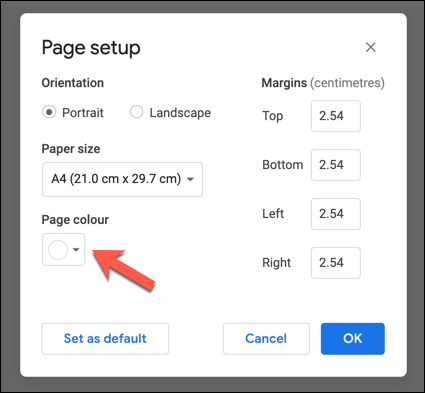
In the “Page Setup” box that appears, choose a new color for the page background by selecting the circular “Page Color” icon.
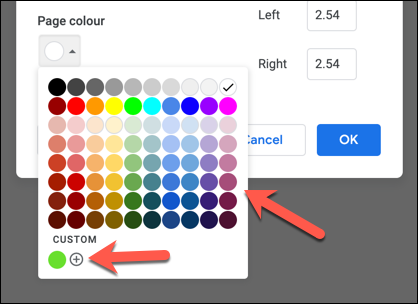
This will bring up a drop-down menu showing various preset colors.
Click on one of these color options to select it as your page color, or select the “+” icon at the bottom (under the “Custom” label) to create a custom unique color.
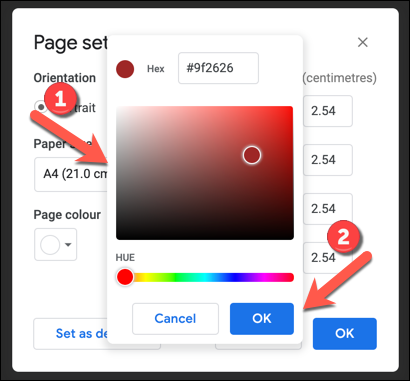
In the custom color menu, you can enter a hex color code (for example, #000000 for black) or use the tool to find the color and shade you want.
Move the “Hue” bar at the bottom to select the primary or secondary color you want to use, then select a shade using the color matching tool above.
Click “OK” once you find the color you want to use.
Once you have selected your page color, select the “OK” button in the “Page Setup” menu to apply to your document.
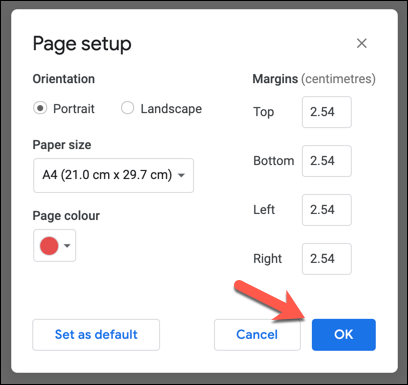
This will apply the change to all pages in your document.
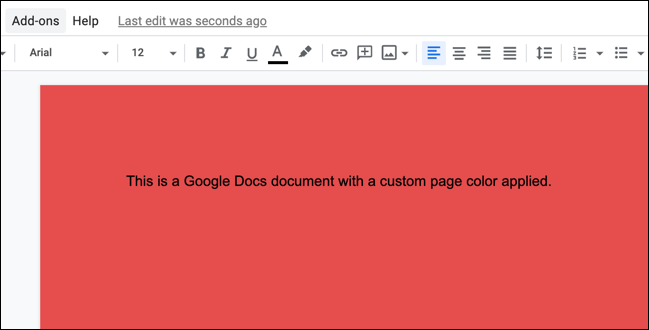
Unfortunately, it's not possible to apply different colors to each page in a Google Docs document. To achieve the same result, you'll need to move content across multiple Google Docs files and edit the page color for each document individually.
Source: howtogeek.com
