

BAT to EXE Files: Scripts are a great way to execute commands, especially if you need to run them for scheduled tasks on your computer. Of course, a script can be used in other ways as well. For example, if there is a restriction that prevents you from using BAT files, you can convert BAT to EXE.
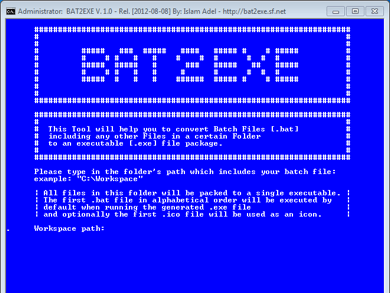
Converting a BAT file to an EXE is simple, but there are a few details worth mentioning. If a script is run on the command line, it will usually display the results, e.g., a ping value that you get from the command line itself. If you convert a BAT file to an EXE, the EXE will be able to run properly, but it will not have a GUI to display the results. However, you can edit the BAT to allow the results to be displayed outside of the command line.
BAT to EXE
There are several applications that allow you to convert a BAT file to EXE. You can try the applications BAT to Exe or BAT 2 EXE. Both work more or less the same, but BAT to EXE has some additional features. One of them is a script editor.
Make sure you have a BAT file inside a folder. Run BAT 2 EXE and in the GUI that opens, select the folder where the BAT file you want to convert to EXE is stored. Then, select where you want to save the EXE that will be created.
Give the application a few seconds to convert and the EXE will be saved in the location you specified. It will have the same name as the BAT it was created from. With a double click you can run your new file. You may need to verify UAC to run the application.
It should be noted that the EXE cannot be installed since it comes from a script. It will function as a portable application that you can run from various automation tools.
For EXEs that require administrator permission to run, the tool you use to run the file should have some way of automating the UAC verification process.
___________________
- Firefox Send now available for Android devices
- Facebook: millions of passwords in plain text
- LibreOffice 6.2.2 new release from the Document Foundation
