

Every Windows user knows that they need to perform regular maintenance to keep their computer in good condition. But what exactly needs to be done, not many know, especially with recent versions of Windows 10.
What should you do and what are the big pitfalls to avoid? Below we will list the biggest maintenance mistakes to avoid.
Cleaning the registry
One of the biggest myths about Windows maintenance that has been around for decades and continues to mislead users of Microsoft's operating system is registry cleaning. We've seen countless applications circulating that claim that you should clean your Windows registry. They claim that an uncleaned registry slows down your computer's performance, and that they do all this for $29.99, since their software will eliminate every problem and give you a brand new system.
You don't need to clean the Registry.
It is true that over time, unnecessary entries accumulate in the registry due to software uninstallations and other actions. But this does not harm the performance of your computer. You will never notice any difference, even if you delete thousands of “problems” in the form of entries.
The worst part is that Registry “cleaners” can often do more harm than good. They could delete important system files, which can result in tedious repairs.
Not utilizing Windows Automatic Cleanup
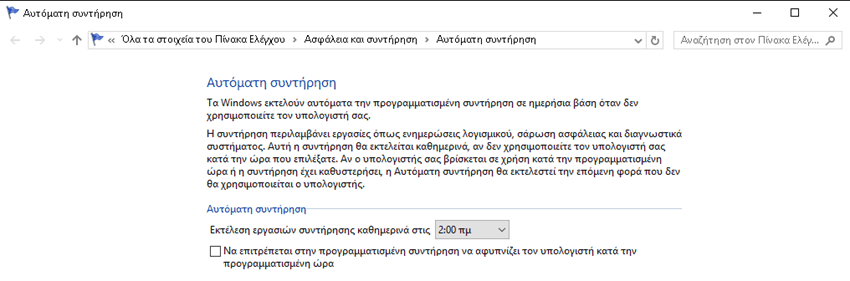
In older Windows, you had to remember to run multiple maintenance tasks yourself or resort to using the Task Scheduler. In Windows 10, many of the tools run on their own schedule, so you don't have to constantly check them. In particular, you should make sure that Windows automatically cleans up old files and defragments your disk (if you're not using an SSD).
To run the automatic maintenance tool on a schedule, follow the path, as shown in the image below:
“Control Panel\All Control Panel Items\Security and Maintenance\Automatic Maintenance”
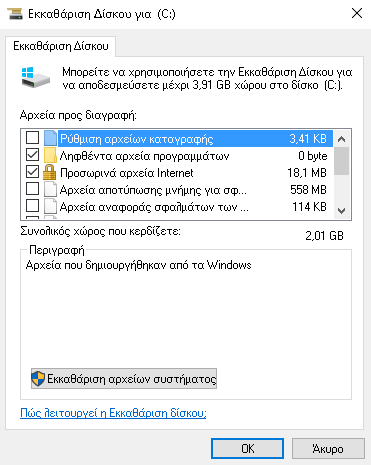
To clean your disk, search for the term clean in Windows search and you will see the “Disk Cleanup” icon. Run the tool, select the disk you want to clean, and then check the options you want.
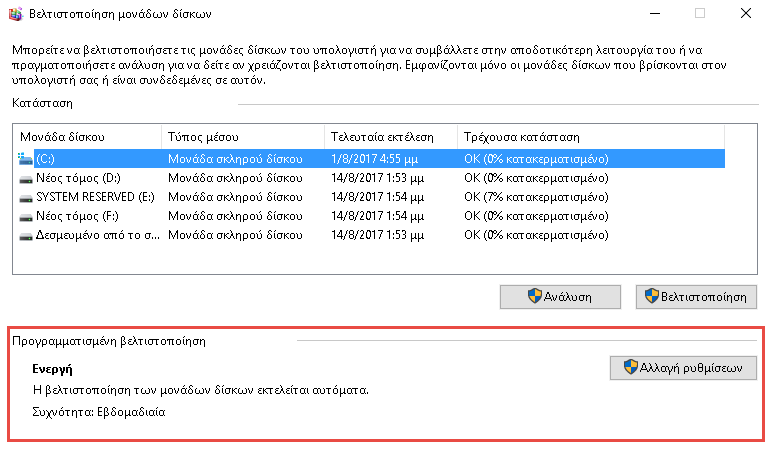
Disk defragmentation helps keep a hard disk drive (HDD) running at its best, but you shouldn't run it on SSDs (Solid State Drives). Windows knows which drive is on your system and automatically schedules defragmentation, but you should check.
Type defrag in the Start menu to open the Defragmentation and Optimize Drives tool.
You will see every disk on your computer and its status. Windows will “optimize” SSDs and automatically defragment hard drives. Make sure the Scheduled optimization option is Enabled.
Not updating Windows
In Windows 10, you can temporarily disable updates, but they still run on their own. If you're still using Windows 7 or Windows 8, you have more control over Windows Updates and can even disable them completely. We don't recommend it, of course. Without updates, your computer is vulnerable.
You can manage Windows Update to make it work for you, but don't disable or ignore the updates that appear. If everyone had been more diligent with updates, the devastating ransomware attack in May wouldn't have had so many victims.
Not creating backups
If you use a computer, there is no excuse for not backing up your data.
Many people say, “I don’t have anything important,” but is it true? Even if you don’t have important documents, or photos that are irreplaceable, what about the time you’ve spent on your system, or the time you’re going to spend recovering files? 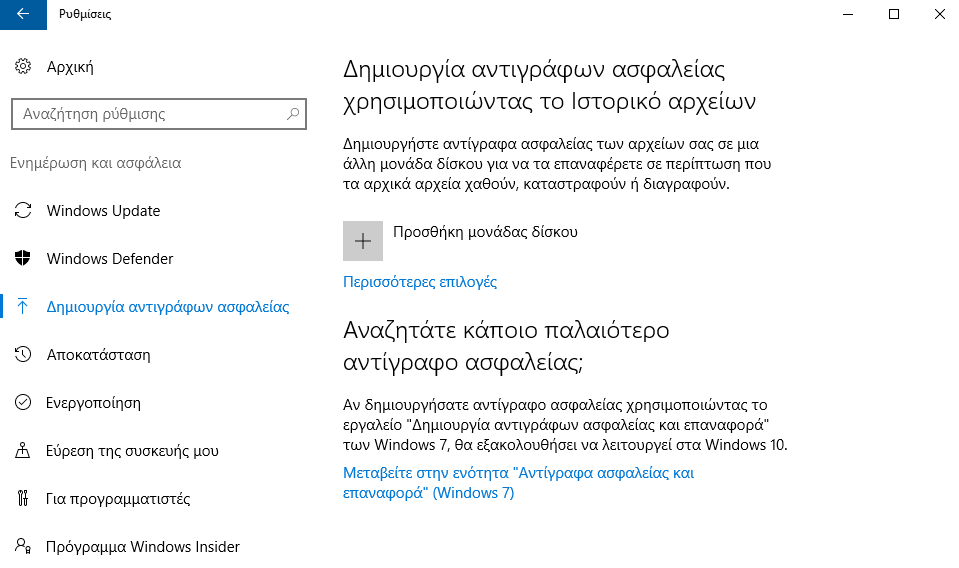
Luckily, backing up your data isn't difficult at all. Once you're set up, you can forget about it. You can use the built-in backup tools in Windows or try a third-party solution. Both will allow you to back up locally (e.g. to an external hard drive) or somewhere online.
RAM optimizers
Like Registry cleaners, there are applications that claim to “optimize” your computer’s memory (RAM). It’s best to avoid them. We reviewed CleanMem, a popular application, and found several issues with the developer’s methods.
Modern versions of Windows do a great job of managing RAM on their own. Avoid using apps that require too much RAM like Chrome. If your computer doesn't have a lot of RAM, running an optimization tool won't be the solution anyway.
Many processes at startup
One of the most common causes of a slow computer startup is loading too many applications at startup.
While it's extremely convenient to have some applications open with your computer, like Skype, there are others you don't need, like Adobe Reader, Spotify, and more, that waste resources.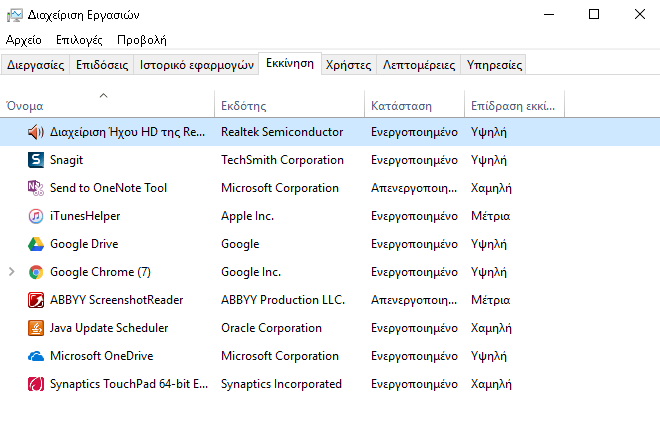
It’s very easy to stop applications you don’t need. Simply open the task manager and go to the “Startup” tab. From there, by right-clicking on the application, you can disable it completely so that it doesn’t run automatically when your system starts.
Non-Physical Maintenance
Much of Windows maintenance is software-based. However, there are also physical issues that could affect the performance of any system. Make sure you ventilate your computer's hardware, and that it is in a dust-free environment.
Regular hardware maintenance will ensure that your software continues to function well.
Maintenance for the Wise
The above errors could slow down your system's performance or even crash it completely. Easy to avoid. By avoiding junk software, and letting Windows do its own cleaning while taking care of your hardware, your computer will continue to run well for a long time. And when you do encounter a problem, try the thousands of free ones before paying for maintenance tools.
