

Apple has released the new iOS 16.3 with the long-awaited support for Hardware security keys, to provide an additional layer of defense against phishing attempts and unauthorized access to your devices. This is the third major update to the iOS 16 that was first released in September. iOS 16.3 comes more than a month after the release of iOS 16.2, and the most significant addition is these physical security.
Hardware security keys are small, stick-like devices that support USB-C (with an adapter) or near-field communication (NFC) to connect to a Mac or iPhone. They offer a secure and convenient way to protect your online accounts from cybercriminals and other malicious actors.
See also: Apple Watch saves a pregnant woman's life
These small devices can essentially be used as an additional verification step when using two-factor authentication for Apple ID, instead of the standard six-digit verification code that usually appears on the devices.
Apple's Hardware Security Keys are designed to be kept on a keychain or wallet and must be near the device for a successful login. This method offers an additional layer of security against those malicious actors who try to gain unauthorized access to the account remotely.
Many cybercriminals commonly create phishing with the aim of stealing Apple ID credentials and the one-time passwords sent to devices.
However, once an Apple ID is configured with a security key, even with an advanced phishing attack that can steal credentials , the remote attacker cannot log in as they do not have access to the hardware security key.
See also: Apple: How has it managed to avoid layoffs?
Set up a security key on your iPhone
For optimal protection, Apple recommends using two security keys with iOS. One should be carried with you and the other kept in a safe place in case you lose the first one.
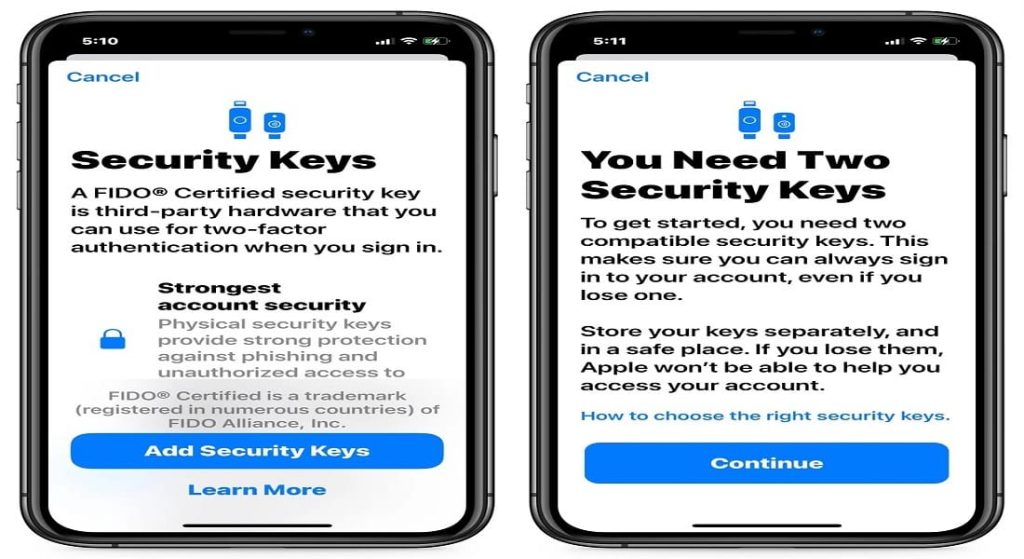
To set up security key authentication on an iPhone, go to Settings > Click your name > Password & Security > then select Add Security Key.
You'll then be asked to verify that both of your security keys are ready. Then, you'll need to add the first one by placing the gold NFC part of your security key on the top of phone .
After you select the security key, a message will appear asking you to connect the second one.
After you connect both devices, you'll be asked to review the list of devices associated with your Apple ID and decide if you want to disconnect them.
See also: Apple is accused again of unfair regulations in the AppStore
Once the setup process is complete, any time you need access to your Apple ID, whether to install apps, make a purchase, or sign in to another device, you will need to tap the security key at the top of your phone to complete two-factor authentication.
According to BleepingComputer, the feature works with the YubiKey 5 NFC, YubiKey 5C NFC, and Google Titan . Apple says the YubiKey 5Ci and FEITAN ePass K9 NFC security keys are also compatible.
If you don't want hardware security keys to be used, go back to the “Security Keys” setting and click “Remove All Security Keys.” Once they're removed, you'll automatically revert to six-digit verification codes.
Source: www.bleepingcomputer.com
