

Microsoft Edge is a great alternative to Google Chrome on Windows and Mac. If you also use the Microsoft Edge browser, then you might want to know how to clear browsing history to maintain your privacy after browsing.
See also: Microsoft fixes bugs in Microsoft Edge 91

First, you need to open Microsoft Edge. Then, click on the menu (three dots) from the toolbar.
Select “Settings”.
Go to the “Privacy, Search, and Services ” section from the sidebar. You will find the “ Clear Browsing Data Now ” section. Click on “ Choose What To Clear .”
From the “Time Range” section,select the time period for which you want to clear your browsing data. You can clear data from the last hour, the last day, the last week, or the last four weeks. Of course, there is also the option to clear all browsing data. In this case, tap the “All Time” option.
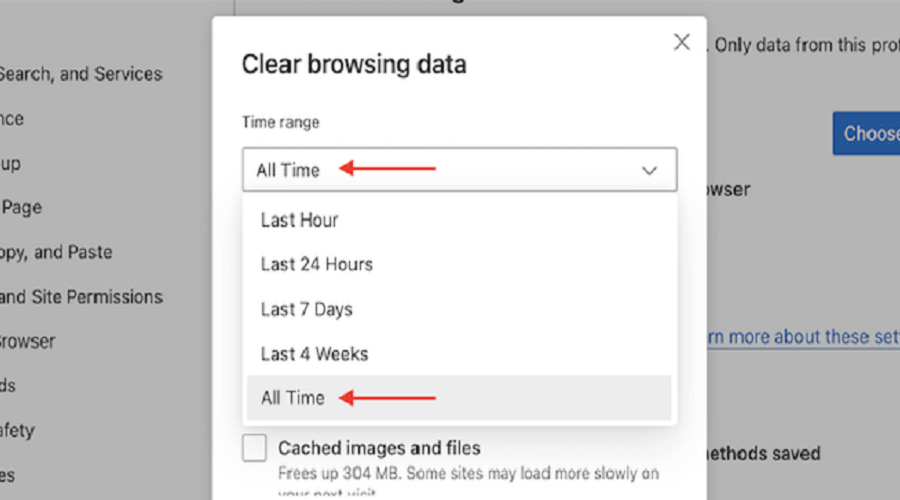
You will then be prompted to select the types of browsing data you want to delete from your Microsoft Edge. The available data types are:
- browsing data
- download history
- cookies and other site data
- cached images and files
- passwords
- autofill form data
- website rights
See also: Microsoft Edge: How to disable online shopping coupons
Select the data you want to delete and click the “now” button.
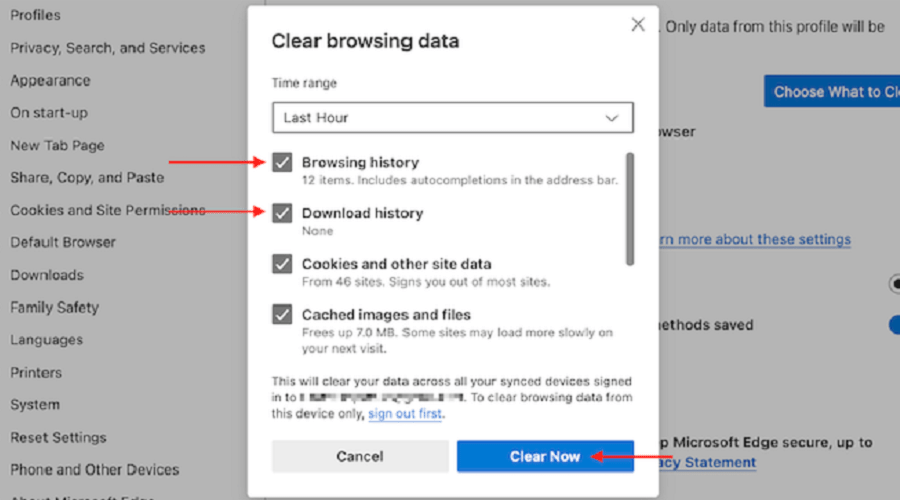
However, you should keep in mind that this will also delete the data that is synchronized with your Microsoft account (if connected).
Once you have completed the above steps, you can close the “Settings” tab and continue browsing.
See also: Microsoft Edge: Add automatic HTTPS selection for all domains
However, if you want to delete your Microsoft Edge browsing history frequently, you don't have to follow this process all the time. Edge has a feature that allows you to automatically clear your default browsing data every time you close the browser!
Source: How-to-geek
