

Google Drive is one of the most popular cloud storage services that offers numerous features to its users. Of course, you just need to know them to be able to make the most of them.

If you're a Google Drive aficionado , then you should know that it offers more than just storage space. If you're new or a casual user of this service, then it's a good idea to spend some time learning some of its features to become a little more productive.
In this article we will show you some useful Google Drive tips and tricks that will help you get that extra something from the service.
1. Sending large file attachments via Gmail
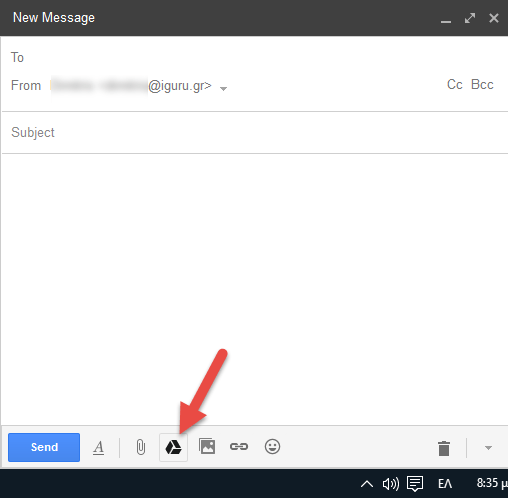 With Gmail you can send attachments up to 25MB. But not if you use both services at the same time. You can send files stored in Google Drive as attachments in Gmail as large as 10GB!!. But an important advantage is that you don't have to upload them again since the two services are directly connected (it doesn't matter how big the file is). Just click the “Import files using Drive” button next to the “attach files” button to add files from Google Drive.
2. Save anything online directly to Google Drive
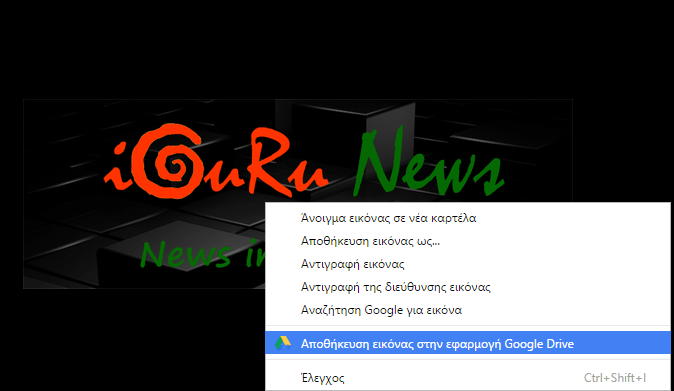 This feature allows you to save any online content from the web to Google Drive, using a Chrome extension. You will need to download the “Save to Google Drive” extension for Chrome. It will allow you to save online text (in Google Docs), images, audio and video files directly to Google Drive.
3. Use of OCR Technology
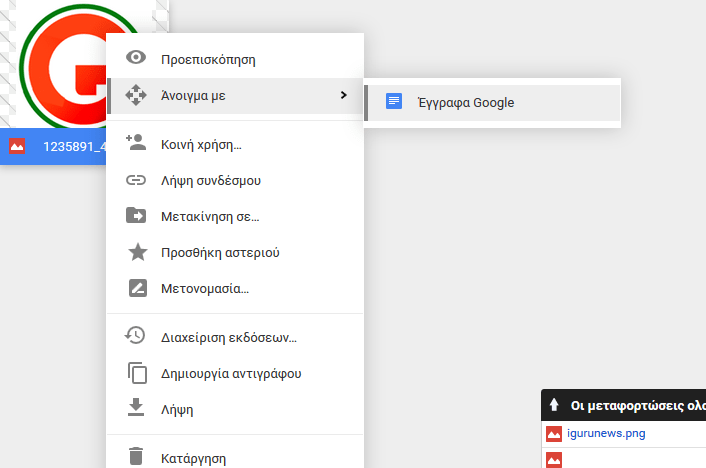 Google Drive comes with a character recognition technology known as OCR (Optical Character Recognition) that allows you to extract text from photos and PDF files. The process is simple: right-click on the file while in Google Drive and place the cursor over “Open With” and then “Google Docs”. The file will open in Google’s word processor and will be fully editable. If it is a photo, you will see the photo in the word processor and below it the text it contains. Of course, the text that is extracted will not be perfect, but it will be good enough, if the image is clear.
4. Shortcuts
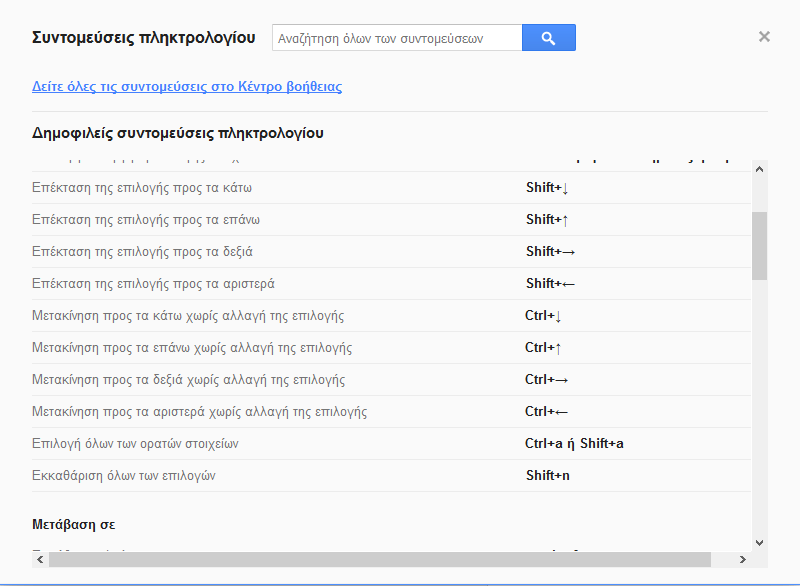 Similar to other Google apps, Google Drive comes with keyboard shortcuts. You can see them by tapping the gear icon at the top right of your screen and then selecting “Keyboard Shortcuts.” A window will appear with all the shortcuts listed. Memorize the ones you need and you’ll be able to work faster.
5. Upload files with Drag and Drop
To upload files to the Google Drive web interface, you don't necessarily need to click the "New" button and select the file you want to upload. Simply drag and drop the files from your computer into your browser window that has Google Drive open. Your command should be recognized and your files will be uploaded automatically.
6. Put Google Drive on your Surface
If you want to quickly access a folder in Google Drive, then the best thing to do is to pin it to your desktop. Go to the folder you want, hover your mouse over the URL in your browser, highlight it, and drag it to your desktop. This will create a shortcut that will take you to that folder in Google Drive whenever you click on it.
7. Listen to online audio files
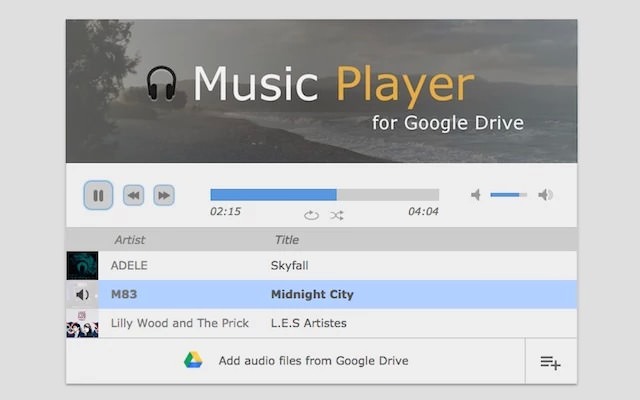 If you want to listen to audio files on Google Drive, you can download the Chrome Music Player for Google Drive. It will allow you to play audio files from Google Drive through the extension's interface.
