

These days fewer and fewer people store ISO images on disks and use them as bootable media. Nowadays USB drives have replaced them as they are faster and more convenient for someone to install an operating system on a machine.
While there are many tools to create a bootable USB drive, there is also a way to do the same without any software. All you have to do is follow the steps below:
[su_button url=”https://www.secnews.gr/103951/vicenza-adopting-zorin-linux/” target=”blank” style=”noise” background=”#f16f26″ color=”#0404047" wide=”yes” center=”yes” radius=”20" icon_color=”#ffffff”]See more: The Italian city Vicenza adopts Zorin Linux &says goodbye to Windows[/su_button]
Create a Bootable USB without any software on Windows 10:
- Insert your USB flash drive into the computer.
- Search for 'cmd' in Windows 10 from the taskbar, the Command Prompt will appear. Alternatively, you can open the Command Prompt by pressing windows+R simultaneously and typing 'cmd' in the 'Run' window and then press enter.
- Right-click on Command Prompt and select 'Run as Administrator' if you searched for cmd in the Windows 10 Taskbar.
- When the Command Prompt window appears, type diskpart and press enter. Wait until the diskpart utility runs in the other window.
- In the new diskpart window, type list disk and press enter. It will show you all the active disks on your computer.
You are most likely to see two Disk types.
- Disk 0 for the hard drive,
- Disk 1 for your USB Flash Drive.
Because we want to create a bootable USB drive, we will work with Disk 1.
- Type select disk 1 in the same window and then press Enter. You will see a message 'Disk 1 is now the selected disk'. This means that any other action you take from here on will directly affect disk 1.
- Type clean and then press Enter to remove all data from the USB drive. The Clean command will format your bootable drive. You will see a message like 'Diskpart succeeded in cleaning the disk'.
- Type create partition primary and press Enter. A message like this will appear: Diskpart succeeded in creating the specified partition.
- Type select partition 1 and press Enter. This will select partition 1 to set up as the active partition.
- Type active and press Enter. It will activate the existing partition.
- Type format fs=ntfs quick and press Enter. This command will format the selected partition as NTFS file system quickly.
- Type exit and press Enter. The Exit command will close the Diskpart program. But not the Windows command prompt.
[su_button url=”https://www.secnews.gr/97370/usb-2-0-killer-%cf%80%cf%8e%cf%82-%ce%ba%ce%ac%cf%88%ce%b5%cf%84%ce%b5-%ce%b5%cf%8d%ce%ba%ce%bf%ce%bb%ce%b1-%ce%bc%ce%b9%ce%b1-%cf%83%cf%85%cf%83%ce%ba%ce%b5%cf%85%ce%ae-usb/” target=”blank” style=”noise” background=”#7a26f1″ color=”#0404047″ wide=”yes” center=”yes” radius=”20″ icon_color=”#ffffff”]Read more: USB 2.0 Killer – How to easily fry a PC with a USB device[/su_button]
Copy the files from an ISO image from your PC/DVD to the USB manually:
All you need to do is open the files on the DVD or the ISO file, copy them and paste them onto the USB manually. This will make your USB drive bootable.
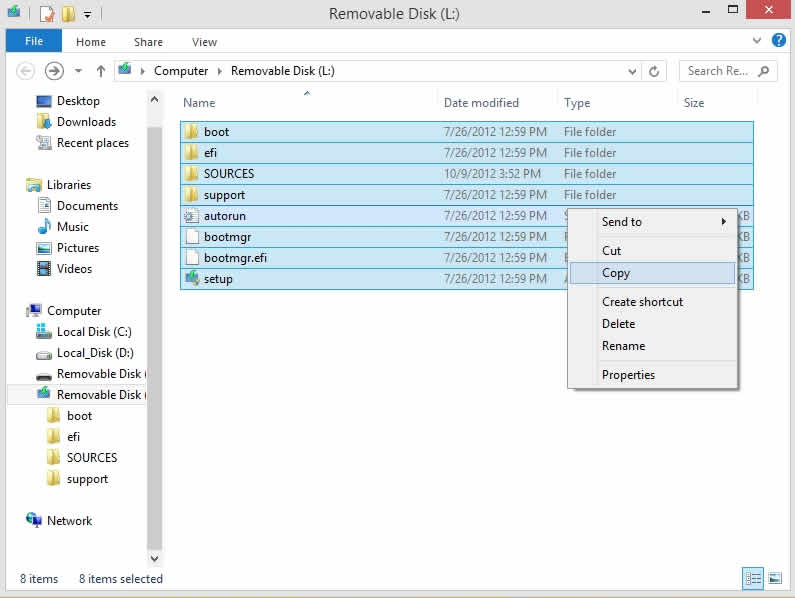
Copy files from a DVD to USB using CMD:
Let's assume that the USB drive is the G: drive and the DVD installer is located on drive E:. And you have inserted a DVD into the DVD drive from which you want to copy the data to create a bootable USB drive.
By default, the Command Prompt active directory for Administrator permission is in C:\Windows\System32>. We will make the Command Prompt on the DVD (E:) as the active directory. Remember that there must be a DVD in the DVD installer.
- Type E: and then press Enter. The active directory will change to E.
- Type cd boot and press Enter. Now the active directory has changed to E:\boot>
- Type bootsect /nt60 g: and press Enter. It will create the boot sector on the G: drive (USB Flash drive).
- Type exit and press Enter to close Command Prompt.
Up to this point you have managed to create a bootable USB drive and the flash drive is ready to be used as boot media.
[su_button url=”https://www.secnews.gr/102976/%ce%ac%ce%bd%ce%b8%cf%81%cf%89%cf%80%ce%bf%ce%b9-%cf%87%cf%81%ce%b7%cf%83%ce%b9%ce%bc%ce%bf%cf%80%ce%bf%ce%b9%ce%bf%cf%8d%ce%bd-%cf%80%ce%b5%cf%84%ce%b1%ce%bc%ce%ad%ce%bd%ce%b1-usb/” target=”blank” style=”noise” background=”#8cf126″ color=”#0404047″ wide=”yes” center=”yes” radius=”20″ icon_color=”#ffffff”]Read also: People still use thrown USB[/su_button]
To install Windows from a bootable USB drive, you simply need to copy all the installation files of the DVD installer to the USB flash drive.
- To do this, open the Command Prompt as we mentioned above.
- When it opens, type copy e:\*.* /s/e/fg: and press Enter. Wait until all the DVD installer files are copied to the flash drive. Double-check the drive letters of your USB and DVD. Here, de is the drive letter of the DVD drive that has the Windows DVD, g is the drive letter of the External USB Stick.
Now the bootable USB drive is ready to use to install Windows from your Flash drive!
