

If Adobe Photoshop isn't working as it should, you might be able to fix it by resetting the Preferences (Settings). There are two ways to do this, and we'll show you how.
See also: How to switch between dark and light themes in Photoshop
How to Reset Photoshop Preferences in Photoshop
If Photoshop opens without problems, use the Preferences menu to reset the application.
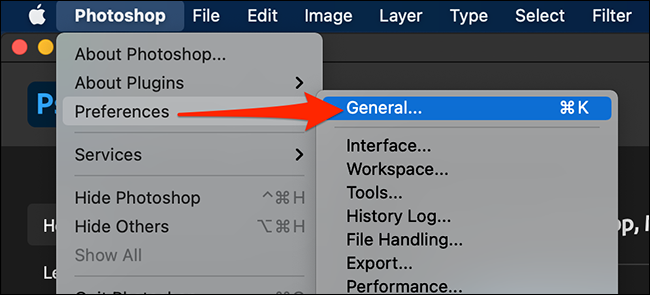
To do this, open Photoshop on your computer. Then, if you're using a Windows computer, click "Edit" in the menu bar and select Preferences > General. If you're using a Mac, click "Photoshop" in the menu bar and select Preferences > General.
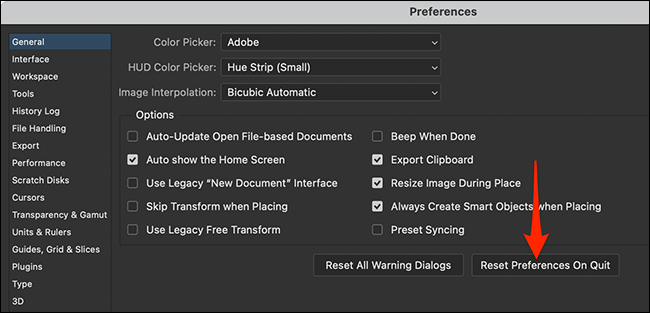
In the Preferences window that appears, click “Reset Preferences On Quit” at the bottom.
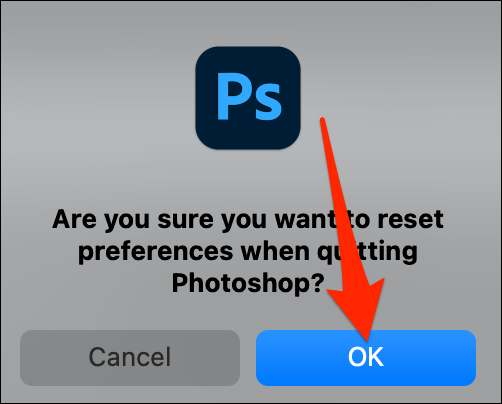
Click “OK” on the warning that appears on your screen.
Then, click “OK” to close the preferences window.
You will need to close Photoshop to complete the Preferences reset. To do this, using the menu bar, click File > Exit (on Windows) or Photoshop > Quit (on Mac).
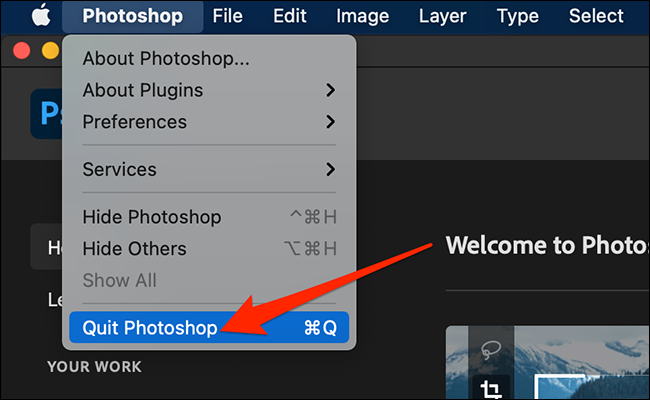
Restart Photoshop and you will find that your “Preferences” have been reset to their default values.
See also: Adobe patches critical vulnerabilities in Photoshop and Digital Editions
How to Reset Photoshop Preferences with a Shortcut Key
If Photoshop won't open or keeps crashing, you can reset Photoshop Preferences with a special keyboard shortcut on Windows and Mac.
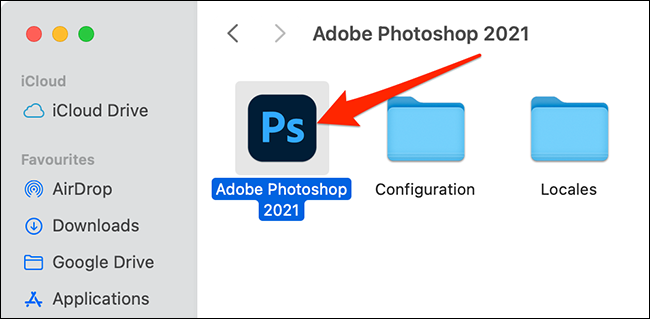
First, locate the Photoshop shortcut you usually use to open the application. To do this on Windows, open the “Start” menu and search for “Adobe Photoshop.” On a Mac, in a Finder window, click Go > Applications in the menu bar, find and double-click the Photoshop folder, and you’ll see the “Adobe Photoshop” application file.
See also: How to change screen modes in Photoshop
With the shortcut in view, press and hold Alt+Ctrl+Shift (on Windows) or Shift+Command+Option (on Mac) while opening the program.
When Photoshop opens and asks if you want to delete the settings file, click “Yes.”.
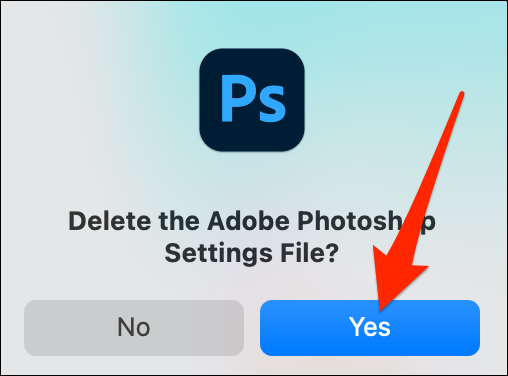
After that, Photoshop will start with the default settings, as if it had just been installed.
Information source: howtogeek.com
