

If you frequently lose the tiny mouse pointer in Windows 10 on your screen, there is a way to quickly locate the arrow by pressing the Ctrl key. See how you can enable it.
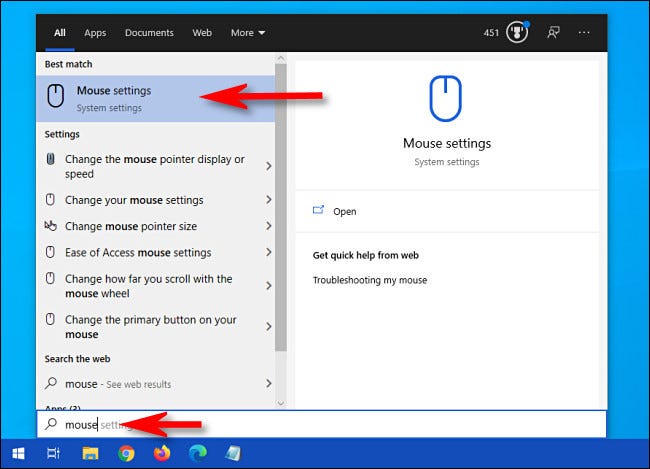
First, open the Start and type “mouse.” Then, click the “Mouse settings” shortcut that appears.
See also: Windows 10's Timeline feature is being downgraded
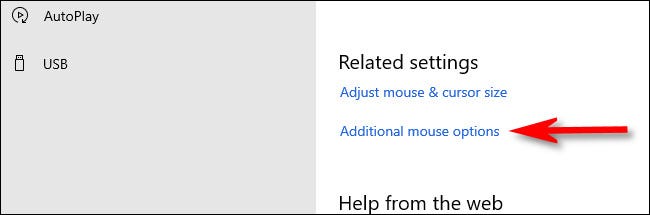
In Mouse settings, locate the section “Related settings” and click the link “Additional mouse options”.
See also: Download torrents easily and quickly on Windows 10 and Android
When the “Mouse Properties” window opens, click the tab and place a check mark next to “Show location of pointer when I press the CTRL key.” Then click “OK.”
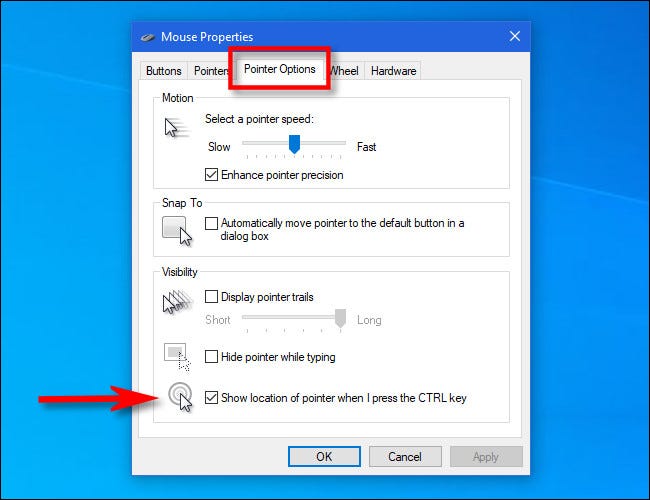
The “Mouse Properties” window will close. Now, whenever you cannot find the mouse cursor on the screen, simply press the Ctrl key. A moving circle will appear around the cursor.
See also: Automatically back up Windows folders to OneDrive

Use it as many times as you like and you will not lose the mouse cursor again.
Information source: howtogeek.com
