

Often the emails we receive can fill inbox , especially if we use our email for business purposes. If you want to keep your Gmail inbox organized, make sure your emails go to the desired inbox tab by using “filters” for them.

Google offers features that let you sort your emails between auto-sorted inbox tabs (Primary, Social, Promotions). However, you might want one of your favorite newsletters to be sent to your Primary tab so you never miss it .
First, log in to your Gmail account on computer . Once logged in, click on the inbox tab that contains the email you want to migrate.
Then, simply drag and drop the email you want to move to a different tab. For example, if a newsletter generally goes under the Offers tab and you want to move it to the Main tab, simply drag and drop the message to the “Main” tab.
Once moved, a message will appear letting you know that the conversation has been moved to the destination tab. It will also ask if you want to move future messages from this sender to the same tab. Click “ Yes .”
Now, all future emails from that sender will be automatically sorted into the desired tab. However, if you want to do the same for existing emails, you'll need to create a filter.
You can create filters to automatically move emails to different inbox tabs. To do this, click the gear icon in the upper-right corner of the window.
In the “Quick Settings” menu, click “View all settings.”
You will now be in the Gmail “Settings” menu. Here, click on the “Filters and blocked addresses” tab.
In the “Filters and Blocked Addresses” tab, there will be two sections. In the filter section, click on “Create new filter”.
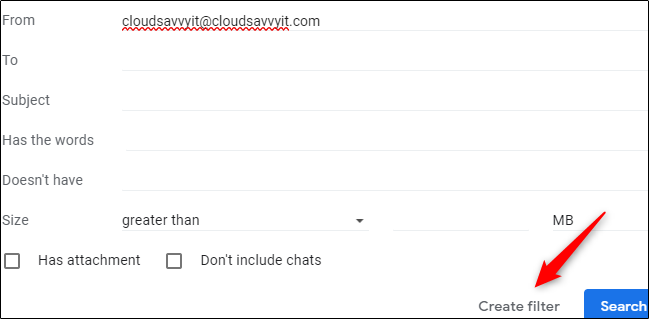
Once selected, a new menu will appear. Here, fill in the criteria for the emails you want to move:
From: Specify the sender of the email.
To: Specify the recipient of the email.
Subject: Words in the subject of the email.
Has the words: Messages that contain specific keywords.
Does not have: Messages that do not contain specific keywords.
Size: Emails that are larger or smaller than a specific size (in bytes, KB, or MB).
Has attachment: Emails that contain attachments.
Do not include conversations: Exclude conversations from the filter.
Once you have entered your filter criteria, click “Create Filter.”
Next, you need to specify where to move the email when your criteria is met. At the bottom of the window, check the box next to “Categorize as” by clicking on it, then select the down arrow to display a drop-down menu.
Select the category you want emails to be delivered to.
Finally, click “Create Filter.” You will then receive a notification stating that your filter was successfully created.
