

Gone are the days when you needed a dedicated GPS unit for navigation. Thanks to Google Maps, all you need is a smartphone to get turn-by-turn directions. With home screen shortcuts on Android, it's even easier to use.
Typically, the process of getting directions involves opening the Google Maps app, searching for a location, finding the one you want , and starting navigation. If you do this every day, it can get really tedious after a while.
Google will show you the locations you visit most often, making the process a little easier, but it could all be improved even more. By adding a shortcut to the home screen, you can skip all of that and go straight to navigation.
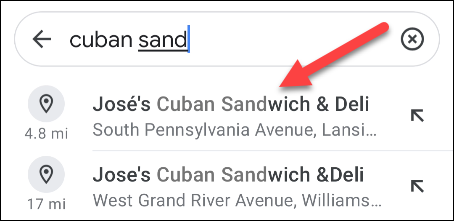
To get started, open the Google Maps app on your Android device. Find the location you want to create a shortcut for
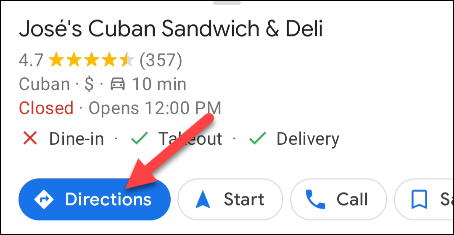
Then, tap “Directions” on the location information card.
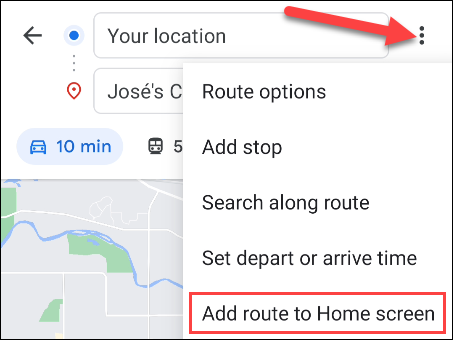
Select the three-dot menu icon in the upper right corner and select “Add Route to Home Screen.”
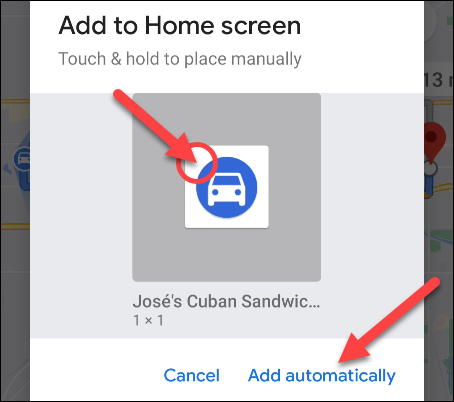
A pop-up window will appear with a shortcut icon. You can long-press the icon to manually place it on your home screen or tap “Add Automatically” to have it placed automatically.
The shortcut will now be on your home screen. Tapping it will open the Google Maps app and automatically start navigating to the location.

This is a great way to easily access the sites you visit most often. You can keep all these shortcuts in a folder on your home screen and know where to find them.
Information source: howtogeek.com
