

Devices like Chromecast with Google TV can display a Google Photos slideshow as a screen saver. If you want to use your TV as a giant photo frame, we'll show you how to set it up.
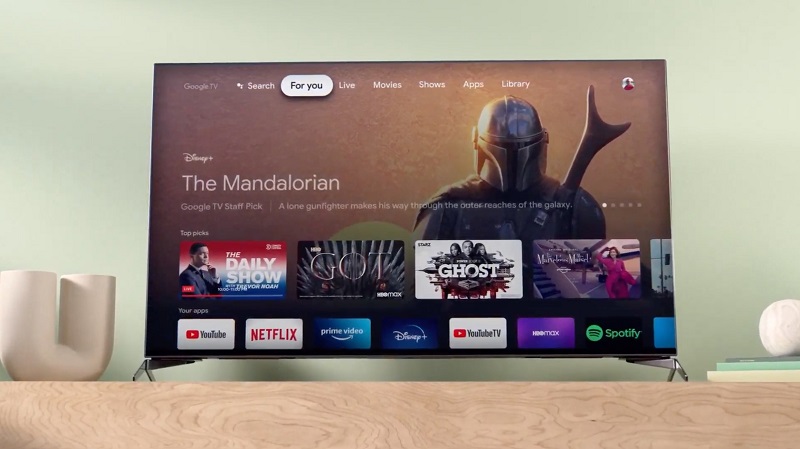
During the initial Chromecast, you'll be asked to select "Ambient Mode." This is what Google TV devices call a screen saver. Google Photos is one of the options during setup, but if you didn't select it then, you can do so now.
First, of course, you'll need to be a Google Photos user to be able to use the feature. The other thing you'll need is the Google Home app for iPhone, iPad, or Android, where the setup.
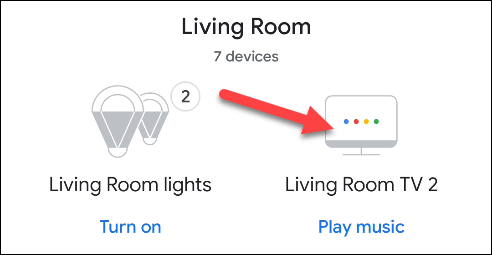
Open the Google Home app on your phone or tablet , find your Google TV device, and select it.
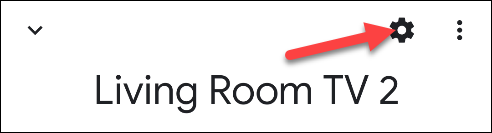
Tap the gear icon in the upper right corner of the device page .
Then, select “Ambient Mode” from Device Settings.
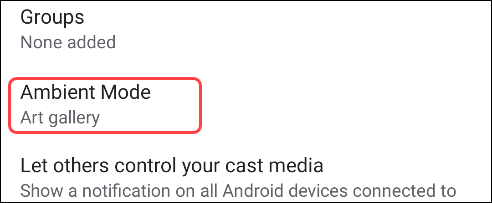
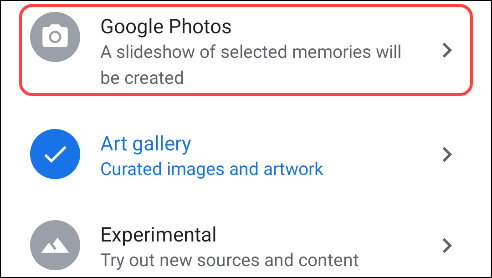
Now you will see the various options (Ambient Mode). Select “Google Photos” from the list.
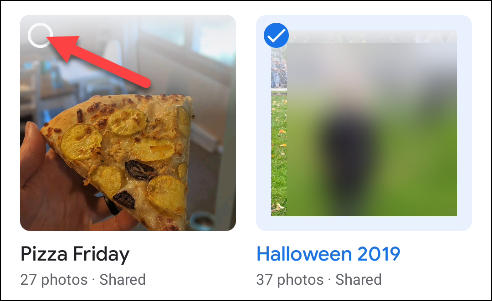
Albums from your Google Photos account – the account associated with the Google Home app – will appear. Select all the albums you want to see in Ambient Mode on Chromecast with Google TV.
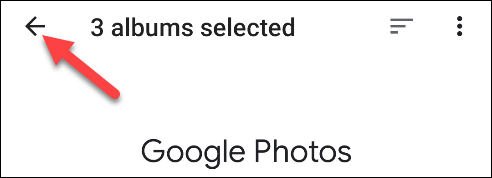
When you're finished selecting albums, tap the arrow in the top left corner to continue.
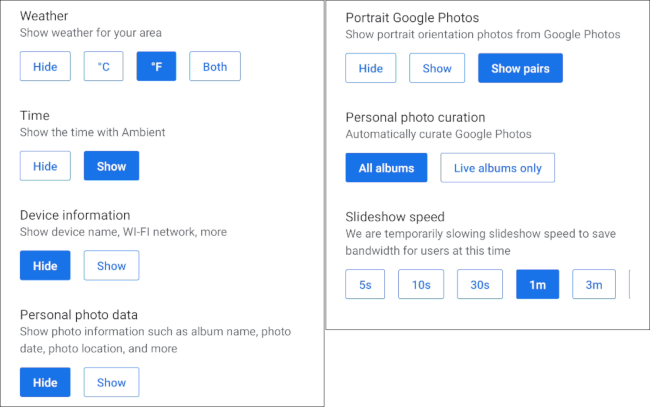
Then there are a bunch of additional Ambient Mode options. You can choose to display the weather, time, device , and personal photos. You can also place portrait photos side by side, enable “photo curation,” and adjust the speed of the slideshow.
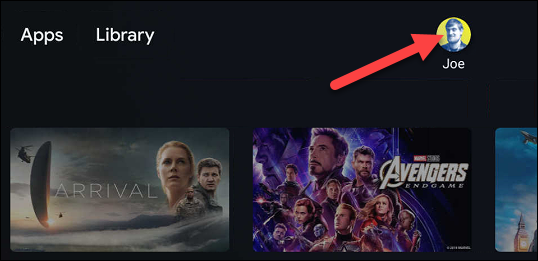
The last thing you might want to adjust is how long the slideshow will run . On your Google TV device, select your profile icon in the top right corner of the home screen.
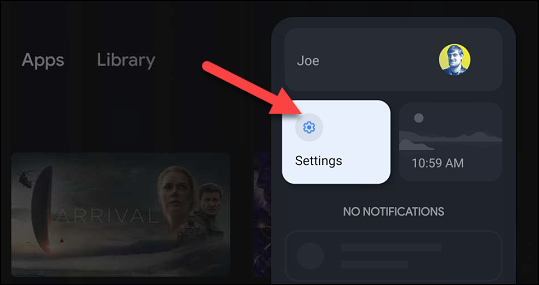
Then, select “Settings” from the menu.
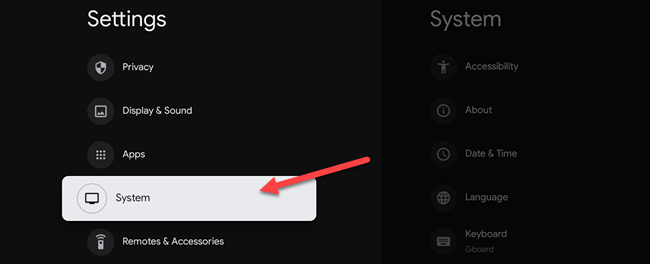
Scroll down and select “System”.
Scroll down again and select “Energy Saver”.

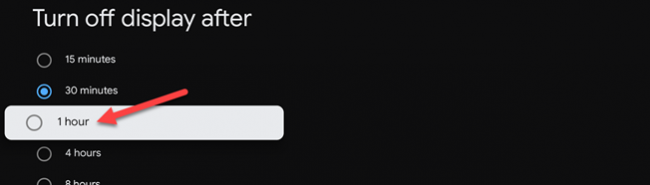
The power saving setting is what determines how long the screen stays on while it's inactive. Select “Turn Off Display” to change.
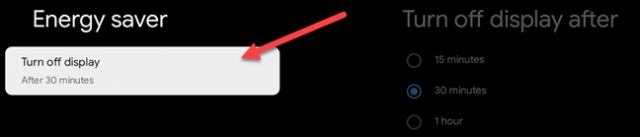
Finally, select one of the time intervals from the list.
That's it! You'll now be able to view your Google Photos albums on Chromecast with Google TV in Ambient Mode!
Information source: howtogeek.com
