

Private Mode in Mozilla Firefox keeps your browsing history private. However, by default, Firefox disables extensions while browsing privately to prevent data leakage. If you want to use a trusted extension while browsing privately, it's easy to enable it. Here's what you need to do.

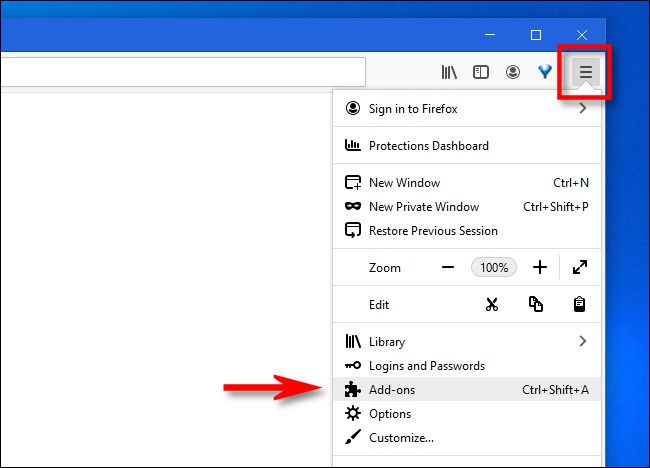
First, open “Firefox.” In any window, click the “Firefox” menu button (three horizontal lines) and select “Add-ons” from the menu.
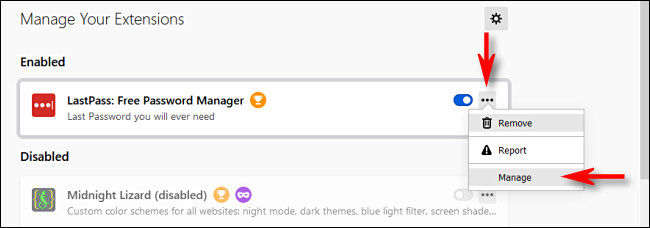
In a new tab called “Add-ons Manager,” you’ll see a list of all your installed Firefox extensions .Locate the extension you want to use in Private mode and click the ellipses (three dots) button next to it. In the menu that appears, select “Manage.”
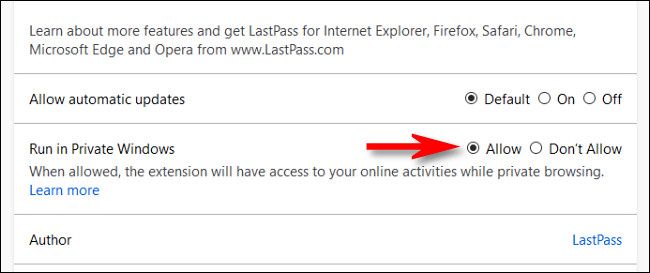
After clicking “Manage”, you will see more details about the extension on a dedicated page. Scroll down and locate the “Run in Private Windows” option. Click the radio button next to “Allow” to enable the extension in Private Mode.
Warning: Any extension you enable has access to browsing , which means the extension could store this data and potentially share it with a third party. Make sure you trust the extension before enabling this feature.
After that, go back to the last page and repeat these steps with all the extensions you want to use in Private mode. When you are done, close the “Add-ons Manager” tab.
The next time you open a private window in Firefox, the extensions you enabled will work as you would expect.
If you need to disable an extension in Private mode again, visit the extension's “Manage” page in the “Add-ons Manager” again and select “Don't Allow” next to the “Run in Private Windows” option. Happy browsing!
Information source: howtogeek.com
