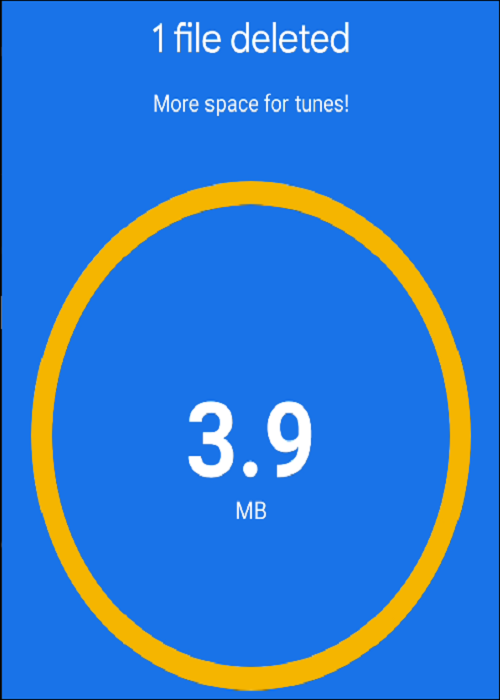
If Android phone doesn't have much space, you'll need to do some cleanup so you can store new files, photos, etc. The Files by Google app has a handy tool to make this process easier.
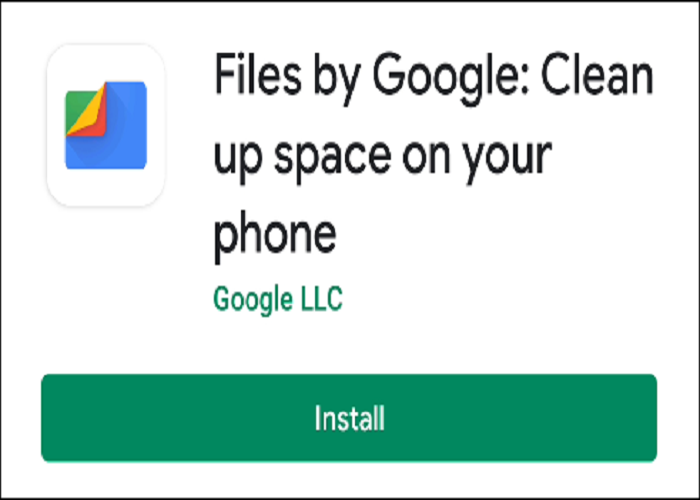
Google's Files comes pre-installed on some phones , but you can also download it from the Play Store. It's a useful tool, as in addition to file management, it also includes a cleanup feature. It identifies things that can be removed from your phone to free up storage space.
To get started, download and install Files by Google on your Android phone or tablet.
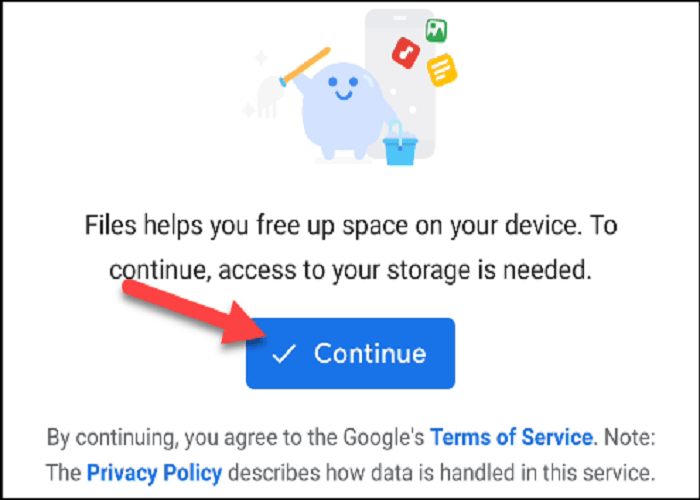
If this is your first time using Files, you will be asked to accept Google 's Terms of Service and Privacy Policy . Tap "Continue" to proceed if you agree.
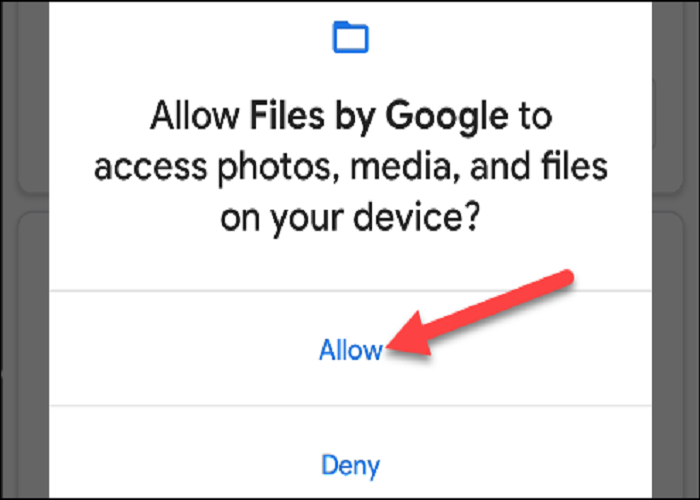
To allow the “Files” app to access your files, tap “Allow” in the pop-up window.
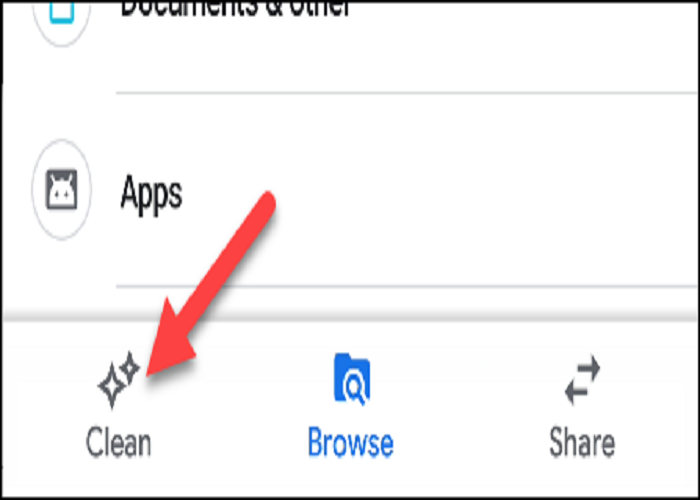
This way, you can start freeing up storage space. Tap “Clean up” at the bottom.
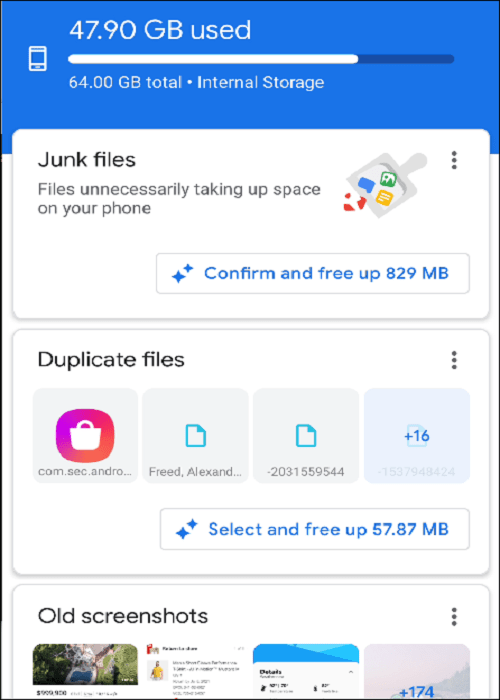
At the top of the page, you'll see how much storage you're using. Below, Google will automatically suggest files you can delete to free up space. Common examples include screenshots, duplicate files, and photos that are already backed up to Google Photos.
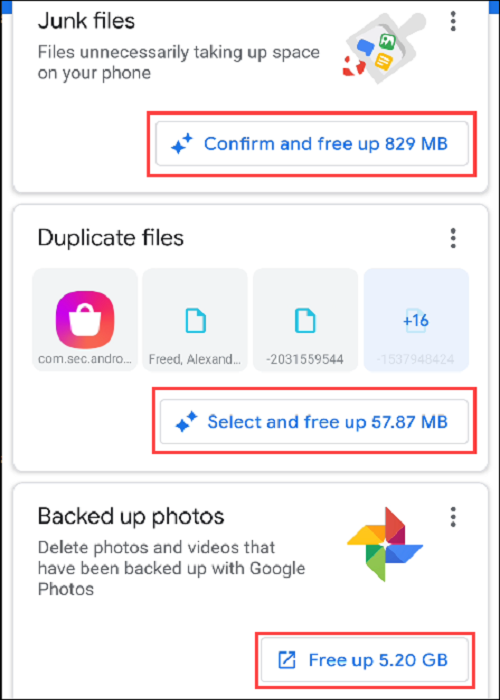
Each of the following categories will have one of three possible buttons that perform slightly different actions:
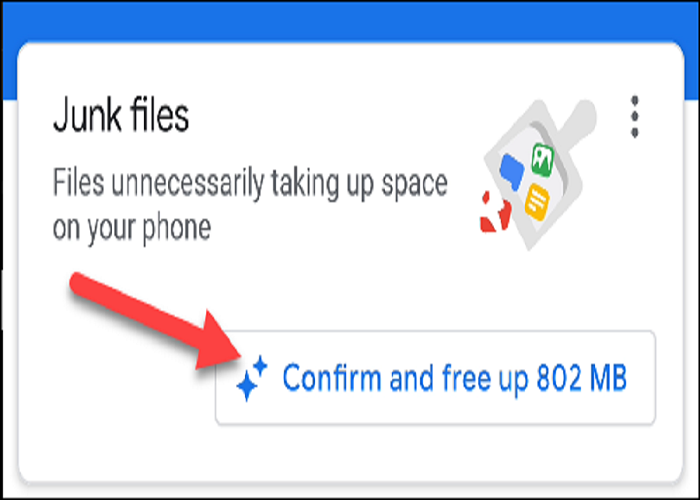
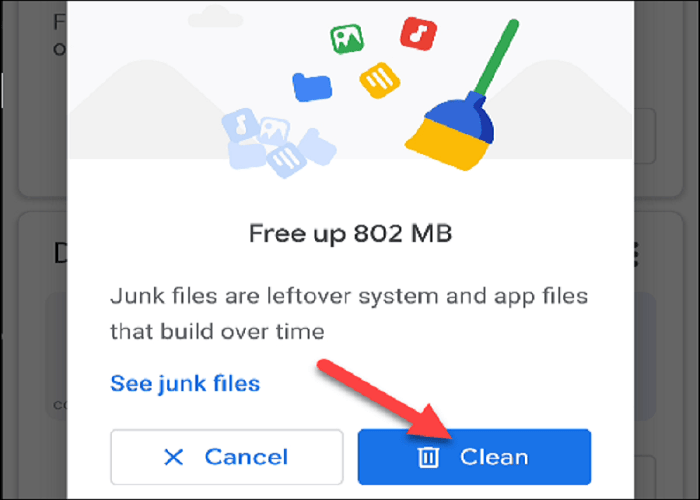
- “Confirm and free up (X) MB”: Where (X) is the amount of space. Tap this to open a pop-up window and do an immediate cleanup, without checking the files first.
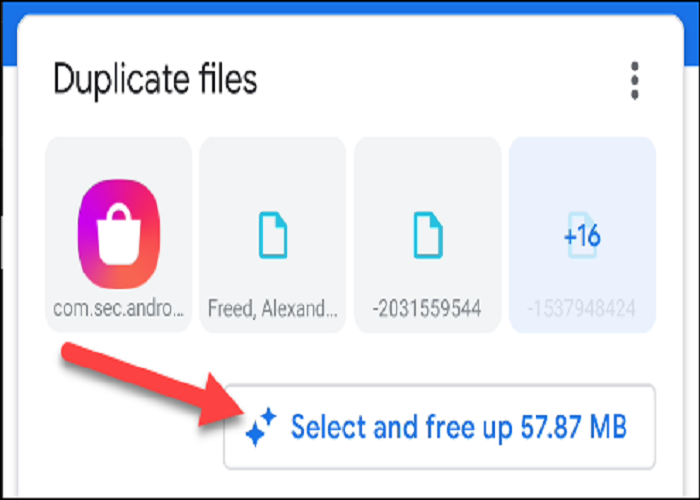
- “Select and free up (X) MB”: Where (X) is the amount of space. Tap this to go straight to the review screen, where you can select the files you want to remove.
- “Free up (X) MB”: Where (X) is the amount of space. This action is specific to Google Photos. Google will suggest removing photos that have been backed up. Tap this option to go to the Google Photos app, where you can choose to free up space.
In the example below (image), “Select and free up (X) MB” has been clicked from the category we want to clean.
A list of files that Google suggests for cleaning appears. In the “Duplicate Files” category, the original files are shown with a bookmark icon in the lower left corner.
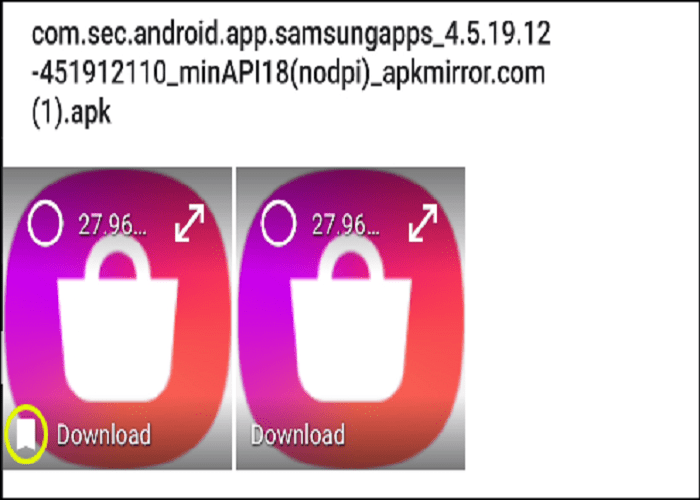
Select all the files you want to remove and press “Delete”.
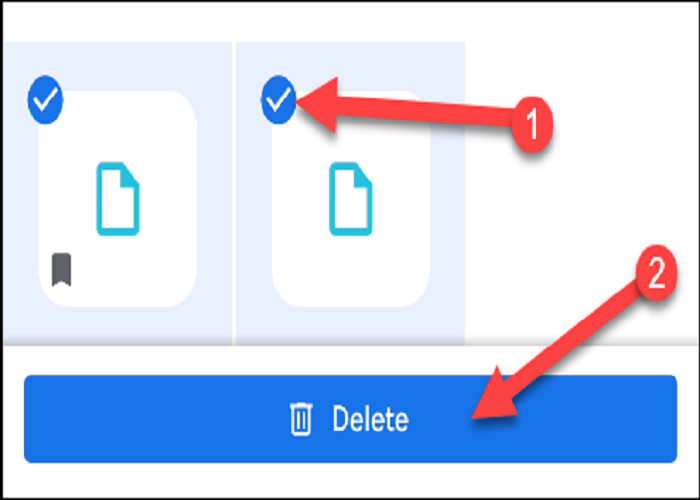
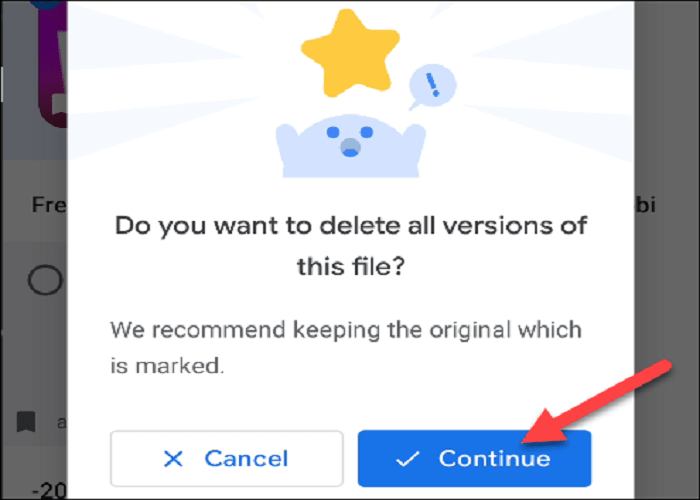
If you select original files in the “Duplicate files” category, you will be asked to confirm your selection. Click “Continue” to proceed.
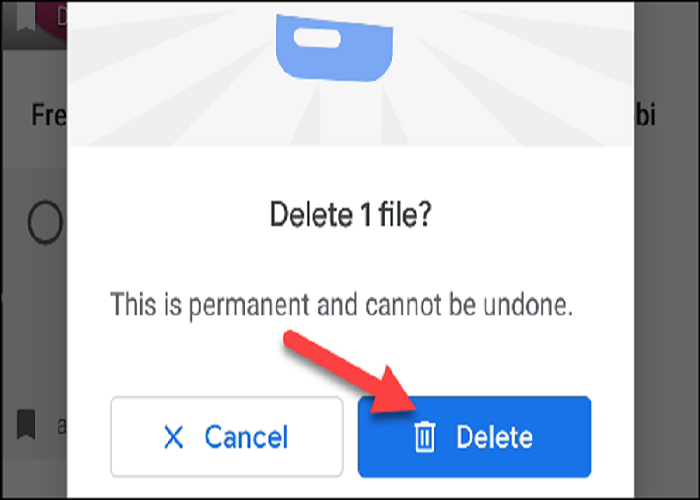
You will be asked once again to confirm your choices. Click “Delete” to permanently remove the files.
If you want to free up space immediately, tap “Confirm and free up (X) MB” (where “X” is the space). This way, you don’t select the files to be deleted.
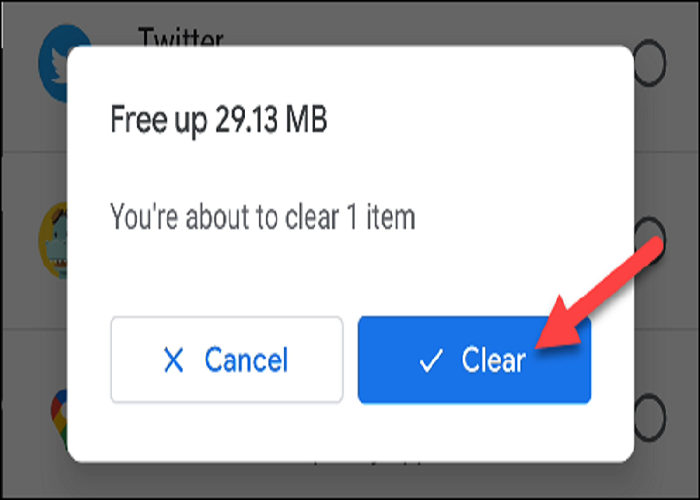
Click “Clear” to remove files without checking them.
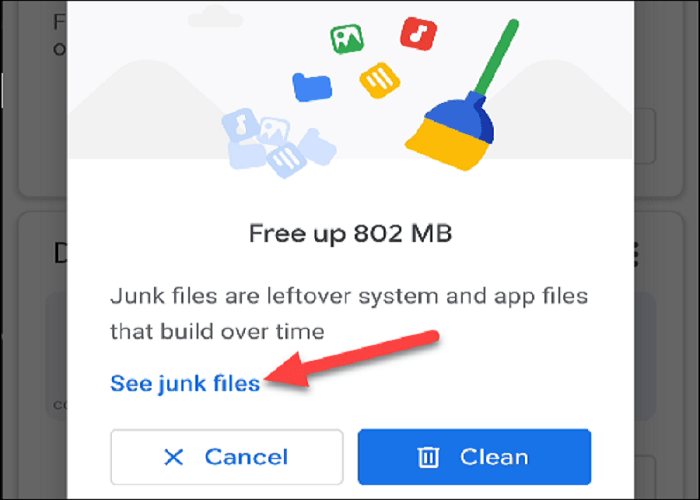
To check files before removing them, tap “Show unwanted files.”.
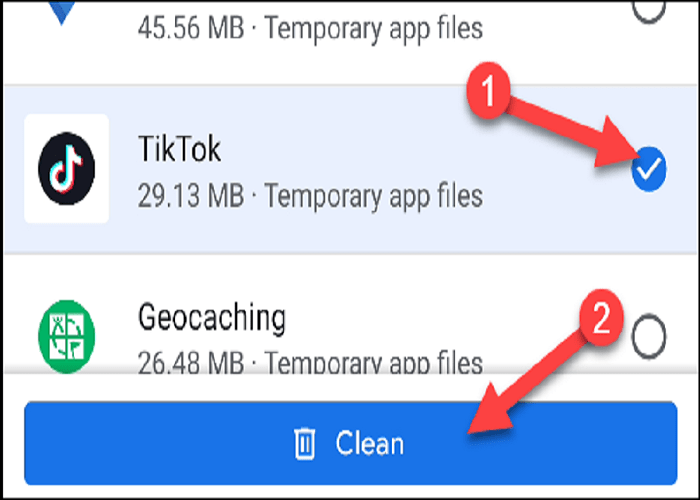
Select all the items you want to remove (or tap “All items” at the top of the screen), then tap “Clear.”.
A pop-up will ask you to confirm your choice. Click “Clear” to continue.
You can repeat the same steps for any of the categories you want to free up space in.