

Have you ever forgotten the password to an encrypted ZIP? Have you ever downloaded a locked file without knowing the decryption password? Fortunately, there are some applicationsthat can help you find or remove the unknown password. Be warned, the process is heavy on most systems. In other words, the program can run for quite a while before it completes.
Step 1) Prepare the system:

- The first thing you need to do is download an application that will help you remove the password from the locked file. Please be aware that by downloading and installing the application, you risk infecting your computer with a virus. Proceed at your own risk.

- It's a good idea to close all applications you're not using. As we mentioned above, the process takes a while, so it's a good idea to free up your system resources.

- Put the locked file on the desktop.
Step 2) John the Ripper.

- The John the Ripper application is a free CLI application that can be used to find lost passwords.

- Download and open the John the Ripper ZIP file.

- Unzip the file.

- Find the unzipped folder, copy it to the desktop, and then name it “john”.

- Move the ZIP file to the John The Ripper folder.

- Open a Command Prompt.

- Go into the John the Ripper “run” folder. You can do this by typing:
cd desktop/john/run

- Type the application launch commands, which are:
- zip2john.exe name.zip > name.hash
- zip2john.exe name.hash
Note: When typing the commands, you must replace name with the name of your file.

- Run the program. This is done by typing:
- john.exe –pot=name.pot –wordlist=john/run/password.lst name.hash

- After the program is complete, you will see “Session Complete”. Type the following command to see the file code (if found):
- type name.pot
Step 3: Select purchased software.
- By choosing to purchase an app, you gain some advantages, such as fewer restrictions and better app performance.

- It's a good idea to choose an application that can use various brute-force techniques. Some good options are: Advanced Archive Password Recovery, Zip Password Recovery Professional, and ZipKey.
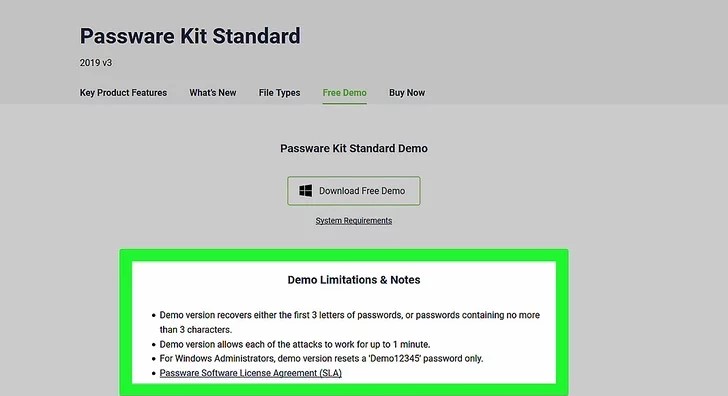
- Purchase and download the app of your choice.

- Install and open the app.

- Select the locked ZIP file.
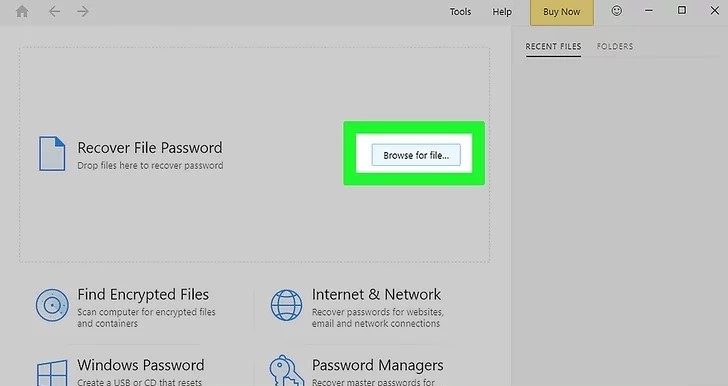
- Choose a search method. If there is a “brute force” option, we recommend using that.

- Start the search.

- After the process is complete, you will see the ZIP file's password.
Source: Wikihow.com
📧
Subscribe to the SecNews Newsletter
