

Firefox, like all browsers, has a private browsing mode with which you can surf the internet without leaving any trace on your computer.

This mode exists for both computers and mobile devices. In fact, private browsing mode does not hide your browsing activity from your ISP, but it ensures that, as far as your device is concerned, there is no trace left behind.
For browsers that do not support multiple profiles, private browsing mode is quite useful. However, if you do not like this feature, either because you are a parent and want to know which websites your children visit, or because you are an employer and want to secure your company from inappropriate visits, or for any other reason, you can disable it in some browsers.
As for Firefox and the Windows operating system, which we will deal with in today's article, let's see what you need to do to disable the private browsing mode feature.
The work is done through the Windows Registry Editor and to continue from here on you must have administrator rights.
Step 1: Open the Windows Registry. If you don't know how, press the Win+R keys simultaneously and in the run window that appears, type Regedit and press the OK button.
Step 2: In the Registry Editor window that appears, go to the following location:
HKEY_LOCAL_MACHINE\SOFTWARE\Policies\Mozilla\Firefox
It is possible that you do not have the Mozilla key under the Policies key. If this is the case, right-click on the Policies key and select New > Key. Name it Mozilla. Then, right-click on the Mozilla key you just created and then select from the context menu this time, New > Key. Name this key Firefox.
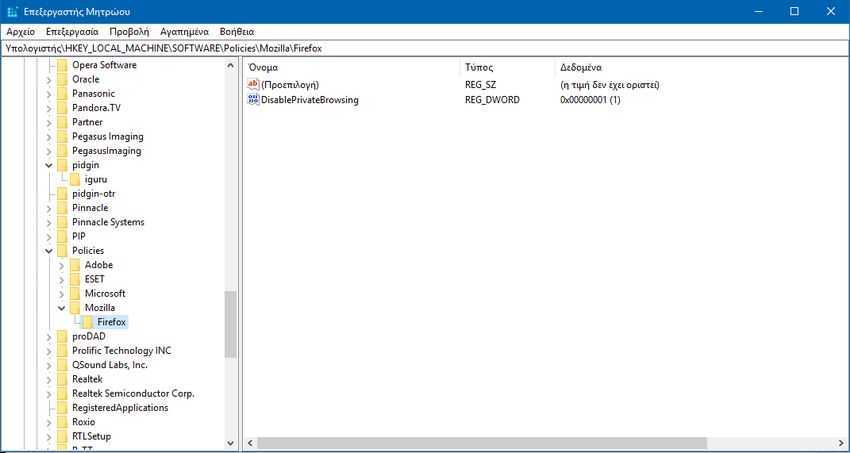
Step 3: Now that you have the registry structured the way you need it, right-click on the Firefox key and select New > DWORD (32-bit) Value. Name the value DisablePrivateBrowsing and set its value to 1. Even if you are running Windows 65 bit you will select DWORD 32-bit. If the DWORD value already exists, then simply edit it and give it a value of 1.
That's it. Now in the Firefox menu the option “File > New Private Browsing Window” is not there. If you regret it and want to restore Firefox to the way it was, simply delete what you created, or set the value of the DWORD value DisablePrivateBrowsing to zero.
