

Usually, letting a Windows computer shut down, restart, log off, or hibernate isn't necessarily a bad thing. However, there are times when you might want your computers to stay on all day, especially if they're in places like schools, offices, showrooms, or stores.

If you need to make sure that your computer stays on for as long as you want, then this article will be useful for you. Let's look at some solutions to this issue.
Using ShutdownBlocker
A first solution is the Shutdownblocker program from Cresstone. This is an application that does exactly what the name suggests. It blocks a computer from shutting down, a user from logging off, and a computer from restarting. You will need to run the program as an administrator. The tool is optimized for Windows 10, but it will work fine on previous versions as well.

Shutdownblocker is extremely simple to use. It only has two options, “Block” and “Allow.” However, keep in mind that if a standard user account has the ability to uninstall a program without administrator approval, then the user could simply uninstall Shutdownblocker and bypass the block.
Block users by adding a new group policy
Want to prevent downtime for all users except the administrator? You can configure Windows with a new group policy.
1. Go to Windows 10 search, type mmc and press enter. This will launch the Microsoft Management Console where you can define how the operating system appears and performs tasks for everyone or only for certain people.
2. Click “File”, then “Add/Remove Snap-In” (or press Ctrl-M for short).
3. Double-click “Group Policy Object Editor” from the left menu.
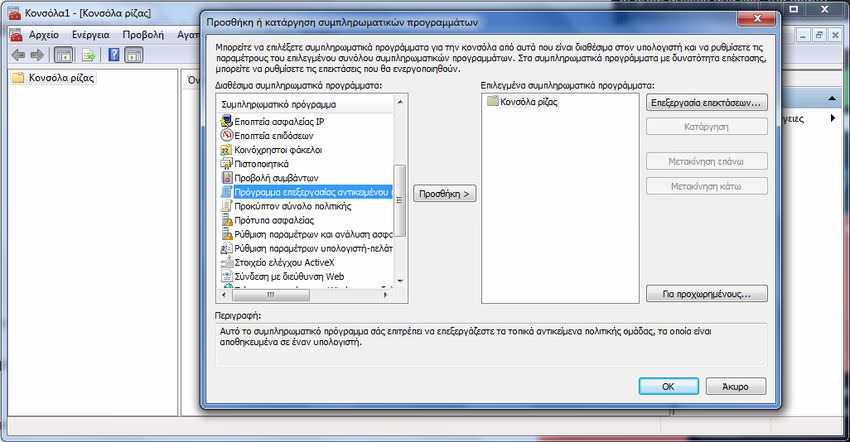
4. Make sure that the message “local computer” appears in the screen frame, and then click the “Search” button.
5. Go to the “Users” tab and select the group of users you want to apply the changes to. In most cases, they will be “non-administrators”. Click the “Finish” button and then the “OK” button.
6. Now, under the “Root Console” heading in the left pane, click on “User Settings”.
7. Select the file labeled “Administrative Templates”.
8. Open the folder labeled “Taskbar and Start Menu”.

9. In the menu on the right there is an option called “Remove and prevent access to the Shut down, Restart, Suspend, and Hibernate commands”. Double-click on this option.
10. Click on “Enabled”, and then on “OK”.

Following these steps above will effectively prevent shutdown, restart, sleep, and hibernation from the Start menu.
How to Cancel a User Shutdown Command
While this option isn't exactly blocking a user from shutting down the computer, if you or a user initiates a shutdown, there's a quick way to reverse the process.
1. Open a Command Prompt. To do this, press the Windows Key + R keys and in the Run window, type cmd (or cmd.exe) and press Enter.
2. Type shutdown /a (before your system has a chance to shut down) and press Enter. The shutdown command will be canceled.
All of the above certainly won't be able to stop the experienced user from shutting down your system (after all, they can still unplug the machine), but it will definitely prevent the average user, student, or employee from shutting down the computer.
