

Are you thinking of creating a bootable Windows 10 USB drive and you like using the command line tool? Below we will see how you can do it without the Windows 10 Media Creation Tool (x86 – x64) because you just like using the command line.
Before you begin, you'll need the Windows 10 .ISO file – you can download it from various unofficial sources, but also from Microsoft itself, via the Windows 10 Media Creation Tool.
Open the command prompt as administrator (search for cmd, right-click and select “Run as administrator”), type “diskpart” without the quotes and press enter.
Alternatively, open the Start menu, type “diskpart” without the quotes, and click Yes if prompted by UAC.
Plug in your USB drive. Type “list disk” without the quotes and press enter.
From the Size column you can understand where your USB drive is located
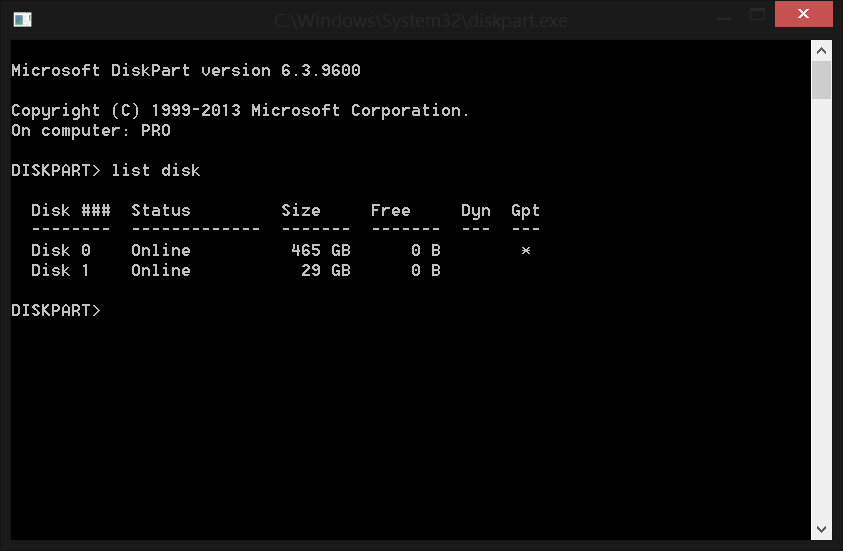
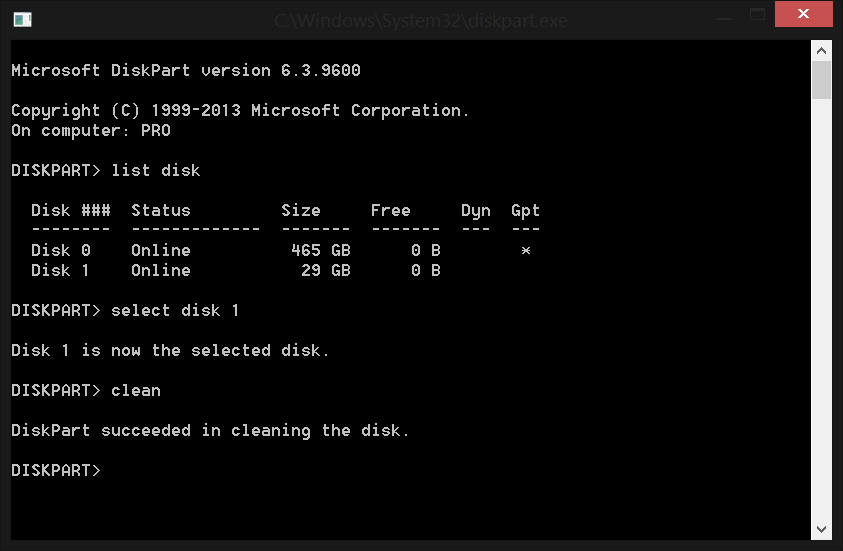
Our USB is at number 1, so we will type the next command which is “select disk 1” without the quotes. Press enter.
If you haven't made a backup of the contents of your USB, this is your last chance.
Immediately after that, type “clean” without the quotes and press enter to erase the USB.
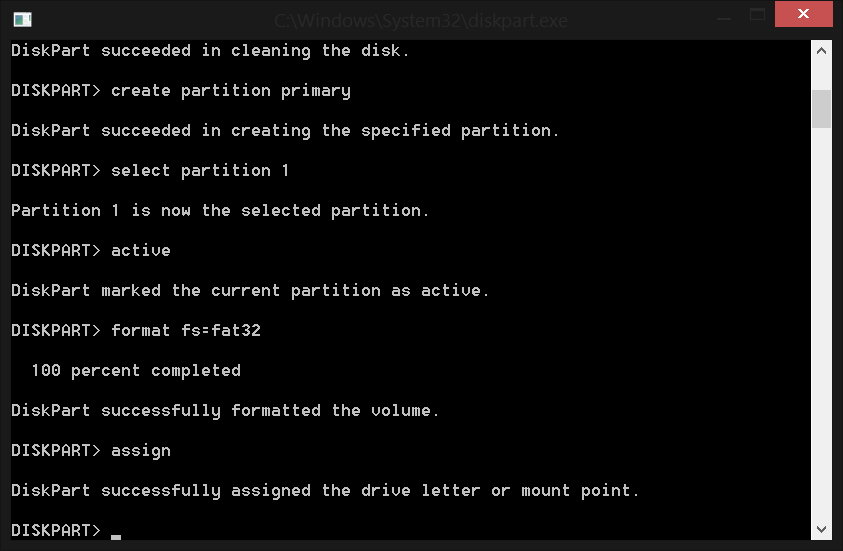
Now we will prepare the USB to make it bootable. Type “create partition primary” without the quotes and press enter.
Then, type “select partition 1” without the quotes and press enter.
Immediately after that, type “active” without the quotes and press enter.
Finally, type the command “format fs=fat32” without the quotes and press enter. The command will format your USB drive to FAT32 using the quick routine. (If you choose to format to NTFS instead of FAT32, you will then need to run a separate command to pass compatible boot manager files to your USB so that the device is bootable.)
This process will take some time, depending on the size and speed of your USB drive.
Immediately after, type “assign” without the quotes and press enter to assign a new drive letter to your USB. Your USB drive will probably open automatically (if it doesn’t, you’ll find it in My Computer or This PC). Remember the drive letter (in our case it’s H).
You can now extract the contents of the .ISO file (from Windows Explorer or using your favorite extraction tool), and copy them directly to the USB drive.
Another way is to mount the .ISO with your favorite tool (we used UltraISO) and from there perform the transfer via command line as described below:
Close the diskpart window and open cmd again.
Type “xcopy g:*.* /s/e/fh:” without the quotes, where “g:” is the drive letter of the .iso file and “h:” is the drive letter of the USB drive. Don’t worry if install.wim takes a while to copy: It’s the largest file on the disk.
Type “exit” without the quotes and press enter.
You're done. Now you can install Windows 10 from your USB drive.
