

FlashBoot is a program with two versions, one free and one paid, that, among many other things, can be used to create a standalone running copy of Windows on a USB Flash Drive.
With the free version you can create a Windows 7, 8.1 or Windows 10 installation on a USB Flash drive as well as other additional features, such as installing DOS or UEFI on a USB Flash drive or performing various commands on the USB drive, such as a quick format or a secure erase. The paid version adds other interesting features, such as the ability to copy the active Windows installation to the USB drive (clone) that you can later run from the drive.
Note that you need an ISO image of the operating system you want to install on the USB drive. You can use third-party programs or a third-party service, such as Adguard, or download Windows 10 and other Windows versions from Microsoft.
The free version of FlashBoot is available as an installer and is compatible with all recent versions of the Windows operating system. The program displays the following splash screen when you run it after installation.
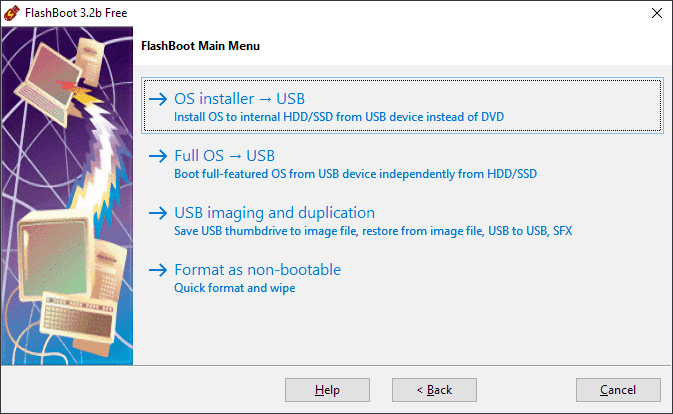
The two main options are listed at the top. The first allows you to format a USB Flash installation drive that will allow you to install Windows from USB instead of a DVD, and the second allows you to format a USB drive that will allow you to install a bootable full version of Windows, independent of your hard drive. The other two options allow you to erase the contents of a USB Flash drive, and save existing content to another storage location or restore its contents.
Select Full OS > USB to get started. The next screen displays all the free and paid options.
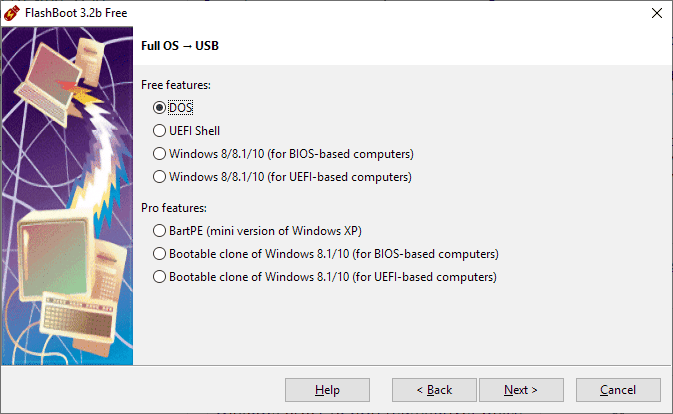
Free uses of the program are limited to creating standalone installations of DOS, UEFI Shell, Windows 8, Windows 8.1, or Windows 10 (the latter two for computers with BIOS or UEFI).
After making a selection, you are prompted to select an ISO or ESD image or insert a CD or DVD with the Windows image, as it is used as the source for the installation.
You are then asked to select which version of Windows is in the image, the USB drive you want to use as the installation drive, and finally select a volume label (optional).
After the build is complete you can run Windows from the USB. It is recommended to use fast Flash for this as you may experience slow loading. You will need to configure the operating system when you run it for the first time.
