

A progress bar is a graphic in PowerPoint that visually represents the percentage of slides in a presentation that have been completed. See below for how to create a progress bar in Microsoft PowerPoint.
The easiest and most reliable way is to use a macro to create a progress bar. With this macro, the progress bar will automatically adjust based on the number of slides in the presentation.

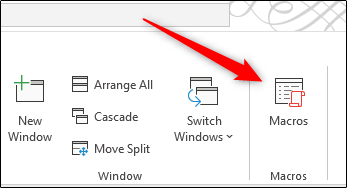
First, open the PowerPoint presentation you want to create a progress bar for. Once it opens, click on the “View” tab, then select “Macros.”.
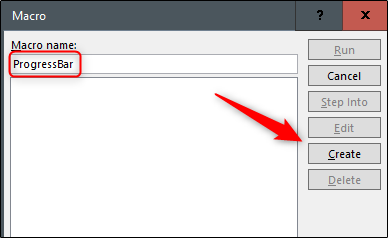
The “Macro” window will appear. In the text box below “Macro Name,” type a name for your new macro. The name cannot contain spaces. Once entered, click “Create” or, if you are using a Mac, click the “+” icon.
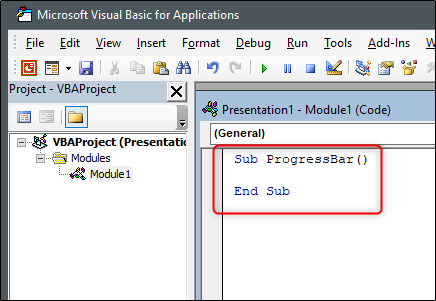
The “Microsoft Visual Basic for Applications (VBA)” window will open. In the editor, you will see this code:

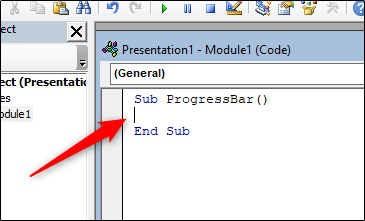
First, place the cursor between the two lines of code.
Then, copy and paste this code:
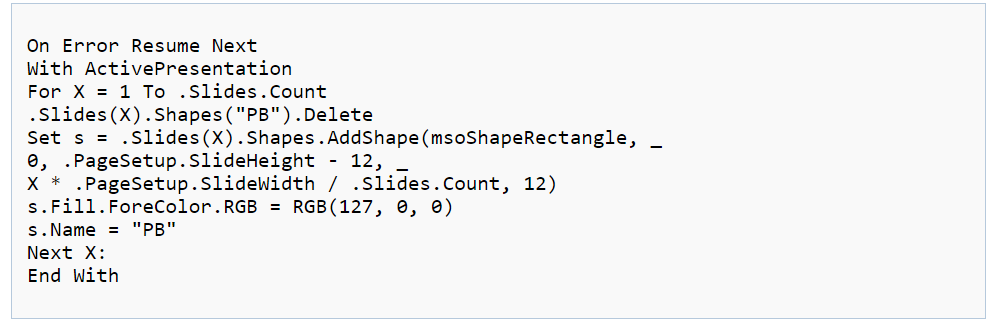
Once pasted, your code will appear like this in the editor.
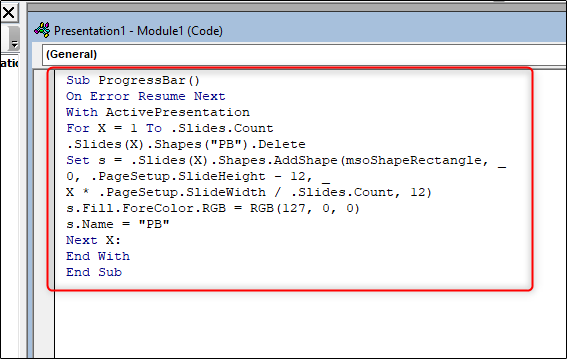
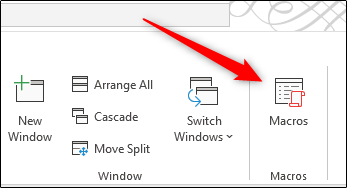
You can now close the VBA window. Back in Microsoft PowerPoint, click on the “Macros” option on the “View” tab again.
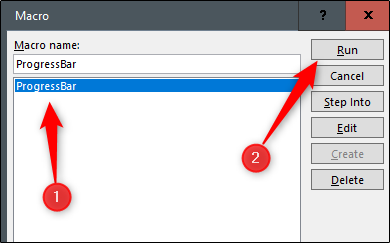
Next, select the name of your macro (“ProgressBar” in our example) to select it, then click “Run.”.
The progress bar will now appear at the bottom of each slide in your presentation.
If you delete a slide, the progress bar will adjust automatically. If you add a new slide, you'll need to run the macro again (View > Macro > Run). It's a minor hassle compared to manually adjusting everything.
Information source: howtogeek.com
