

iPhone shortcuts help you automate tasks, no matter how simple or complex. But did you know that you can run some of your shortcuts directly on your Apple Watch and right from your watch face?

If you're using WatchOS 7 and later on your Apple Watch (and iOS 14 and later on your iPhone), you can use the Shortcuts app on your smartwatch to enable shortcuts. The Shortcuts app on your iPhone automatically recognizes shortcuts that can be executed on your Apple Watch and adds them to a separate “Apple Watch” folder.
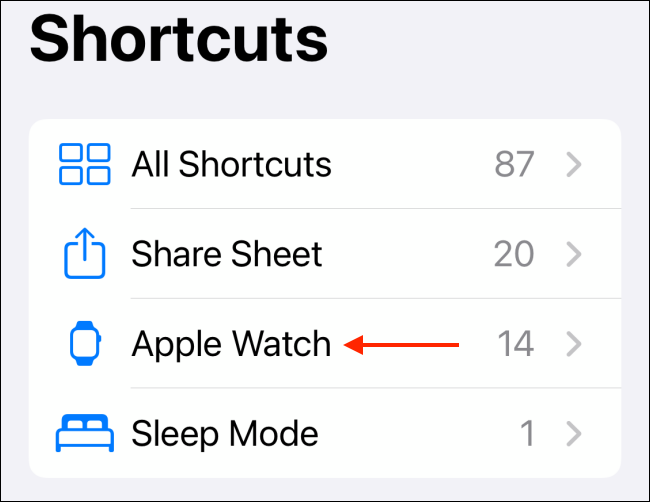
In this guide, we'll focus on adding existing Apple Watch shortcuts directly to a watch. Once added, you can simply tap the shortcut and confirm to activate.
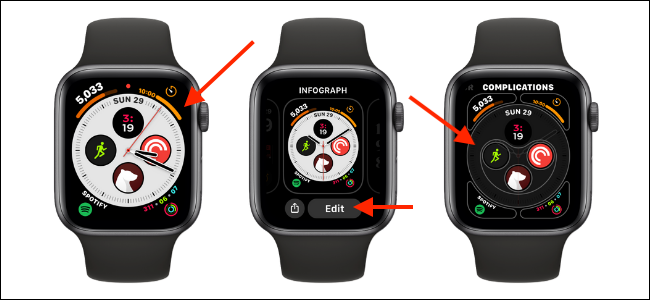
First, go to the “watch face” you want to add the shortcut to as a “complication.” Then, long-press the watch face. From the menu, select the “Edit” button.
Now, swipe left to go to the “Complications” section. Here, tap the complication you want to change.
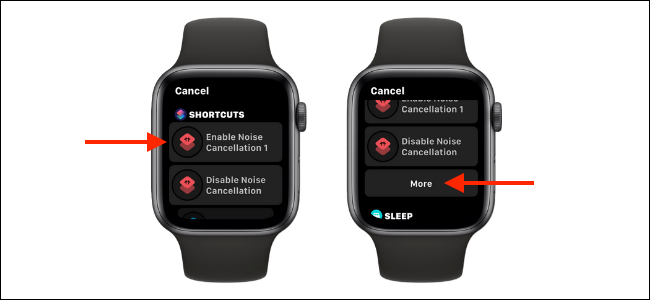
Use the Digital Crown to scroll through the list of all available apps and complications. Here, select a shortcut from the “Shortcuts” section. If you don’t see your shortcut here, tap the “More” button to see a list of all available shortcuts.
Once the shortcut is added, you'll see it in the preview. Press the Digital Crown once to save the layout. Press the Digital Crown once more to return to the watch face.
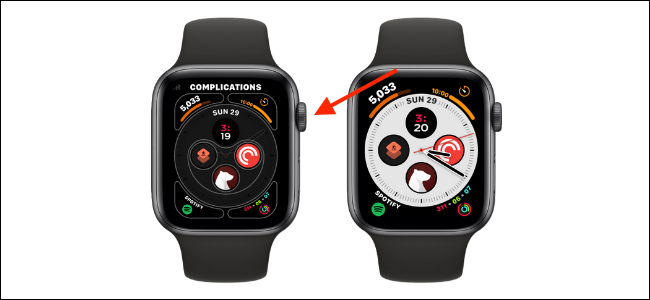
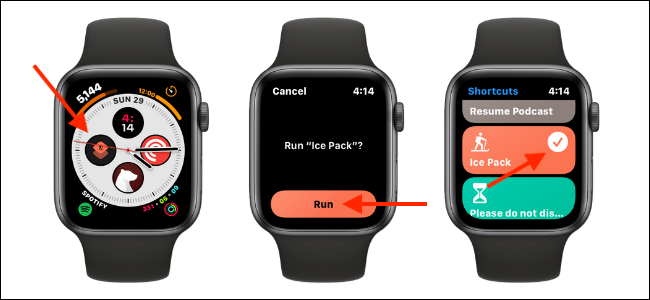
You will see that the shortcut has been added to the watch face.
Simply tap the shortcut to activate it. From the next screen, select the “Run” button and enter any information, if needed. Once the shortcut is executed, you’ll see a visual confirmation from the Shortcuts app.
Information source: howtogeek.com
