

One of the easiest ways to distinguish a chat is to use a unique wallpaper. This way, you won't end up sending messages to the wrong people. See how you can set your own wallpaper for individual WhatsApp conversations on iPhone and Android.
If you want, you can set your own wallpaper in a chat. You can choose one of WhatsApp's built-in options or you can use your own photo.
In contrast to Instagram, WhatsApp's custom wallpaper feature does not sync across all users. Consequently, both parties can have their own custom wallpaper for the same chat.

Set your own wallpaper in chats on WhatsApp for Android
To get started, open the WhatsApp app on your Android smartphone. Here, go to the “Chats” section and open a conversation in WhatsApp.
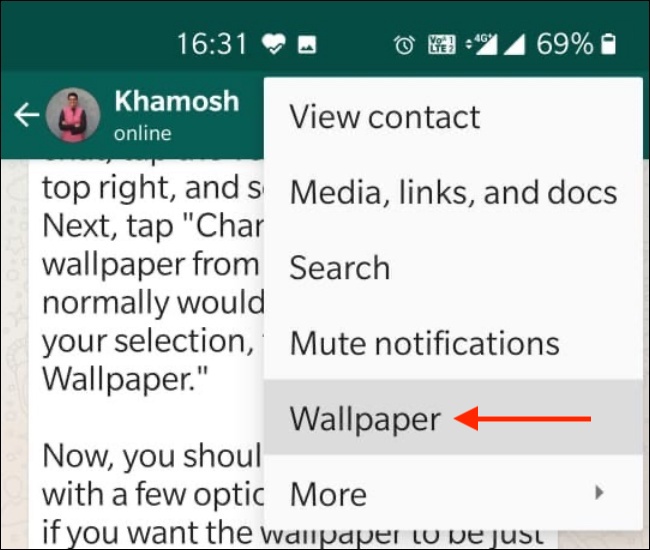
Press the menu button from the toolbar and select “Wallpaper”.
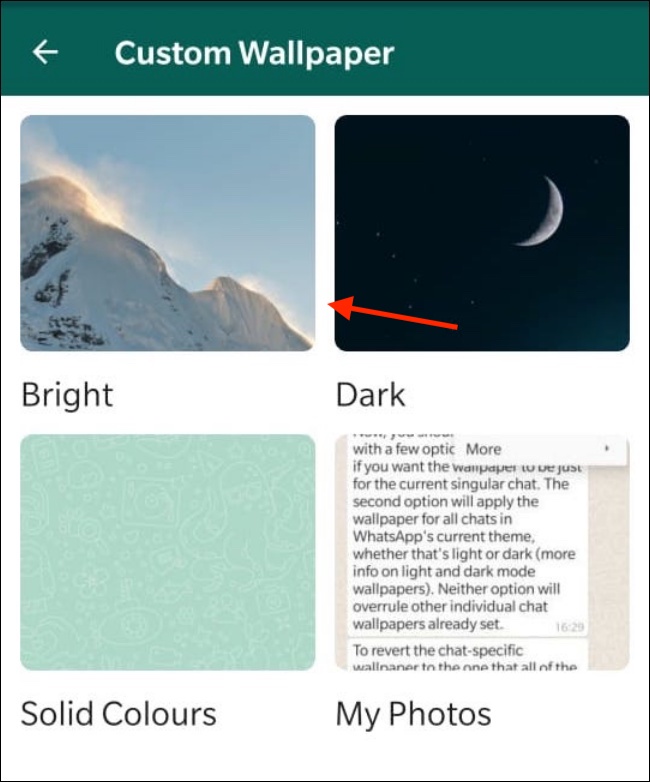
Here, you will see a few options called “Bright”, “Dark”, “Solid Colors” and “My Photos”.
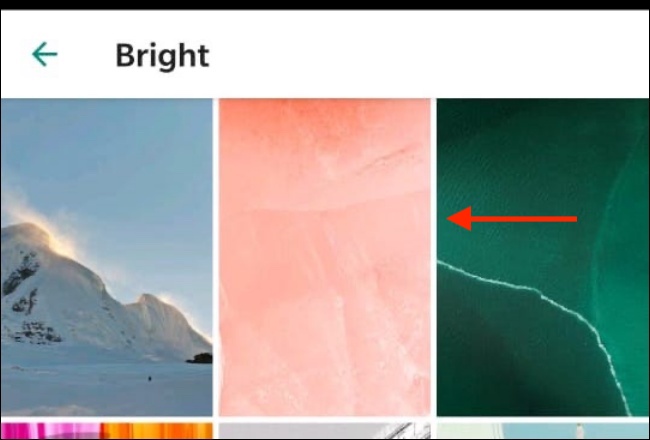
Browse the photos and tap a photo for preview.
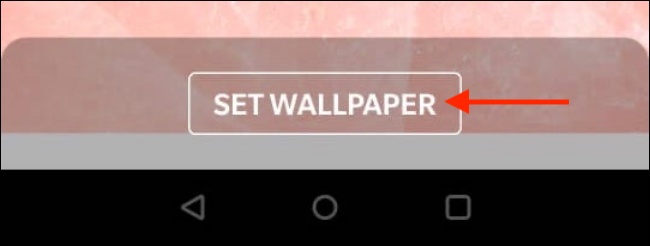
Then, tap the “Set Wallpaper” option.
From the pop-up dialog box, make sure you have selected the “For This Chat” option and press the “OK” button.
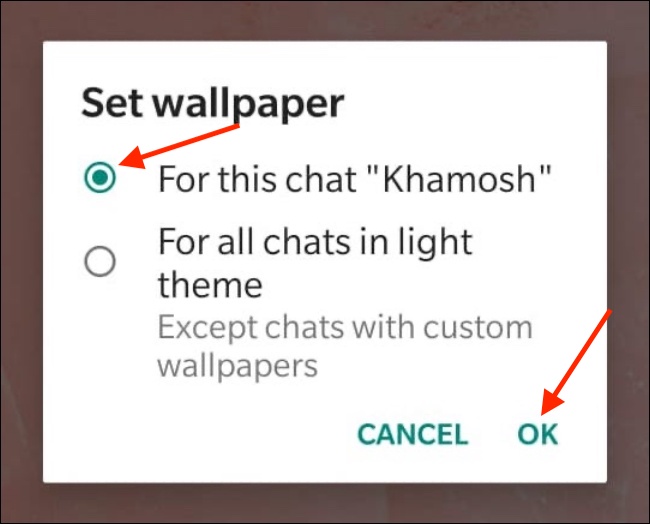
The chat wallpaper has been updated. If you want to remove the custom wallpaper, tap on the menu, go to the “Wallpaper” section, tap the “Change” button, select the “Remove Custom Wallpaper” option, and then tap “Remove” to confirm the change.
Set a wallpaper in chats on WhatsApp for iPhone
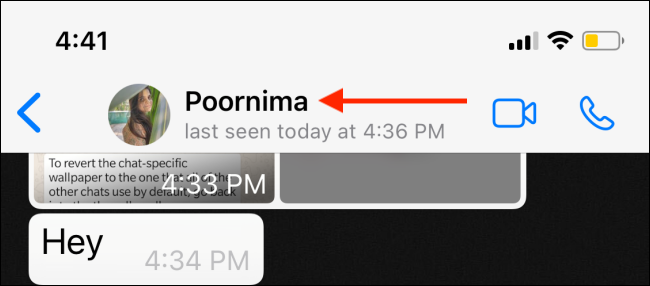
The process for iPhone users is slightly different. Open WhatsApp on your iPhone and go to a chat. Here, tap on the profile picture or name at the top of the conversation.
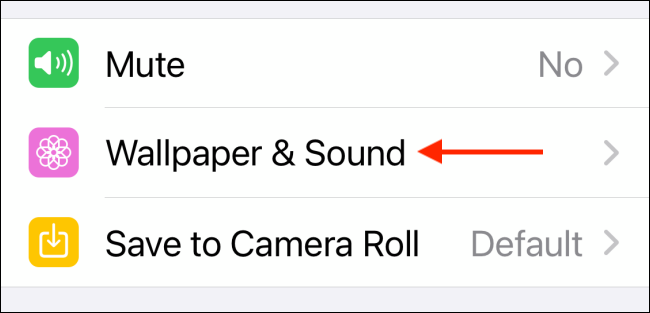
Here, select the “Wallpaper & Sound”.
Now, select the “Choose a New Wallpaper”.
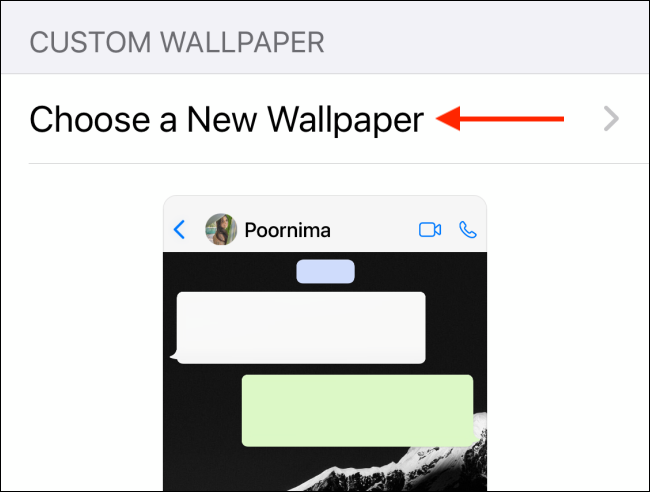
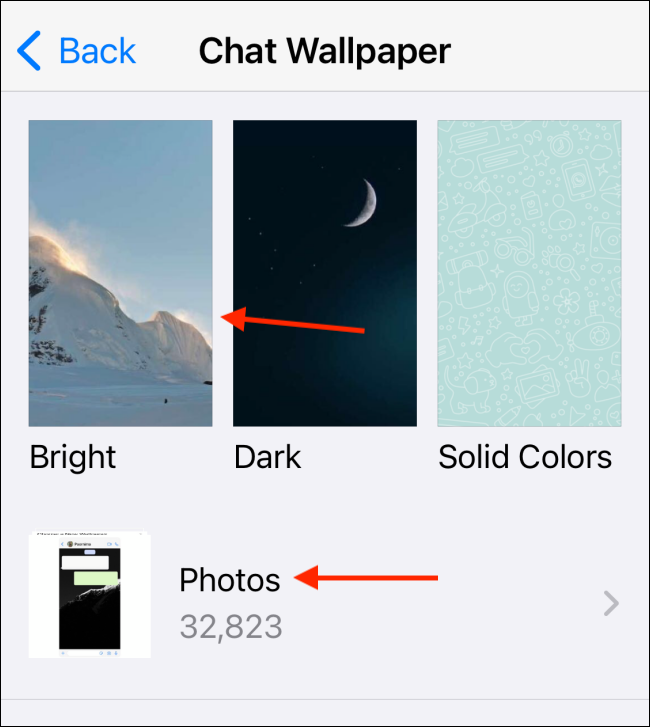
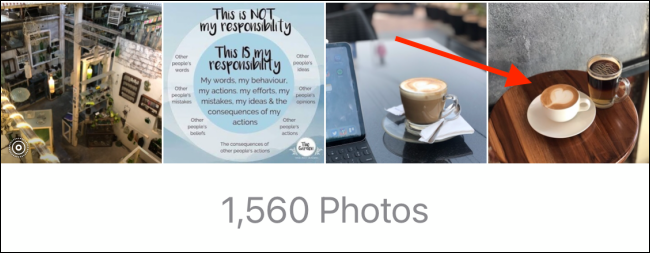
From the next screen, you can browse through the “Bright,” “Dark,” and “Solid Colors” wallpaper collections. If you want to choose your own image as a background, select “Photos.”
After selecting a photo, you can resize it to fit the chat window.
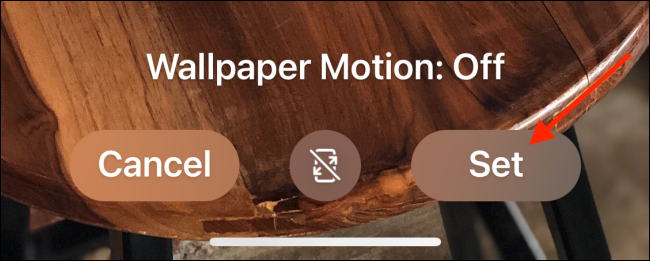
Once you are satisfied, press the “Set” button.
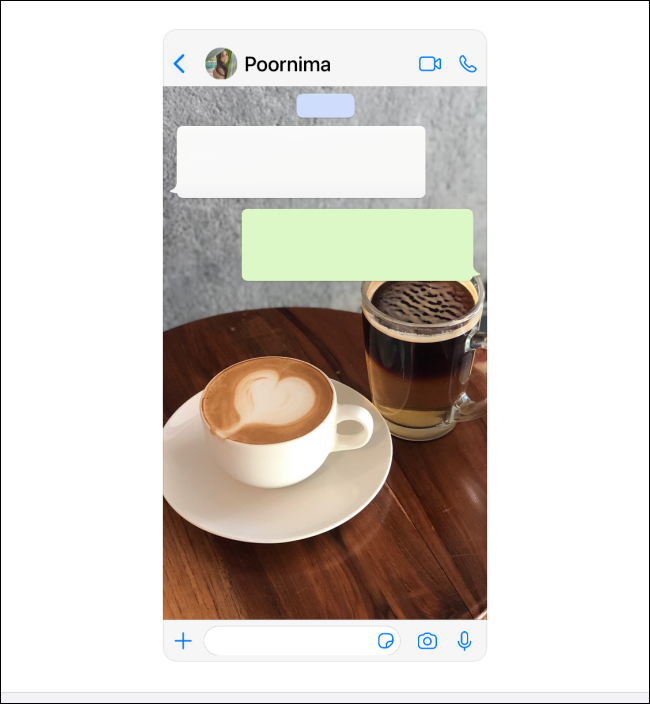
Now, return to the chat and you will see the new custom wallpaper directly in the background of the conversation.
If you want to remove the custom wallpaper, go to Wallpaper & Sound > Choose a New Wallpaper and tap on “Remove Custom Wallpaper.” Then tap on the “Remove Custom Wallpaper” button to confirm.
Information source: howtogeek.com
