

Are you a Mac user and a multitasker? You will surely have to use many applications and have many windows open on PC . However, having to constantly switch from one window to another to do your work can become a tedious or even boring process. So, if you want to be able to have more than 1 window open at the same time, we have the solution for you.
If you have the space for a dual- monitor, that's an option. Otherwise, there may be a relatively simple way to fix this problem. Apple launched macOS Catalina with a split-screen display feature. So, you can now fill your Mac's screen with two apps, without having to resize and drag your windows. If you're using Catalina or later ,you should have access to this feature.
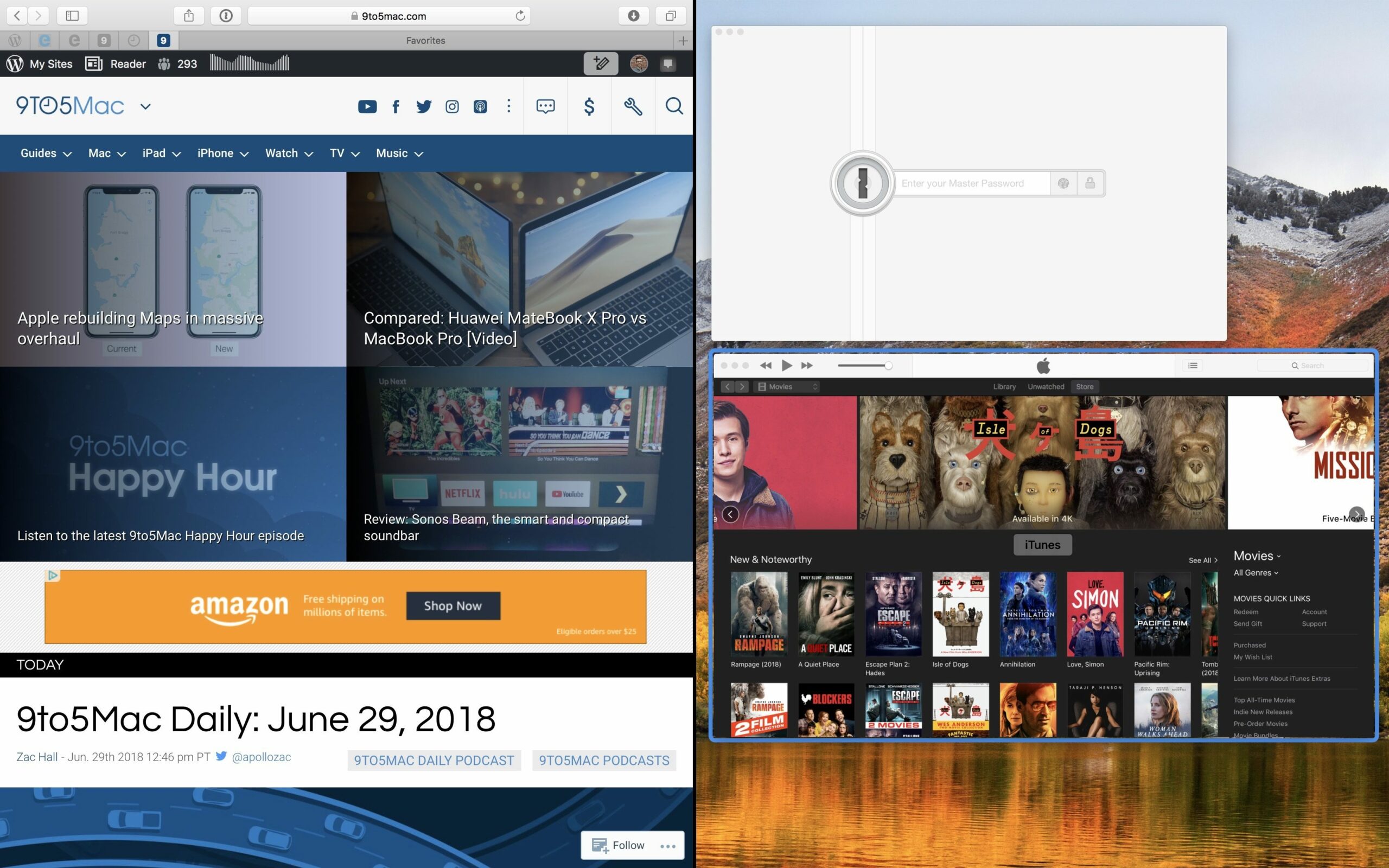
How to Apply Split Screen View on Mac
From the top left corner of your window, find the red, yellow, and green buttons. Hover over the green button or click and hold it. You will see a series of options for displaying your screen.

Click either “Tile window to left of screen” or “Tile window to right of screen” and the current window will appear on the left or right of your screen respectively.
All other windows you have open on your Mac will appear on the opposite side of your split screen. Click the window you want to display. You are now in split screen mode.

Access Mission Control in Split-Screen View
You can now easily switch between two windows in split-screen mode. If you want to open other apps while in split-screen view, open Mission Control using the Mission Control key, F3 on keyboards, or the three-rectangle button on the Touch Bar once the function keys appear, or:
- Pressing "Control" and the up arrow
- Swiping up with three or four fingers on your trackpad
- Double-clicking with two fingers on Magic Mouse
All other windows you have open will appear. All you need to do is simply click on them to switch between those windows and your screen view.

Customizing the split-screen view
In case you want to move a window from one side to the other in split view, drag that window to the other side by clicking anywhere on the gray menu bar of that window.

Need a little more display space in your spreadsheet? To resize the windows, click the black border between the two screens. Drag the cursor to resize the windows to your liking.

How to Exit Split Screen Mode
Once you’re done with split screen mode, you can easily exit it. From either window, hover your mouse pointer over the screen until the gray menu bar reappears. Click the green button and you’ll automatically exit split screen mode. Alternatively, hover your mouse pointer and click “Exit Full Screen”.
This window will return to its normal view, while your second window will remain in full screen mode. Use Mission Control to switch to this window. Again, hover over the top of the screen to make the gray bar reappear, and click the green button to exit full screen view.

For many workers, viewing is a necessity, but it's a useful feature for almost anyone. Finally, it's worth clarifying that setup .
Source: howtogeek.com
