

Windows 10 has a rich collection of Windows key shortcuts that can make using a computer quick and easy, if you remember them. Luckily, thanks to PowerToys, you can quickly view a handy guide with many of the most useful key shortcuts. Here's how you can use them.
The secret is Microsoft PowerToys
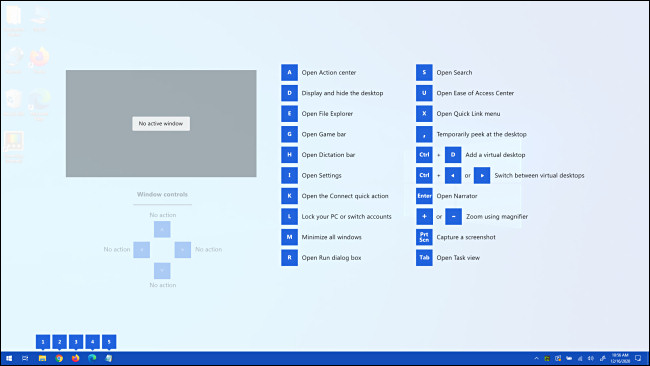
With a PowerToys module called Shortcut Guide, you can hold down the Windows key on your keyboard and see an overlay on the screen that shows you some Windows key shortcuts. You can useeitherwhenever you forget a shortcut.
To get this handy Shortcut Guide, you'll first need to install PowerToys, a collection of useful Windows 10 utilities from Microsoft. You can download it for free from Github.
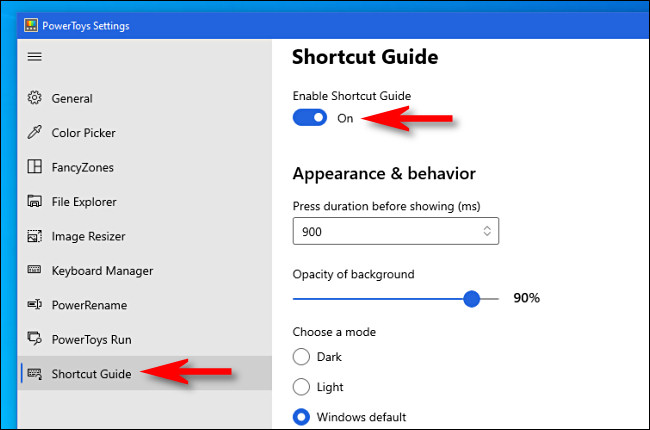
Once you have PowerToys installed, run PowerToys Setup and click on “Shortcut Guide” in the sidebar. Then make sure “Enable Shortcut Guide” is enabled.
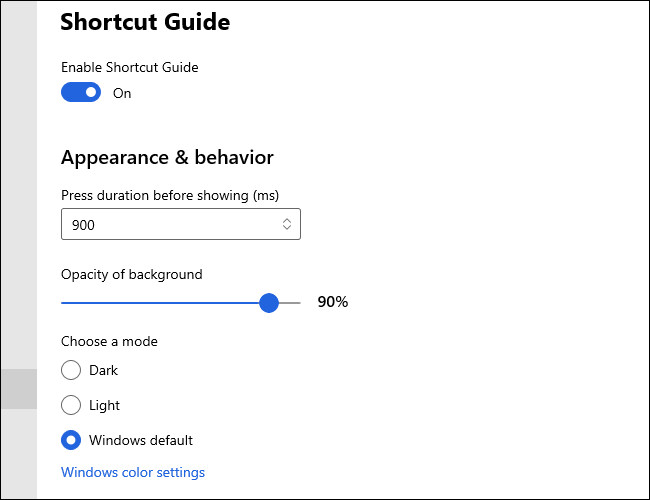
This is optional, but while you're in PowerToys Settings, you can change the opacity of the Shortcut Guide (whether you want it to appear in a dark or light color) and the length of time you have to hold down the Windows key before seeing the guide.
Once you're satisfied, close PowerToys Settings. Shortcut Guide will still be active in the background. Whenever you need a hint with Windows Key commands, hold down the Windows key for about a second and it will appear.
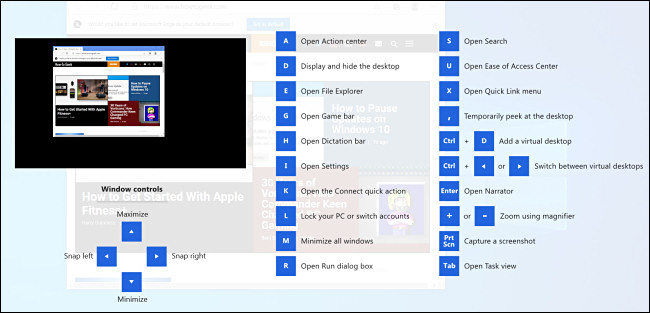
Here are some of the shortcuts that appear during the Shortcut Guide presentation:
- Windows+A: Open Action center
- Windows+D: Hide or show the desktop
- Windows+E: Open File Explorer
- Windows+G: Open Xbox Game Bar
- Windows+H: Open the Dictation bar
- Windows+i: Open Windows Settings
- Windows+K: Open the Connect sidebar
- Windows+L: Lock the PC
- Windows+M: Minimizes all windows
- Windows+R: Open the “Run” window
- Windows+S: Open Search
- Windows+X: Open the “Power User” menu
We hope all these shortcuts help you improve the speed at which you operate your computer!
Information source: howtogeek.com
