

Extensions in Microsoft Edge can make your browser more useful. But sometimes you may not like the icons for each extension taking up space in your toolbar. Here's an easy way to manage the extension icons that appear in the Edge toolbar.

Hide extension icons in the menu
The simplest way to hide or unhide a toolbar extension icon in Edge is to move it from the toolbar to the “ellipses” menu, which looks like “…”. Once it’s in the menu, you can easily move it to the toolbar. Here’s how to do it.
First, launch Edge and look at the toolbar in any window. By default, extension icons appear just to the right of the address bar.
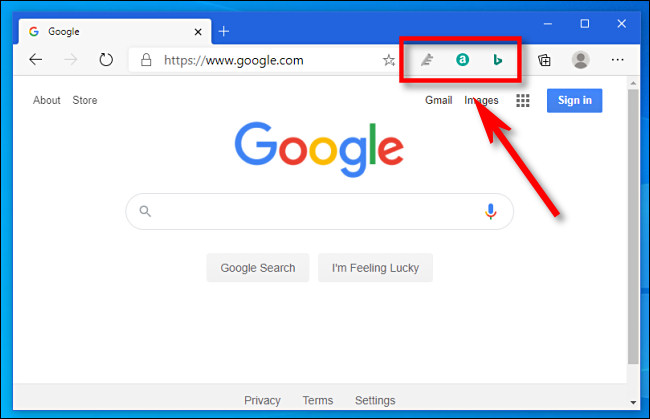
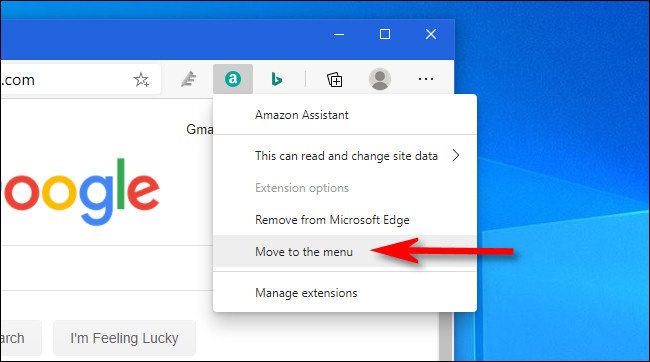
If you want to remove an extension icon from the Edge toolbar (without uninstalling or disabling the extension), right-click on the icon and select “Move to the menu”.
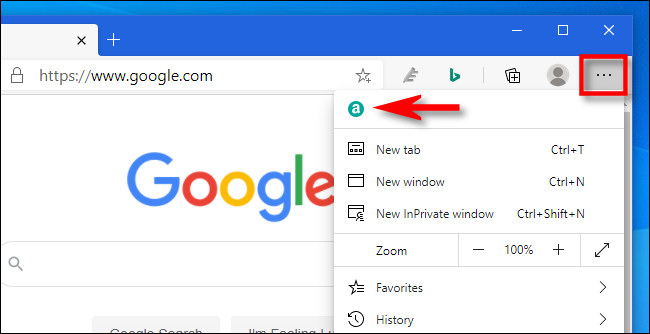
Once you move an extension icon to the menu, you'll find it at the top of the main Edge menu, which you can access by pressing the "ellipses" button (which looks like three dots).
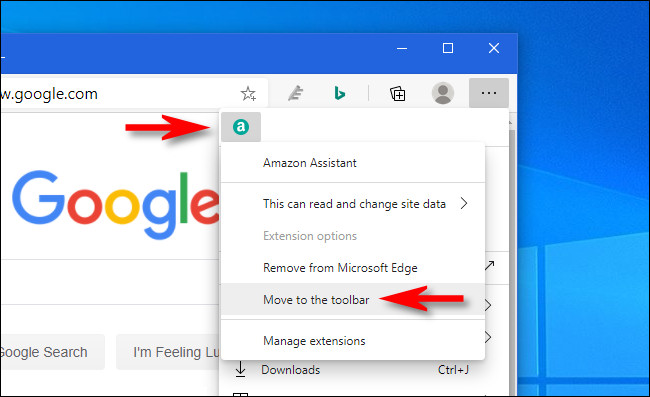
If you want to restore the extension icon to the toolbar, right-click on the icon and select “Move to the toolbar” in the menu that appears.
Repeat the process with as many extensions as you want, until you find the configuration that works best for you.
Information source: howtogeek.com
