

Below we will see how you can enable support for the DNS over HTTPS protocol (or simply DoH) to protect privacy in Google Chrome.
We will use a setup that runs from the command line.
The process isn't that complicated, and the guide below will show you all the steps needed to add DoH support to the Chrome you're using.

What is DNS over HTTPS and how does it work?
DNS over HTTPS is a relatively new protocol, having been around for about two years.
It works exactly like the DNS protocol, meaning that its main purpose is to take the domain name (e.g. secnews.gr) that a user types into a browser and send a query to a DNS server to find out the numeric IP address of the web server hosting iGuRu.gr.
However, the classic DNS protocol sends this request in plain text, which anyone can see, while DoH packages its DNS queries with encrypted HTTPS traffic.

The main advantage of DoH is that the protocol not only hides the requests sent to DNS and the responses among the huge stream of HTTPS traffic that moves across the Internet every second. This means that third-party observers will not be able to examine DNS requests to guess where the user might be trying to access.
This design makes the DoH protocol very useful for bypassing end-user security.
Mozilla already supports the DoH protocol. DoH support in Firefox can be enabled very easily.
But what about Chrome?

DoH works great in Chrome, but there is no user interface to enable or configure it.
To enable DoH support in Chrome, you need to use a command line setting. This is a set of additional instructions that are passed to the Chrome executable when it starts.
Let's see how it's done:
Find the Chrome shortcut. It may be on your taskbar, desktop, start menu, or somewhere else in your file system.
Then right-click the Chrome shortcut and select Properties.
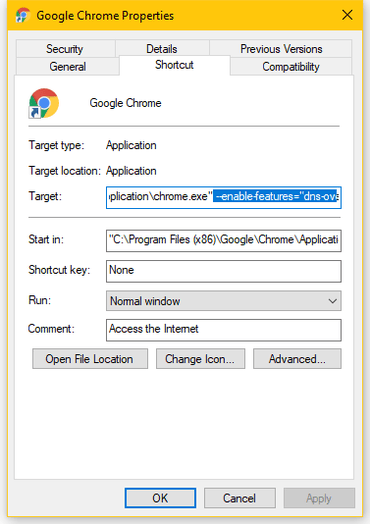
In the Target field, add the following text to the end of the shortcut path and click Save.
--enable-features="dns-over-https
The above text will configure Chrome to use the Cloudflare DoH server. You can choose any other DoH server you want.
The entire command is below (including chrome.exe).
chrome.exe --enable-features="dns-over-https
If Chrome is already running, restart it. Otherwise, start Chrome.
To check if Chrome supports DoH, open https://1.1.1.1/help.
On the right where it says “Using DNS over HTTPS (DoH)”, the page should say “Yes.”
