
If you use the Recycle Bin in Windows 10 often, you might want to hear some tips and tricks that will help you manage it better.

We have for you five lesser-known usage and configuration tips that you can use to get the most out of the Recycle Bin in Windows 10. So let's take a look at them.
Enable the display of the confirmation dialog box for deletion
By default, Windows 10 does not display the confirmation dialog box for deletion when you select a file and click to delete it. In short, Windows 10 automatically moves the selected files to the Recycle Bin without displaying the confirmation window for deletion.
The problem with this default setting is that you can accidentally move files to the Recycle Bin without wanting to. If you want to see a window asking for confirmation of deletion when you try to delete files, do the following:
Step 1: Right-click the Recycle Bin icon on the desktop, click Properties .
Step 2: Check the “Show confirmation window on deletion” box, and click the Apply button.
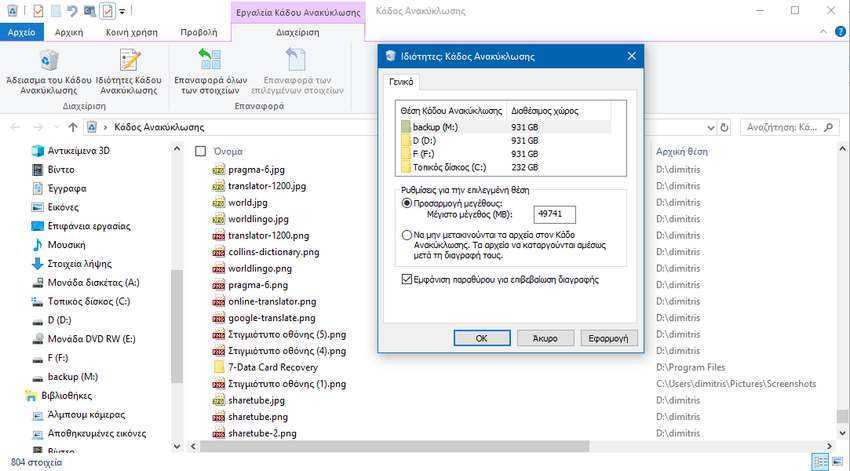
Now try to delete a file. If you did it correctly, you should see a window asking you to confirm your command.
Automatically delete old files from the Recycle Bin
There is a feature in recent versions of Windows 10 that allows you to automatically delete only the oldest files from the Recycle Bin. For example, you can set Windows 10 to automatically delete files that remain in the Recycle Bin for more than 30 days. Here's how to do it.
Step 1: Go to the Settings app > System > Storage.
Step 2: In the “Storage Control” section, click “Change how I free up space automatically.”
Step 3: In the Temporary Files section, enable the “Delete temporary files that my apps aren’t using, Delete files in the Recycle Bin if they’ve been there for more than” option, and then select 1 day, 14 days, 30 days, or 60 days.
Step 4: Make sure that the “Delete files in my Downloads folder” option is NOT selected, that is, it is set to “Never.”
Step 5: Enable the button at the top, under “Storage Control” and change it from Off to On.
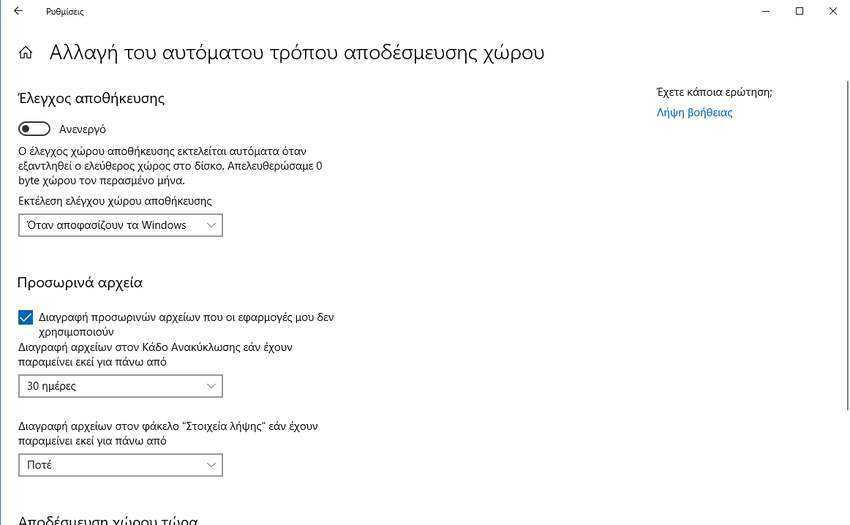
That’s it. Windows will check your storage space and any files that have been in the Recycle Bin for more than …. days (depending on what you set in step 3) will be automatically deleted.
Resize the Recycle Bin
If your computer's drive is running out of free space or you're otherwise limited on disk space, you can reduce the default size assigned to the Recycle Bin in Windows 10. Here's how to do it:
Step 1: Right-click the Recycle Bin icon, and then click Properties.
Step 2: Under "Settings for selected location," select "Custom size," and then type a custom value in MB.
Step 3: Click the Apply button to save the new Recycle Bin size.
Disable or turn off the Recycle Bin
Although we don't recommend disabling the Recycle Bin, you may want to disable it if you use your computer in a way that allows you to permanently delete files you don't want (so you don't have to keep pressing Shift + Delete to permanently delete files bypassing the Recycle Bin). Here's how to disable or turn off the Recycle Bin.
Step 1: Right-click the Recycle Bin, and then click Properties.
Step 2: Check the box next to "Do not move files to the Recycle Bin. Files are removed immediately after deletion."
Step 3: Click the Apply button.
Show or hide the Recycle Bin from the desktop
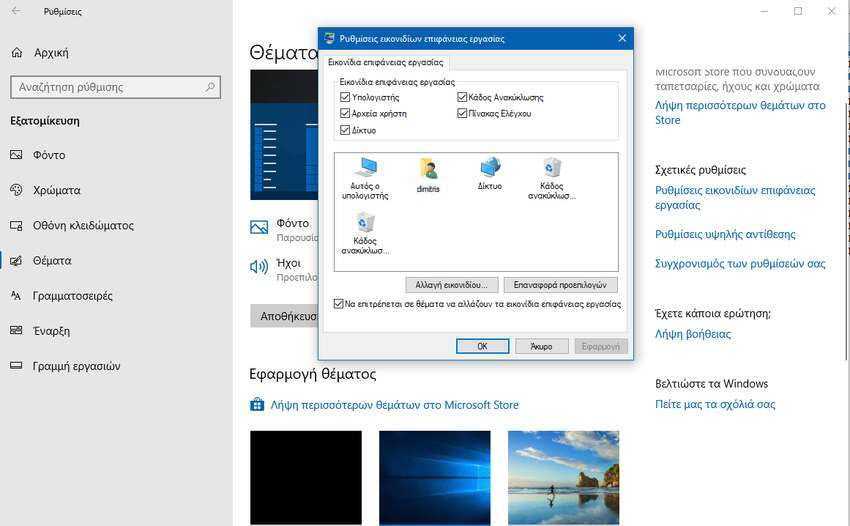
If the Recycle Bin icon is not displayed on the desktop or if you want to hide it from the desktop, you can go to Settings > Personalization > Themes and from there click on “Desktop icon settings” located under the “Related settings” section.
A new window will open and from there uncheck the “Recycle Bin” option and then click on the “apply” button to save your selection.
Windows 10: Tips and tricks for the Recycle Bin

📧
Subscribe to the SecNews Newsletter
