

One of the latest additions to Windows Defender Antivirus is the protection against Potentially Unwanted Programs (PUPs).
Microsoft has reportedly significantly improved the defense capabilities of the built-in protection tool in Windows 10, Windows Defender.
The company has added new features such as Windows Defender System Guard and Application Guard, Network protection, Controlled Folder Access, and Exploit protection in recent years. It should also be mentioned that it developed and released Windows Defender Browser Protection for Google Chrome.
Some of these features are only intended for Enterprise editions of Windows 10, but some are also available in Home editions.
Windows Defender can prevent the installation of potentially unwanted programs in Windows 10, but this feature is not enabled by default. Below we will see how you can enable it with PowerShell.
Potentially Unwanted Programs are usually not classified as malicious programs. These applications usually come with the installers of other main applications. For example, try installing µtorrent or the well-known Avast. 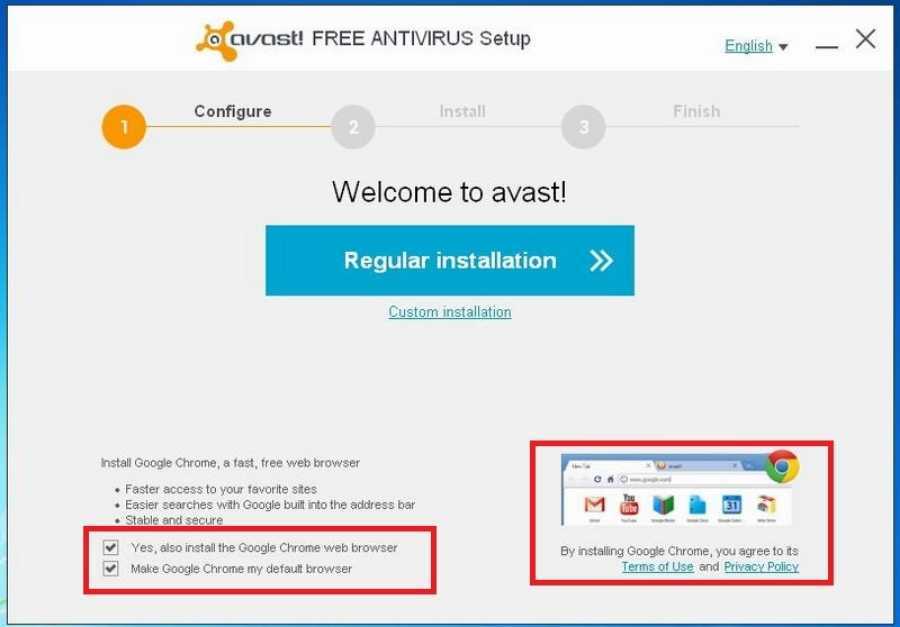
The installation will constantly suggest installing additional applications that have nothing to do with the one you want to install.
Microsoft has therefore compiled a list of examples of typical PUAs (Potentially Unwanted Applications):
- Different types of software packages
- Applications that perform Ad-injections in browsers
- Windows driver and registry “optimizers” that supposedly detect problems for free, but demand payment to fix them.
Windows Defender Antivirus does not stop potentially unwanted programs by default. You can check your system's protection on Microsoft's Demo website.
Simply click the link below the Scenario to run a test. The tests work for Windows Defender and any other antivirus software you have on your computer, provided that they are configured to block PUPs.
Windows Defender Antivirus quarantines files that are identified as PUPs. Users are notified when a PUP is found, and they are also notified of other threats detected by Windows Defender.
Turn on potentially unwanted program protection in Windows Defender
The following instructions apply only to Windows 10 and you need administrator rights to make the change.
Open Windows PowerShell with Windows-X and select Windows PowerShell (Admin) from the menu.
If Windows PowerShell (Admin) is not listed, you can do the following:
In the search, type Windows PowerShell, right-click the result and select Run as administrator.
Confirm the UAC prompt that appears. The console that opens should say “Administrator.”
Type:
Set-MpPreference -PUAProtection Enabled
and press Enter. You won't see anything, as the command doesn't return any results. However, you can run the Get-MpPreference to check the status of Windows Defender Antivirus preferences. Find the item that says PUAProtection and make sure it's set to 1 (which means it's enabled).
You can disable the protection again with the following command:
Set-MpPreference -PUAProtection Disabled
_________________________________
- Disable background apps in Windows 10 version 1803
- Recycle Bin: lost your bin? create a new one
- Windows 10 Redstone 5 hits third-party antivirus below the waist
- KB4100347 microcode update for Windows 10 April 2018
- DaaS or device-as-a-service Microsoft coming soon to you
