

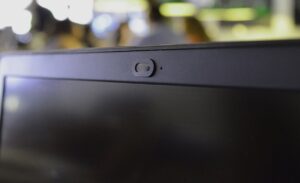
These days, most laptops have a webcam. Some of these are standard cameras used for Skype, while others are IR cameras used for Windows Hello. In addition, almost all computers today also have a built-in microphone that complements the camera's function.
If you're one of those people who never uses computer , you might have wondered how you can disable your camera and microphone. And that would be a very good move, as there are many malware that use a device's camera to steal data even when your camera is not in use. Here are some steps on how you can disable your computer's camera and microphone.
Scan your computer for malware
The first thing you should do is scan your computer for any malware. Even disabling your webcam and microphone can affect other parts of your system.
Windows Defender comes with Windows 10, but if you want an alternative antivirus solution, you can choose other antivirus products.
Check which apps are using the webcam
All you need to do is download Process Explorer, find the name of the camera on your device, and search for it.
Disable your camera and microphone via Device Manager
Disabling your camera and microphone via Device Manager is the quickest, but not the safest, solution. However, it's not a bad idea to know how to disable your camera and microphone via Device Manager.
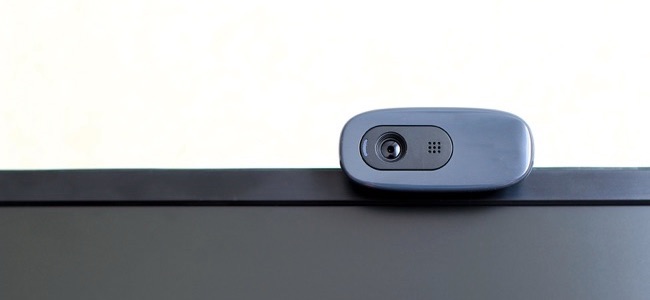
How to disable the webcam
- Right-click on the “Start” button.
- Click Device Manager.
- Click the arrow next to Display Devices.
- Right-click on the built-in camera.
- Click Disable.
- Click the Yes.
If you want to turn the camera back on, just follow the same steps again, but this time click On instead of Off.
How to turn off your microphone
Disabling the microphone on your computer follows almost the same steps as disabling the camera.
- Right-click on the “Start” button.
- Click Device Manager.
- Click the arrow next to the audio inputs and outputs.
- Right-click on the internal microphone – this label may be different depending on the hardware your computer has.
- Click Disable.
- Click the Yes.
Disable the camera and microphone via BIOS
Some laptops allow you to disable the webcam and microphone at the system level from the BIOS. The steps to do this vary from machine to machine, but generally the process is similar.
For example, on a Lenovo ThinkPad, the built-in camera and microphone options are located under the Input/Output Port Access section of the Security tab. After disabling both options, you can save and exit the BIOS.
Remember that the BIOS on another computer may be quite different, but the end result is the same.
Cover your camera
If you don't want to turn off your camera, an alternative is to simply cover it.
Many people use stickers or electrical tape as an economical and readily available solution, but if you prefer something a little more professional, there are special small accessories that fit over the webcam and feature a slide that moves for when you want to use it.
