

According to research conducted by communications security firm First Orion, by the end of 2019, almost 50% of all mobile phone calls will be scams. Most calls made from unknown or unlisted numbers are annoying recorded messages but otherwise harmless. Sometimes, however, the unwanted call can be made by a real person, and in the worst cases, it will be a scammer trying to trick you into giving them money.
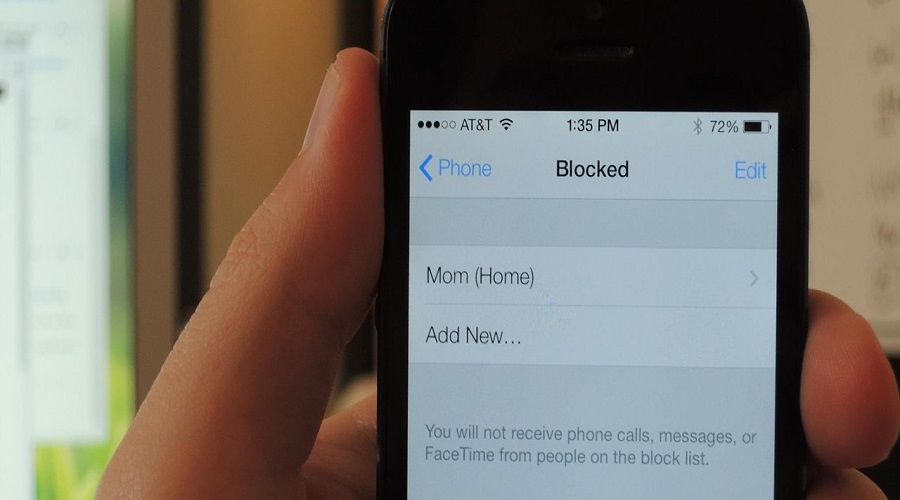
The good news, however, is that you can take steps to reduce the number of unwanted calls you receive on iPhone : simply block any spam number that calls you.
To block a number on an iPhone, just follow these simple steps:
- On the home screen, tap the phone icon.
- Tap the “Recents” icon to view calls made on your phone in chronological order.
- Tap the information icon, which is a blue “i” in a blue circle in the column on the right side of the screen, next to the number you want to block.
- Select “Block this caller” at the bottom of the next screen.
- Select “Block Contact” in the pop-up message to confirm.
If you did it correctly, the contact will now display “Unblock this Caller” at the bottom of the screen and your phone will prevent calls or texts from that number. Now, you can move on to the next one.
How to block one of the contacts on your iPhone
Blocking a contact that's already on your iPhone is even easier. Go to your contacts, tap the name you want to find, and tap “Block this Caller” at the bottom of that contact's page.
