

If you are into image editing, you may have already encountered the problem. How can you create images with a transparent background?
Let's start with the basics: JPG/JPEG and PNG are two of the most popular image formats out there.
JPEG is preferred for its small size while PNG images, which are often larger in size, support transparency.
Converting a JPEG file to PNG does not automatically add transparency to the image, and to date there is no converter that automatically removes the background, making the image transparent.
To remove the background from an image, you need an image editor.
You can easily add transparency using Photoshop, but this application is for professionals and is expensive.
Below we will see how you can remove a background by adding transparency to an image with two different free applications.
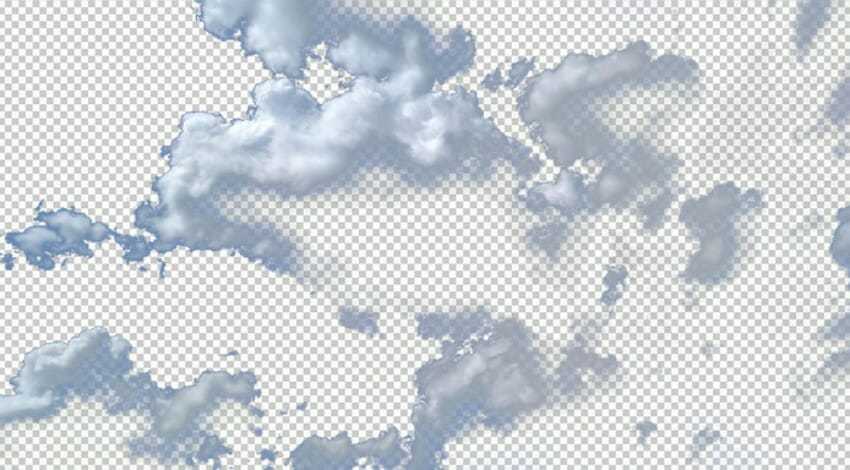
It should be mentioned that if an image has a background with a single color it will be much easier to make transparent than another image that has a background with too many colors and shades.
So a JPEG containing a logo will become transparent much more easily than your vacation photos, since you will need to spend much more time removing a beach from the background.
Transparent images with PhotoFiltre
PhotoFiltre is a free image editor. Install the app and open the image you want to remove the background from.
Click on the Magic wand tool in the toolbox. This tool can select all occurrences of a color in an image, as long as it is not separated by another color.
For example, if your image has a pattern of three colors, red, yellow, and blue, clicking on blue will only select the blue and not the other two colors. You will need to click inside each color individually.
Once a color is selected, press the delete key to remove it. After removing all the background, save the image as a PNG file. If you save it as a JPEG or JPG, you will lose the transparency.
The Magic Wand tool is very sensitive and precise in selecting colors. In low quality images it will be difficult to remove the background. If your background has shades of the same color, the tool will only select the shade you click on.
Transparent images with Paint.Net
Paint.Net is a popular open source image editor. The older Windows Paint application cannot/could not remove the background from an image to create transparencies. Paint.Net can. In fact, if we compare the results between Paint.Net and PhotoFiltre, Paint.Net is better.
Install the app and open the image you want to add transparency to. Click on the magic wand tool and select the color you want to remove.
Press delete, then save the image as a PNG file.
There are plenty of free options, including GIMP or Pixlr.
Let's remind you once again that for images with colorful backgrounds, you will need to spend much more time selecting the colors you want to remove, as the Magic wand tool can only select one color at a time.
