

If you use a Microsoft account to sign in to Windows 10, you can sign in automatically. After that, you won't have to re-enter your password or select a user from the sign-in screen. You'll be able to see your desktop right away, without the annoying sign-in screen.
When you sign in with a Microsoft account in Windows 10, you need to type the password for the user on your local account. To save time and speed up the sign-in process, you may want to enable automatic sign-in to your Microsoft account.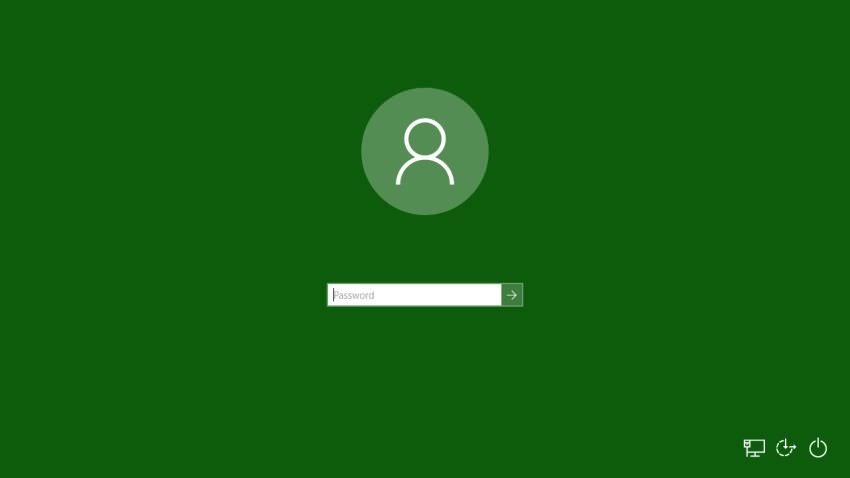
To automatically sign in with your Microsoft in Windows 10, follow these steps.
Press Win+R on your keyboard. The Run dialog box will appear on your screen. Type the following command in the Run box:
netplwiz
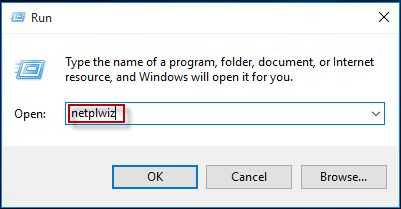
The window with the user accounts on your computer will open. Find the Microsoft Account you are using and select it from the list.
Uncheck the checkbox called “Users must enter a user name and password to use this computer” and click the Apply button.
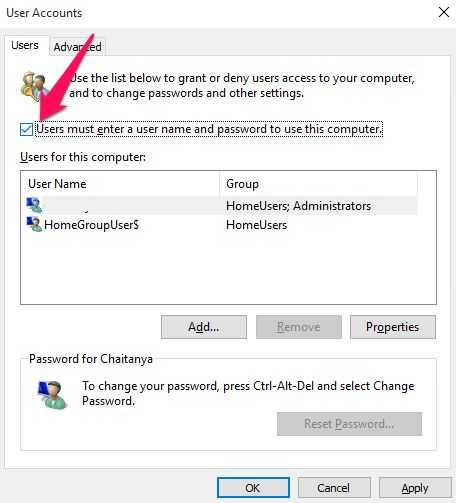
Immediately after that you will need to type the username and password of the user who will be using the PC.
The Auto Login prompt will appear. Fill in the password
Enter your password twice and you're done!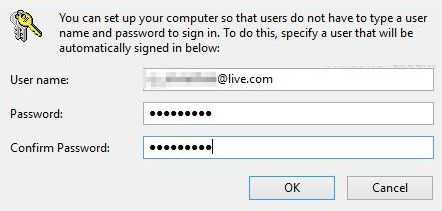
Note: In the dialog box above, your Microsoft Account may appear as _ . This is completely normal, as Windows 10 creates two local accounts for each Microsoft account. This will be used to sign in when you don't have access to the Internet. In this dialog box, you see the name of your local account. Don't change anything, just type your password.
Microsoft Account is integrated with Microsoft cloud services like OneDrive, Bing, Skype, and Office 365.
It offers synchronization of all your customizations and preferences from your PC to other machines running Windows 10. If you are signed in with the same Microsoft Account on each of your computers, then you will have the same appearance on the desktop (same background and theme setting). Universal app settings and quick access toolbar buttons will also be synchronized with each computer you are signed in from.
To restore the defaults, run netplwiz again and check the “Users must enter a user name and password to use this computer” check box. The next time you log in, you will be prompted for your password again.
