


BSOD or “Blue Screen of Death” is an error message that appears on our screen when Windows OS fails to keep its promise to work smoothly without errors… basically, when our operating system crashes for some reason, the Blue Screen of Death appears.
[su_button url=”https://www.secnews.gr/100072/bsod-blue-screen-death-windows/” target=”blank” style=”noise” background=”#5319f3″ color=”#fafbfb7″ wide=”yes” center=”yes” radius=”20″ icon_color=”#ffffff”]Read more: [BSOD] What do you know about the Blue Screen of Death?[/su_button]
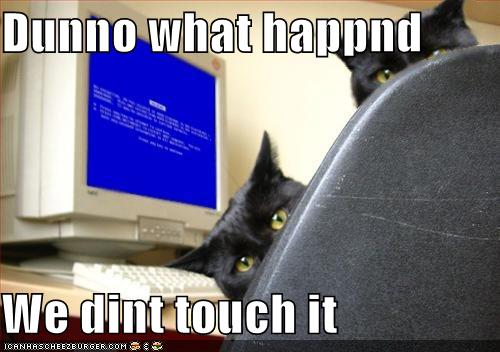
Crashing your system is a bad thing – but what if you could prank your friends a little by creating a fake BSOD yourself? If there's a prankster in you who could do this, then just keep reading our article because right now we're going to show you the very simple steps you can take to do it!
How can you create a Fake BSOD?
- Open a new text file on your desktop.
- Copy the code shown below into the text file. Save the text file by pressing CTRL+S.


@echo off echo ^<html^> ^<head^> ^<title^> BSOD^</title^> > bsod.hta echo. >> bsod.hta echo ^<hta:application id="oBVC" > > bsod.hta echo applicationname="BSOD" >> bsod.hta echo version="1.0" >> bsod.hta echo maximizebutton="no" >> bsod.hta echo minimizebutton="no" >> bsod.hta echo sysmenu="no" >> bsod.hta echo Caption="no" >> bsod.hta echo windowstate="maximize"/^> >> bsod.hta echo >> bsod.hta echo ^</head^> ^<body bgcolor="#000088" scroll="no"^> >> bsod.hta echo ^ <font face="Lucida Console4" color="#FFFFFF"^>>> bsod.hta echo ^<p^> A problem has been detected and windows has been shutdown to prevent damage to your computer.^</p^> >> bsod.hta echo. >> bsod.hta echo ^<p^> DRIVER_IRQL_NOT_LES_OR_EQ UAL^</p^> >> bsod.htaecho. >> bsod.hta echo ^<p^> If this is the first time you've seen this stop error screen, restart your computer, If this screen appears again, follow these steps:^</p^> >> bsod.hta echo. >> bsod.hta echo ^<p^> Check to make sure any new hardware or software is properly installed. If this is a new installation, ask your hardware or software manufacturer for any windows updates you might need.^</p^> >> bsod.hta echo. >> bsod.hta echo ^<p^> If problems continue, disable or remove any newly installed hardware or software. Disable BIOS memory options such as caching or shadowing. If you need to use Safe Mode to remove or disable components, restart your computer, press F8 to select Advanced Startup Options, and then select Safe Mode.^</p^> >> bsod.hta echo. >> bsod.hta echo ^<p^> Technical information:^</p^> >> bsod.hta echo. >> bsod.hta echo ^<p^> *** STOP: 0x000000D1 (0x0000000C,0x00000002,0x00000 000,0xF86B5A89)^</p^> >> bsod.htaecho. >> bsod.hta echo. >> bsod.hta echo ^<p^> *** gv3.sys - Address F86B5A89 base at F86B5000, DateStamp 3dd9919eb^</p^> >> bsod.hta echo. >> bsod.hta echo ^<p^> Beginning dump of physical memory^</p^> >> bsod.hta echo ^<p^> Physical memory dump complete.^</p^> >> bsod.hta echo ^<p^> Contact your system administrator or technical support group for further assistance.^</p^> >> bsod.hta echo. >> bsod.hta echo. >> bsod.hta echo ^</font^> >> bsod.hta echo ^</body^> ^</html^> >> bsod.hta start "" /wait "bsod.hta" del /s /f /q "bsod.hta" > nul</font>
3. Rename the text file as fakebsod.bat.
Important: There is a possibility that you cannot change the extension because file extensions are hidden by default in Windows 7 and later. So you need to enable them. Open Start and type folder options. Click View tab. Then Untick Hide extensions for known file types. Then Click Ok. After this process, Windows will show the extension of file names.
4. You're done! You've created the file! Open fakebsod.bat to check your BSOD.
5. To exit the fake BSOD, you can press Start or drag the mouse cursor to the bottom of the screen and resize the fake BSOD. Then, you will see the BSOD icon on the taskbar. Right-click and click Close Window.
[su_button url=”https://www.secnews.gr/103741/10xronos-hackare-to-instagram/” target=”blank” style=”noise” background=”#f31985″ color=”#fafbfb7″ wide=”yes” center=”yes” radius=”20″ icon_color=”#ffffff”]Read more: 10-year-old hacks Instagram![/su_button]
After we tested it, it's time to make it look real! You will need to create the fake BSOD file in another location and then create a shortcut on the desktop. To create the shortcut:
- Right click on fakebsod.bat
- Hover your mouse over Send To.
- Click on Desktop (Create Shortcut).
And then, change the file icon.
- Right-click on the fakebsod.bat shortcut file. Select Properties.
- Click Change icon. Click Ok.
- Choose the icon you like. For example, you can put the My Computer/This PC icon.
- Rename the file as My Computer or This PC according to your Windows version.
- Delete the original My Computer from your desktop and you're good to go!!
The next time your friends click on 'My Computer' the Blue Screen of Death will be there to haunt them!!!
[su_box title=”If you liked our article…” style=”soft” title_color=”#31531f”]If you liked our article, share it with your friends! [not the ones you want to make fun of! With the others!]
Have fun!![/su_box]
