

If you want to close a stuck application in Windows 10, you can easily end a task using the built-in Windows Task Manager utility. Here's how you can do it.
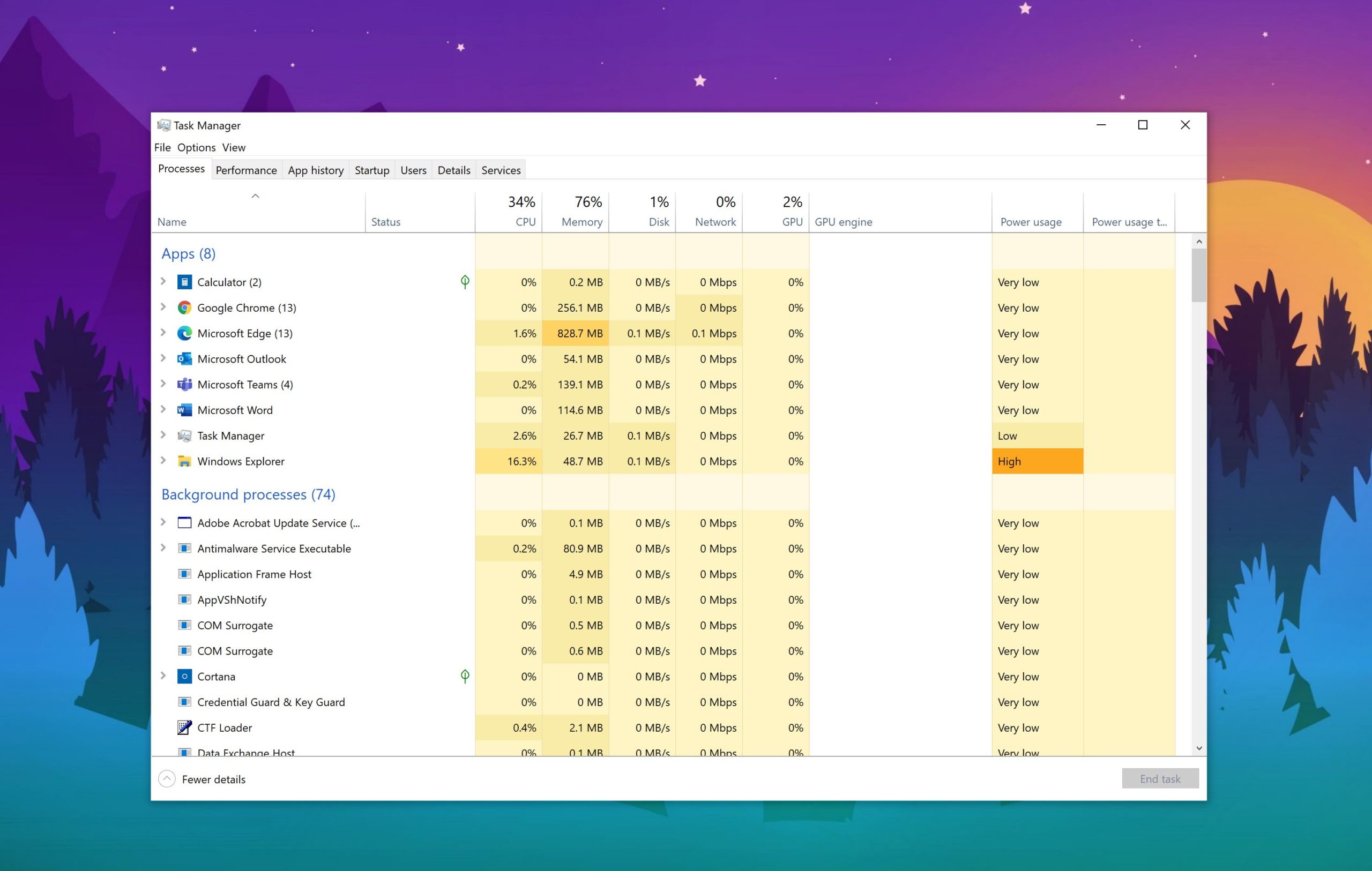
First, open the Task Manager. To do this, right-click on the taskbar and select “Task Manager” from the pop-up menu. Alternatively, you can press Ctrl+Shift+Escape to open it or press Ctrl+Alt+Delete and select “Task Manager” from the screen that appears.
If Task Manager opens in simple mode and you see the name of the task you want to end, simply select the application from the list and click the “End Task” button.
Warning: If you end a task without saving your work first, you may lose data. It is best to close the application normally, if possible.
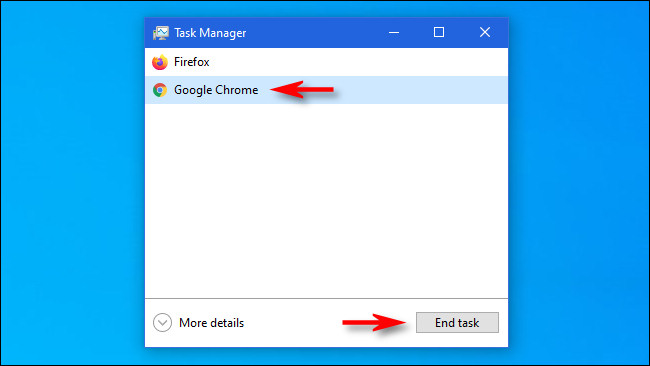
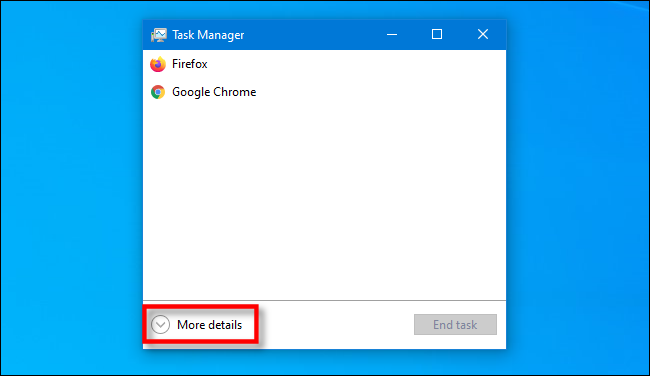
The task will close. If the task does not refer to a simple operation or if you want to take a closer look at what is happening first, click the “More details” button.
After you expand Task Manager to show more details, you'll see a list of processes (programs running on your computer) with information about how much CPU, memory, disk activity, and network bandwidth they're using.
In the list of processes, select the task you want to end, and then click the “End Task” button in the lower-right corner of the window.
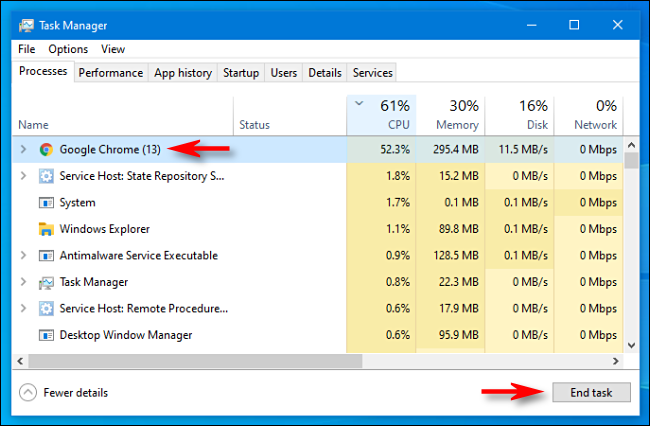
After that, the program will close. If you often find yourself ending a task from a particularly annoying application, consider updating the application or Windows itself – both may resolve an underlying bug that is causing the problem.
Source: howtogeek.com
