

How to add a new user when the Windows computer is running as a Domain Controller
Have you ever tried to create a local account or a new user and failed because your Windows computer is under a Domain Controller? Here are some simple steps to add a new user who can use the computer without having to access names and passwords.
Steps:
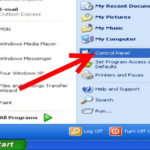
1: Go to the Control Panel.
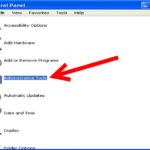
Then to administrative tools.
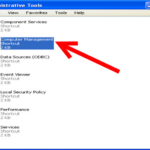
2: Click on Computer Management.
Now a new window will open for you.
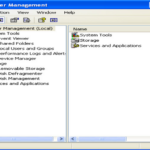
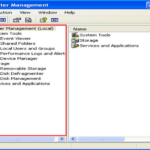
3: From the left, select:
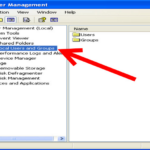
Local users and groups
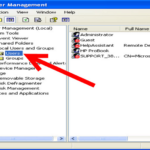
Then, click on Users.
Then, right-click on the white space on the right.
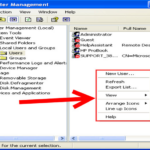
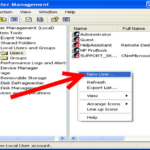
4: Select New User.
Enter username and password.
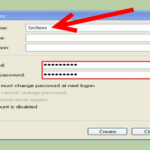
So, you created a local user on a computer that uses Domain Server.
Images: wikihow.com
📧
Subscribe to the SecNews Newsletter
