

All browsers have the ability to restore recent connections, and Google Chrome is no exception. Chrome stores certain information, such as open tabs and windows, the size of each window, and its position on the screen, and can restore it if the program is closed.

Of course, Google Chrome has automatic restore, which if you enable every time you open the browser, it returns to the last session, that is, as it was just before it was closed.
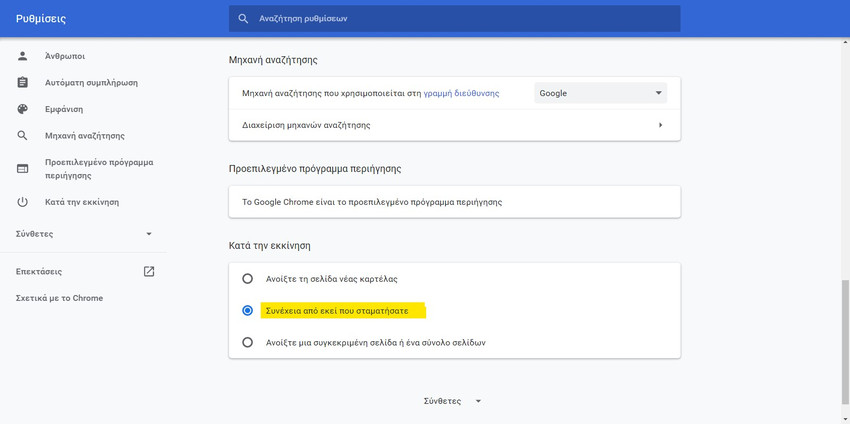
To enable automatic restore, all you have to do is go to Google Chrome's settings, scroll all the way down to the "On startup" group and select "Continue where you left off."
Additionally, when you restart the Chrome browser after a crash or after abruptly closing it via Task Manager , Chrome displays a small dialog box with an option to restore the last session.
When enabled, Chrome restores the last session without interruption. Very rarely, Chrome may not automatically restore the last session and may not even display the dialog box after a crash. If this happens to you, see how to manually restore the last Google Chrome session.
There are two easy ways to manually restore. It's worth noting that these methods work even if you haven't configured your Chrome browser to automatically restore the last session.
Method 1
Step 1: After launching the Chrome browser, press the Ctrl, Shift, and T keys simultaneously (Ctrl + Shift + T) to restore the last browsing session.
Method 2
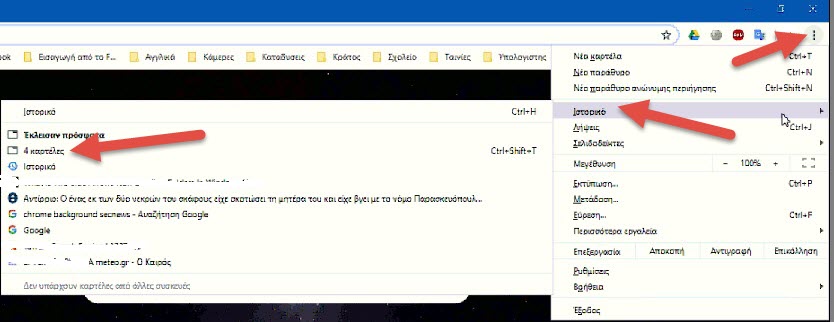
Step 1: Launch the Chrome browser. Click on the three vertical dots icon (next to the user account image in the toolbar) and select History to see all recently closed tabs.
Step 2: Here, under the “Recently closed” section, Chrome displays X tabs (where X is the number of tabs, 4 in our case). Click on it to restore your last browsing session. It’s that simple!
Note that Chrome does not display this information on the History page, which you access using the Ctrl + H keyboard shortcut.
These methods work great in the new Chromium-based Microsoft Edge browser .
