


Mac users who happen to use Dropbox know that the app is stored by default in a folder called Home. There's usually a shortcut for the app in the Finder sidebar. Of course, you can always visit Dropbox by simply clicking on the program's icon in the menu bar at the top of the screen and clicking on the folder icon.
However, if you wish to change the location of Dropbox on your computer, you can follow the steps below.
Step 1:Click on the Dropbox icon in the menu and then select the gear. From the new menu that appears, select Preferences.
Step 2:Once the Preferences, select Sync.
Step 3:at Click on Dropbox folder locationthe bottom of the tab and select Other.
Step 4:The file selection box will then appear, from which you can choose where you want to move the application. Click Select on the desired location and then click the Move.
It should be noted, however, that this action moves the app itself, not a copy of it. The Dropbox folder will be removed from its original location and moved to the new one, while all original sharing settings will remain intact.
Moving Dropbox could save you space by storing its files on an external drive. However, you can use certain types of storage media, and if a device you have connected isn't suitable for it, the app will let you know that it can't move your folder.
However, this requires that the drive be connected to your computer at all times while the app is running. If you remove the drive, Dropbox will display the following warning when you try to access the folder:
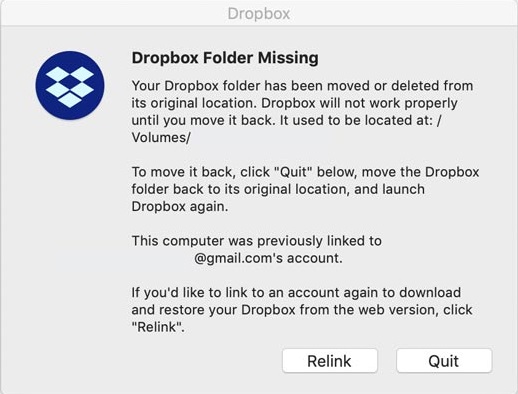
If this happens, select “Quit,” connect the drive containing your Dropbox data, and then restart your Mac or restart the program from the Applications.
Dropbox generally does not recommend this practice and lists another problem that can arise on support pages :
"If the external drive is disconnected from the computer while Dropbox is running, there is a small but real chance that the app will start deleting files before it realizes that the entire drive has been removed."
