

Antergos 2016.09.03: As a fan of Arch Linux and Linux in general, I decided to try the Antergos distro. I made the decision based on various reviews I read that piqued my interest, but also because the distribution directly uses the Arch repositories, in which users are the ones who suggest and package the applications included. Thus, many software titles are immediately available after each new release.
Like the distribution I use (Manjaro), the Antergos distribution comes as an easier way to get to know Arch. The distribution was first released in 2012 as Cinnarch, using Cinnamon as the desktop, but changed its name in 2013, with the addition of GNOME 3 as the default desktop, due to the difficulties of updating Cinnamon in the rolling update model that the distribution uses, mainly due to GTK compatibility issues.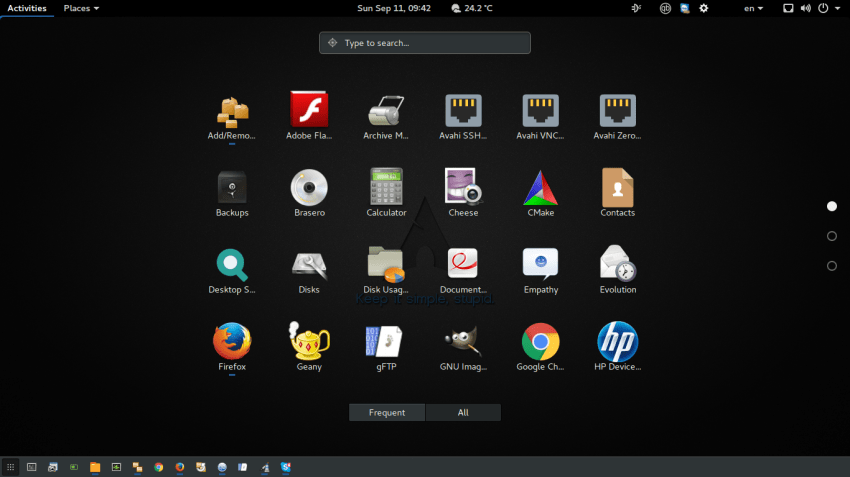
I got the idea to try Antergos when I saw the latest updated version released in ISO format (Antergos 2016.09.03).
I downloaded the latest Antergos 2016.09.03 ISO using qbitTorrent and created a bootable USB drive, with the openSUSE imagewriter I have installed on Manjaro. The installation system is a Laptop with 6GB RAM and an Intel Core i7-3632QM CPU clocked at 2.20GHz×8. So boot from the Live disk to get started.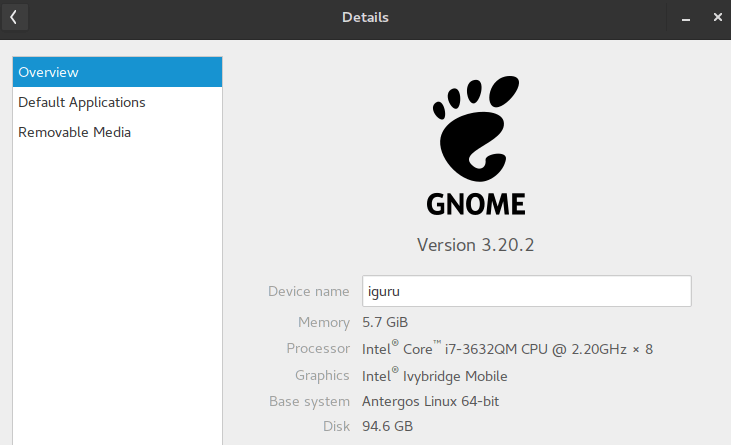
Antergos uses its own installer called Cnchi. The installer in the latest Antergos release 2016.09.03 is in final form and I found it very stable.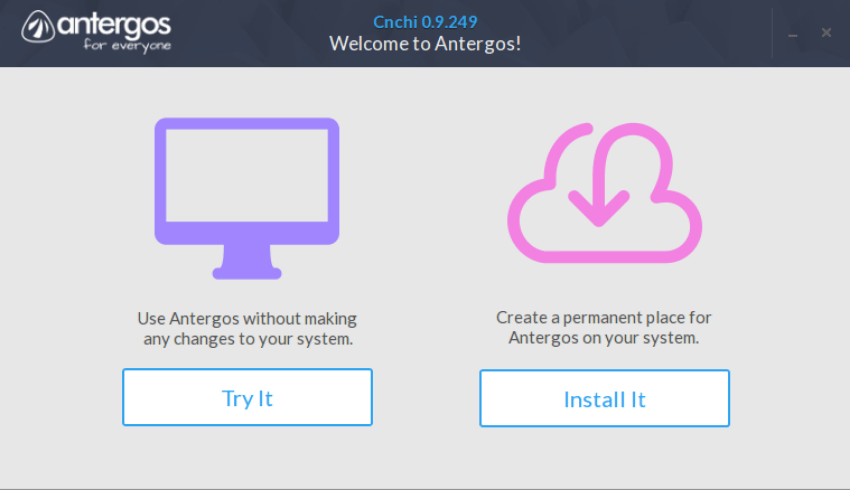
Installing Antergos is pretty much like installing any other distribution, but it has two additional steps that are not common to all installations.
For example, you can choose a desktop environment from six options offered, as well as a basic option, which is a command-line installation and will only install the system without a graphical interface.
I chose to install GNOME.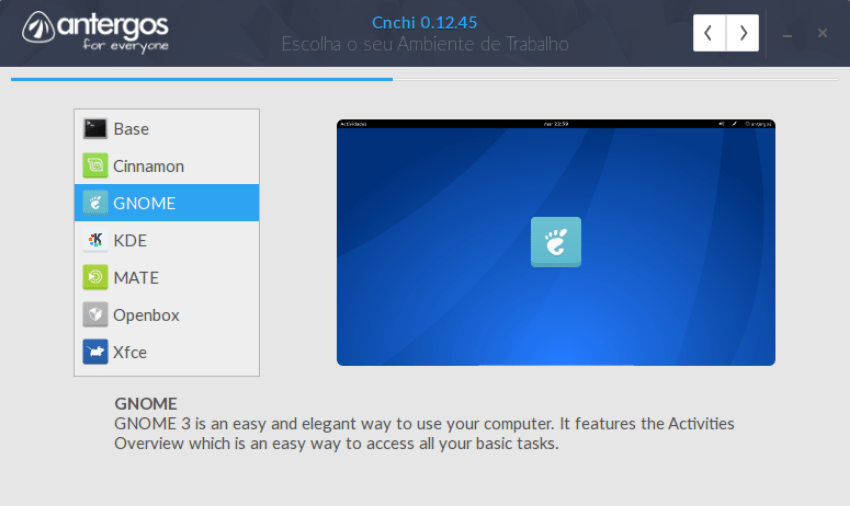
The desktop selection is important when installing Antergos, although it is possible to change to another one after installation.
After selecting the desktop, you’ll see a screen that gives you “Options.” It’s a list of basic features that can be added during installation. So you can choose with on/off switches, “Printing Support” AUR (Arch User Repository) support, LibreOffice, Flash player, and a simple Firewall. There are other options that include Bluetooth support, additional TrueType fonts, Firefox, an LTS kernel version, Steam and PlayOnLinux for gamers, as well as support for sharing with Windows.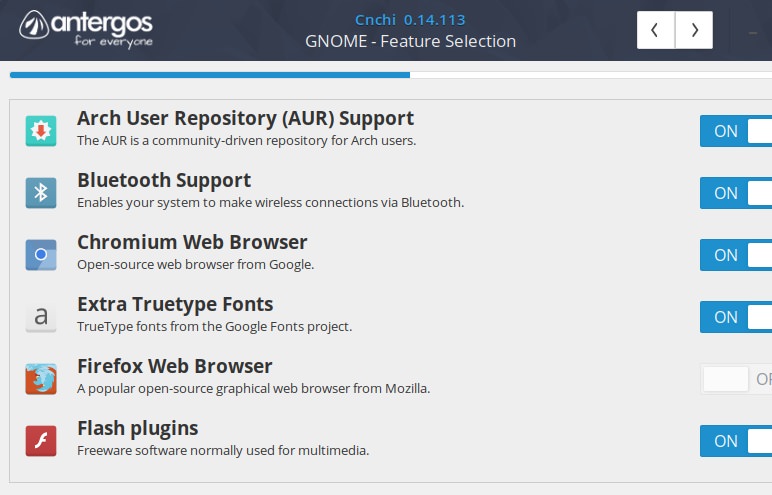
Partitioning the disk was fairly simple, but could prove difficult for new users who wish to install the distribution in dual boot with Windows.
Surprisingly, the installer only offers two options: “Erase disk and install Antergos” or “Choose exactly where you want Antergos to be installed.” There is no option to “install alongside..”
The “Advanced” options in Cnchi will not help a new user with the partitioning process compared to other installers. It presents a list of all existing partitions on the disk and their file systems, without showing the operating system installed. So it is not recommended for users who do not know the difference between NTFS, ext4, ReiserFS or ZFS.
A few words about the partition: The dual boot installation with Manjaro was very simple, using the same swap (no formatting required), the same partition for booting in /boot/efi (unformatted so as not to damage the boot of the other operating system you are using), and the largest partition you want to install the system on in “/” formatted in ext4.
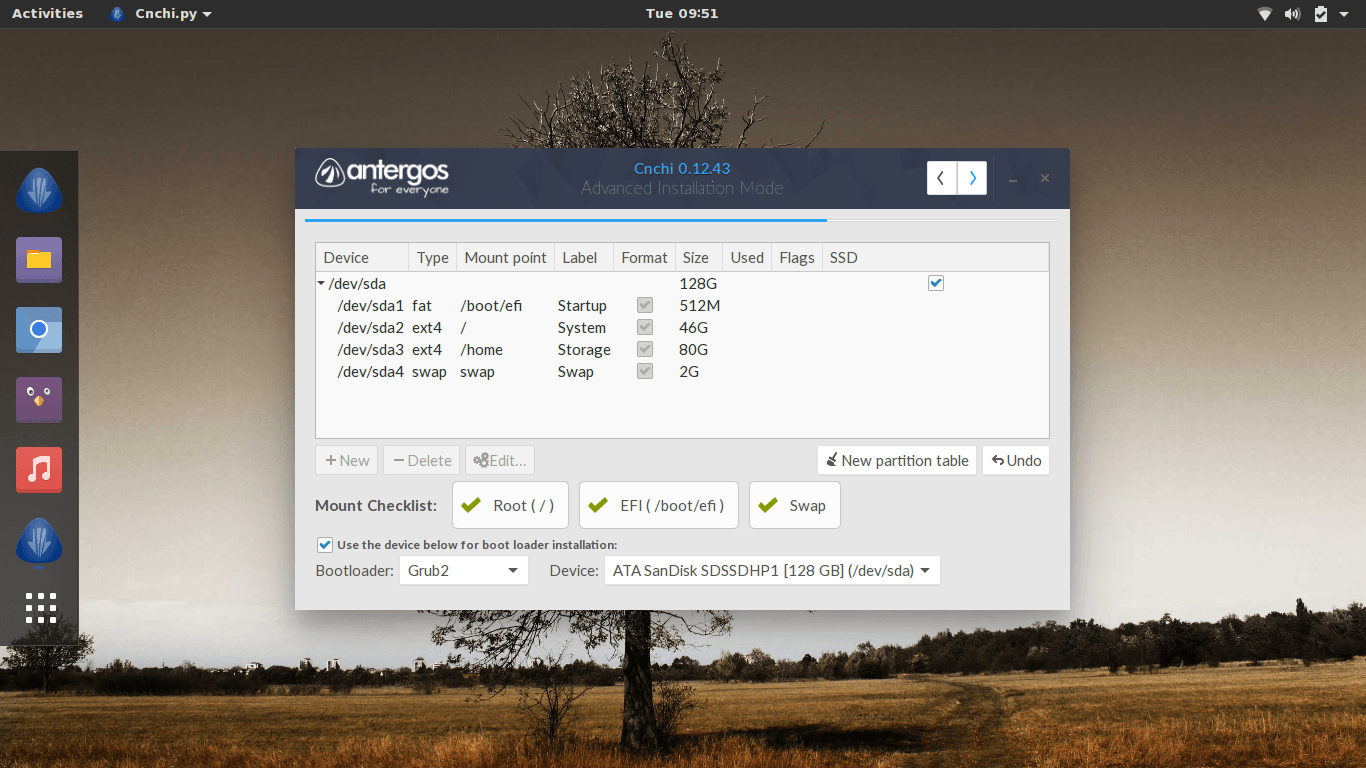
The next step is quite simple, the installer will transfer the new system to your computer.
Like many modern distributions, Antergos won't install many software packages. All GNOME applets (except games), such as calendar, calculator, and the like, are installed, and apart from LibreOffice and Firefox (which I had checked during system installation) and the Chromium browser, no other applications will be installed by default – an approach I prefer.
Antergos uses Pacman, a package manager developed specifically for Arch Linux. Pacman has a large number of repositories by default. In addition, advanced users can use the AUR (Arch User Repository).
I used the graphical installer to install GIMP, and it's really easy to use (even simpler than Synaptic). If using the terminal, you need the -S (sync) command, which tells Pacman to find all the necessary dependencies.
So to install GIMP with the terminal or command is
sudo pacman -S gimp
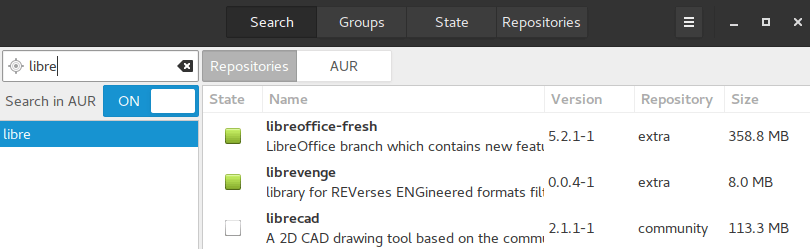
Due to Antergos' affinity with Arch Linux, the distribution is considered “bleeding edge” as it installs more or less the latest and greatest version of all applications. For example, you can see LibreOffice in the image below:
Finally, I should mention that the distribution impressed me with the promptness of updates. Almost every day, something new comes out, unlike Manjaro which, while using the model of a rolling distribution, the updates come all at once at the end of the month.
Needless to say, Antergos is not for everyone, nor does it try to be. While the distribution greatly simplifies the installation of Arch Linux, it is designed for users who know how Linux works. The distribution will certainly appeal to more experienced users looking for a highly configurable operating system with the latest software packages.
Experienced user or not, we should probably be a little more skeptical about using Antergos on a work computer where stability and 100 percent uptime are required. 
The fact that Antergos repositories provide the latest updates places a great deal of responsibility on the end user to keep their computer running and their data secure.
