

Modern computers have a built-in internal speaker that, at least for Windows, emits a basic sound, usually a simple beep, in case we don't have any external speakers connected.

So, if your computer is running Windows 10 and doesn't have any external speakers connected, or the audio driver isn't working or is disabled, you might hear an annoying beep in some cases, such as when a message box appears with a notification. If you're bothered by this beep and want to disable it, here's how you can do it.
To mute a PC speaker in Windows 10:
1. Right-click the Start button on the taskbar.
2. In the Start button menu, select Command Prompt (as administrator). An elevated Command Prompt window will open.
3. Type the following command:
sc stop beep
This command will disable sounds immediately.
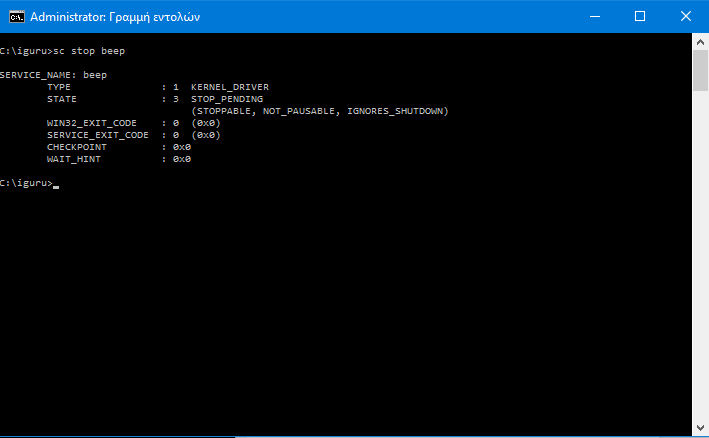
4. Now, type the following command:
sc config beep start=disabled
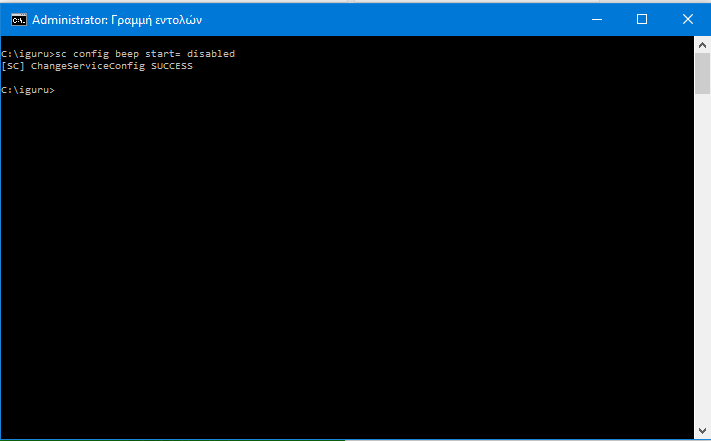
This command will disable the beep sound permanently, even if you restart the computer.
In Windows 10, the computer's speaker sound is controlled by a driver and a service called "beep". You can find it in the Registry at the following location:
HKEY_LOCAL_MACHINE\SYSTEM\CurrentControlSet\Services\Beep
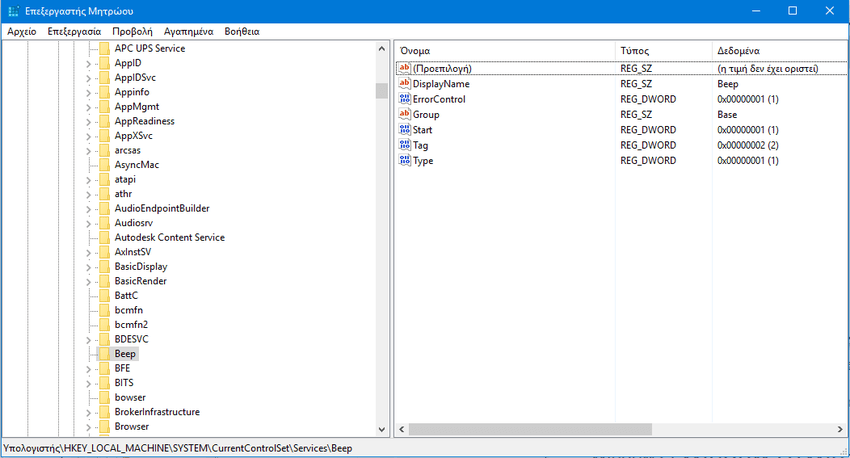
By manipulating this service via the command line you will see that you are actually manipulating the value of the DWORD “Start”. The disabled parameter corresponds to a value of Start = 4, while its default value was Start = 1 which corresponds to the “system” parameter
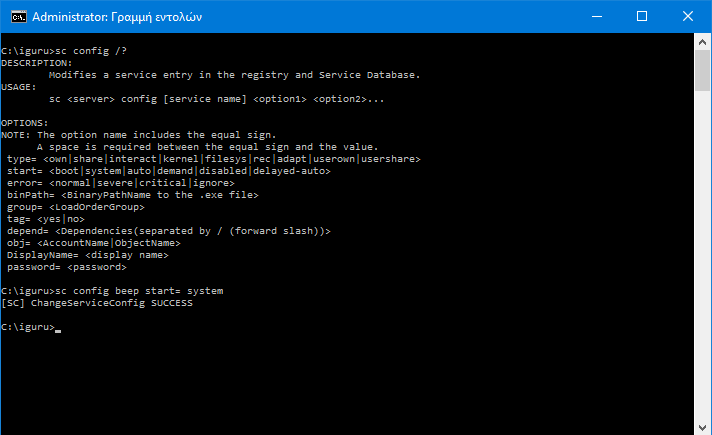
By typing at the command line:
sc config /?
you will get help with all the possible parameters of the command in question.
Good luck.
