

If you have multiple monitors or an external display device, you can configure the corresponding built-in Windows 10 feature to change the active monitor and how your current desktop is divided. 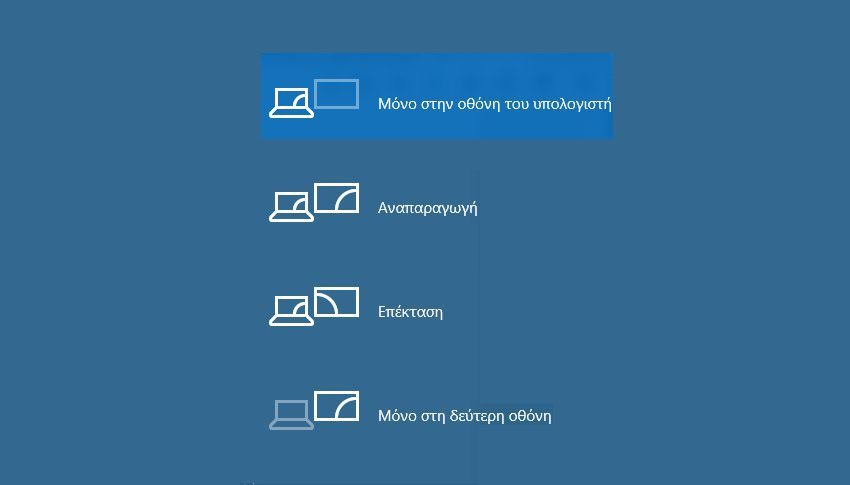
The feature called View allows the user to customize their system to one of four options which are: primary display only, playback on an additional display, extension to all displays or use only the second display. Below we will see how you can configure it:
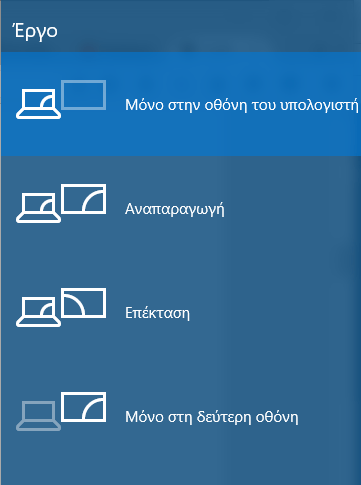
The View feature in Windows 10 offers the following functions:
On computer screen only
Only the primary display is enabled. All other connected displays will be disabled. Once you connect a wireless projector, this option changes its name to disconnect.
Mirror
Mirrors the primary display to the second display.
Extend
Your desktop will be extended across all of your connected displays.
On the second display only
The primary display will be disabled. Use this option only to switch to an external display.
You can choose the most convenient method to access the View feature in Windows 10.
1. Easily and quickly with the Action Center
The Action Center in Windows 10 is a special window that keeps various types of notifications and provides quick access to useful actions that can be performed with a click. By default, it has a quick action button called “View”.
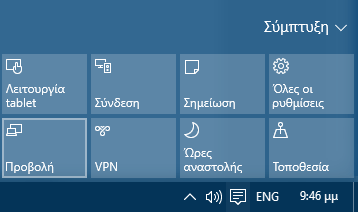
Click to select the desired mode:
2. Using the Settings app as follows:
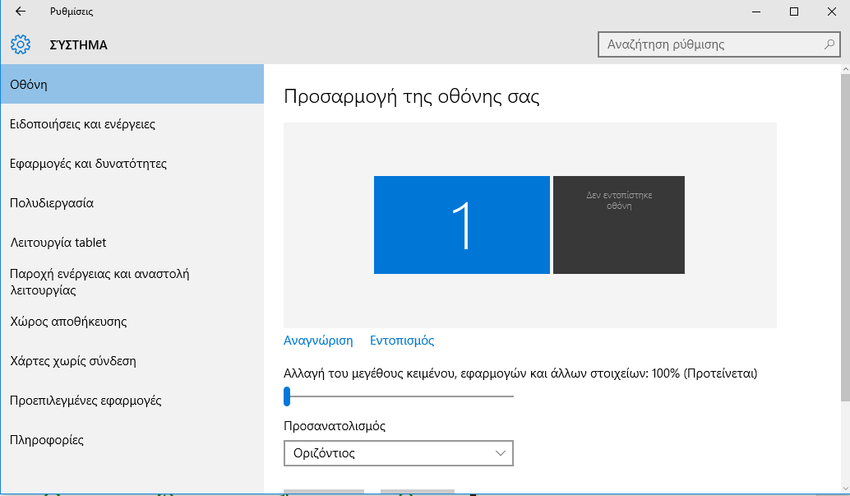
Open the Settings app
Go to System -> Display
On the right, and if you have set up an additional monitor in addition to the main one, you will see the option for multiple monitors. You can set your appropriate option from the drop-down menu.
3. Using the DisplaySwitch.exe application
The built-in Windows utility, DisplaySwitch.exe, allows you to specify which display to use and how to use it. The application is located in the C:\Windows\System32 folder.
You can use it via the command line, and create a shortcut for each of the available functions. Tip: You can try these options from the Run dialog box. Open it by pressing the Win + R keys simultaneously and type the following command in the Run window.
DisplaySwitch.exe /internal
The internal switch indicates that your PC should only use the primary display.
DisplaySwitch.exe /external
Use this command to switch to an external display only.
DisplaySwitch.exe /clone
It reproduces on the secondary screen what is shown on the primary screen.
DisplaySwitch.exe /extend
Extends your desktop to the secondary display.
You can take the above commands and create four shortcuts, one for each command.
Name them whatever you want and assign the desired icon to each one.
4. Using hotkeys
In Windows 10, there is a shortcut key available to instantly change the View mode. Press the Win + P keys simultaneously. This will instantly open the View action center.
