

In this article you will see how to customize the icons of your hard drives in Windows using autorun.inf. This method applies to any version of Windows, including Windows 10.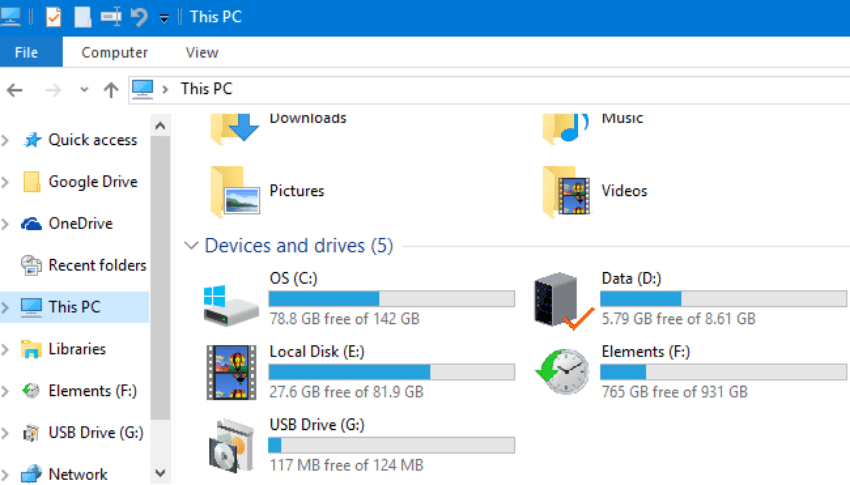
If you use multiple external drives or have multiple partitions on your hard drives each performing a different task and storing various types of data, you may want to give them your own tags for easy and quick identification. An even better option besides naming would be to set a custom icon so you can have even faster identification with a visual cue for the type of drive.
But let's see how you can do it. For example, let's take a system that contains drive C: which includes the operating system and programs, drive D: which has all your personal data and folders, drive E: which stores media files, drive F: which has backups, and drive G: which contains a few portable applications that are used occasionally.
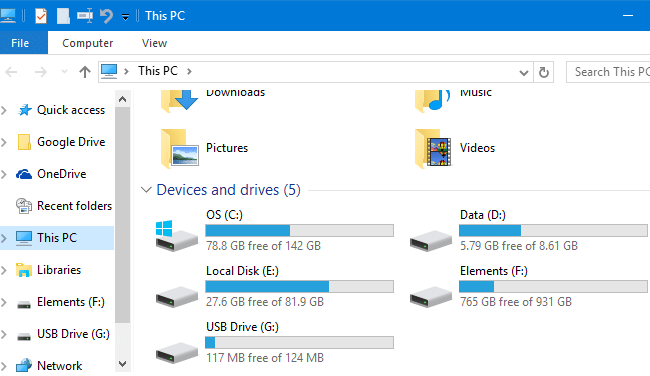
To customize the icon of each of your drives, create a file for each drive unit and name it autorun.inf. Place it at the beginning of each of your hard drives (or partition if you have partitions) and for each drive unit set inside it the name of the icon you want, as follows:
[AUTORUN] Icon = icon_name.ico
The icon can be a .ico file or even an icon that exists inside a .exe or .dll file. Below you can see a sample autorun.inf file that uses a custom icon named software.ico.
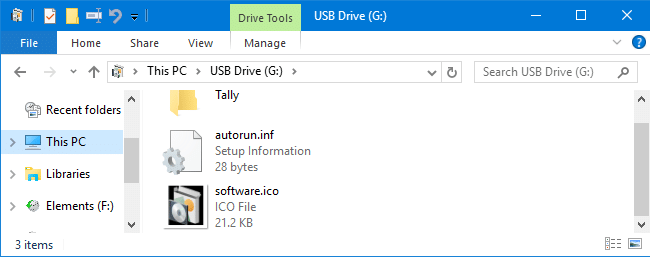
Naturally, at the beginning of the disk together with the autorun.inf file you will also place the icon file you refer to. Also, if you have a specific folder where you store all the icons, you can type the path of your hard drive inside autorun.inf until you reach that specific folder. But for us it is better to be at the start of each disk, especially if it is a removable disk.
If your removable drive already has an autorun.inf file, then go to the [AUTORUN] section and simply add (or if it exists, change) the Icon. Optionally, these two files can be set as “hidden” via the file properties, so they don’t visually bother you when you view the drive’s root directory.
Repeat the above process for each Windows drive you want to customize its icon.
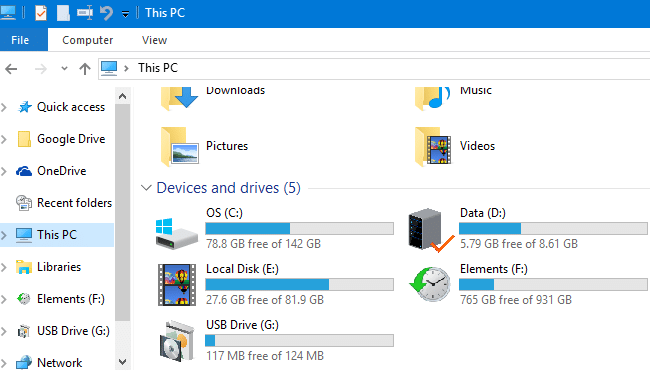
Restart Windows and your drive icons should have changed! Now, notice how easy it is for someone to identify their drives.
