

Cortana is easily one of my favorite features in Windows 10. I use it every day and it gives me fun answers to questions, keeps my appointments and reminders, sends email messages or does quick web searches for me.

But these are just the most obvious uses. There are many lesser-known ways you can incorporate Microsoft into your life. Here are four helpful tips:
Open Windows utility key programs
 As you probably already know, you can open classic desktop programs with Cortana, but it can also be used to open key system utilities. Simply type Task Manager, Device Manager , or Control Panel into Cortana's search bar and you'll see an option to open the desired item.
Voice commands also work, but for some reason Cortana will only give you technical instructions on how to open Device Manager without actually opening it for you.
Get IT help
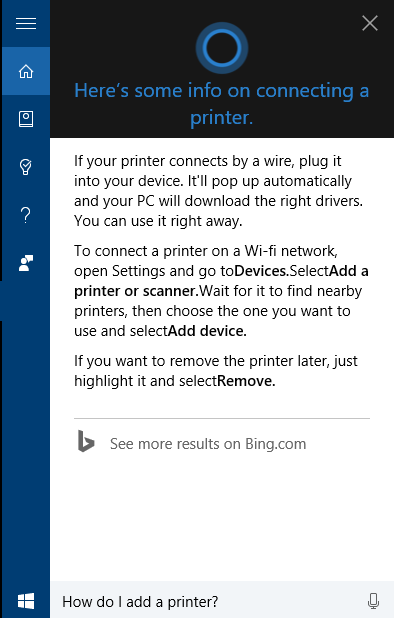
Cortana can also provide technical assistance from time to time. If you want to know how to adjust specific settings in Windows, like how to change your screen resolution or how to turn on airplane mode or even how to add a printer, Cortana can help you. Many technical questions you have will be answered with specific instructions that will appear in Cortana's pop-up panel, saving you a trip to the Web.
You can either type the request or use a voice command, but be careful how you phrase your question. When I asked Cortana, “How to go into airplane mode,” she wasn’t very helpful. But once I said, “turn on airplane mode,” my question was answered.
 Make Cortana your reporter

This is my favorite of all its uses. Cortana already shows the news according to your preferences, but if you want to listen to the latest news for a specific news topic it can offer you a quick summary.
Just say something like: “Hey Cortana, what's the latest news on Rafael Nadal” and a selection of the top news headlines will appear. It will also show you a link to read more news on Bing. The best part of all of this is that Cortana will even read the first headline to you.
Call Cortana from the keyboard
The most common ways to get Cortana's attention are to either click in the search input box or use a voice command. If you already have your hands on the keyboard, however, a shortcut may be the best option.
To call up Cortana's simple dashboard with news and weather updates, press Windows key + S.To open Cortana in listening mode ready to accept voice commands, press Windows key + C.
Enjoy!
