

If you want to share Android phone with friends, family, or colleagues, it's wise to create additional profiles or enable Guest Mode. This way, everyone can access the device without compromising your personal information and settings.
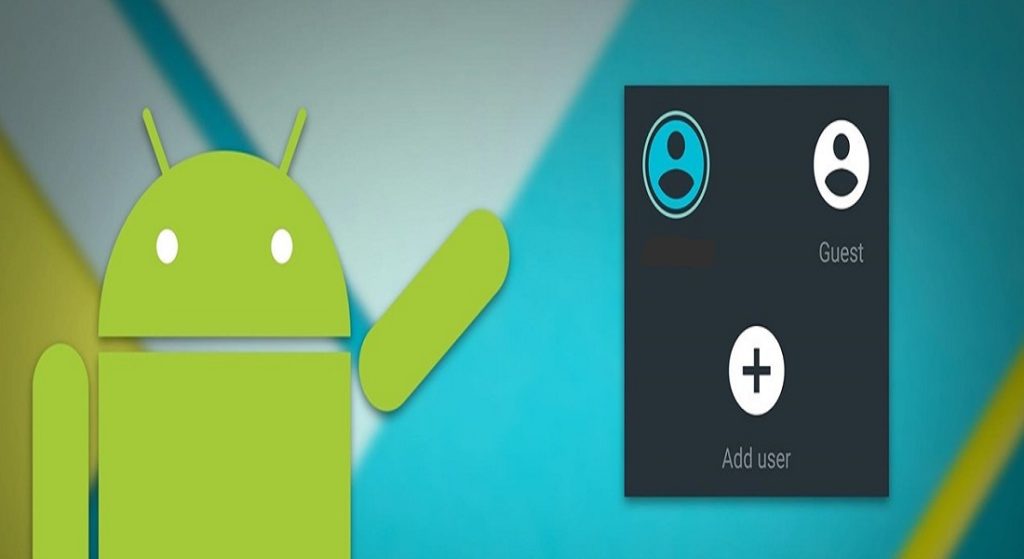
With multiple profiles and Guest Mode, users can use a phone that isn't theirs, but they don't have the same access as the actual owner of the device.
See below how you can create additional profiles on an Android phone and how you can enable Guest Mode.
See also: Android: How to block messages from specific users?
How to create multiple user profiles on Android?
All versions of Android support multiple user.
- To enable User icon, go to Settings > System > Multiple users and enable the feature.
- From here, or via the icon that will now appear in the Quick Settings menu, tap the Add user. This is one of the many ways to customize the Quick Settings panel on Android.
- Set up the new profile with its own account Google (you can create an account directly from the user creation process, if needed).
- Set up a screen lock PIN or fingerprint for the new user.
- Personalize the user profile (e.g. their own wallpaper, apps, and more, which can be changed later. You can even personalize your Android phone 's keyboard and fonts ).
- Once the process is complete, the new user will be able to access the phone, but not the software, files, and other personal information and features of the Android device owner.
By following the same process, you can add other profiles.
You can also delete a profile by returning to the multiple user settings, selecting the profile, and clicking Delete User.
See also: Android Auto: Discover how to personalize its UI

How to use Guest Mode on an Android device?
If you need to give someone temporary access to your phone, but want to be safe, you can use Guest Mode.
- Click on the User icon to access their dashboard.
- Select the Add guest option .
- Your phone will automatically set up the rest of the guest profile with default apps for the person to access.
A guest has the same control over their profile as a user. For example, they can add or remove apps, set up and use Google accounts, etc.
When you want to disable Guest Mode, click Remove guest from the user panel or simply return to the main user profile. The account is temporary, so it will disappear once you exit it.
See also: Take advantage of the split-screen feature on Android
Even when we give our phone to a friend or relative, we need to keep the security of our apps and data . Even one of our own people can make a mistake and put data .
Source: www.makeuseof.com
