

In 2015, Apple released a Harry Potter-esque feature that lets users take photos that “come to life” when they’re touched, known as “live photos.” Live photos capture a total of three seconds of video, with a second and a half recorded before and after each click. To view the entire sequence, all you need to do is press and hold the live photo. You’d think it would open a video, but it’s actually a high-efficiency image file format (HEIF). The file automatically selects another one as the main image. But what if you want to share the entire sequence of moving images on a non- smartphone or as a .GIF?
To do this, you need to convert a live photo to a video. In the past, to do this, you had to download a third-party Shortcut, like the Convert LivePhotos to Video shortcut. You could also use another third-party app to convert live photos to .GIF. Twitter released this feature in 2019.
Also read: How to connect a PS5 controller to iPhone or iPad
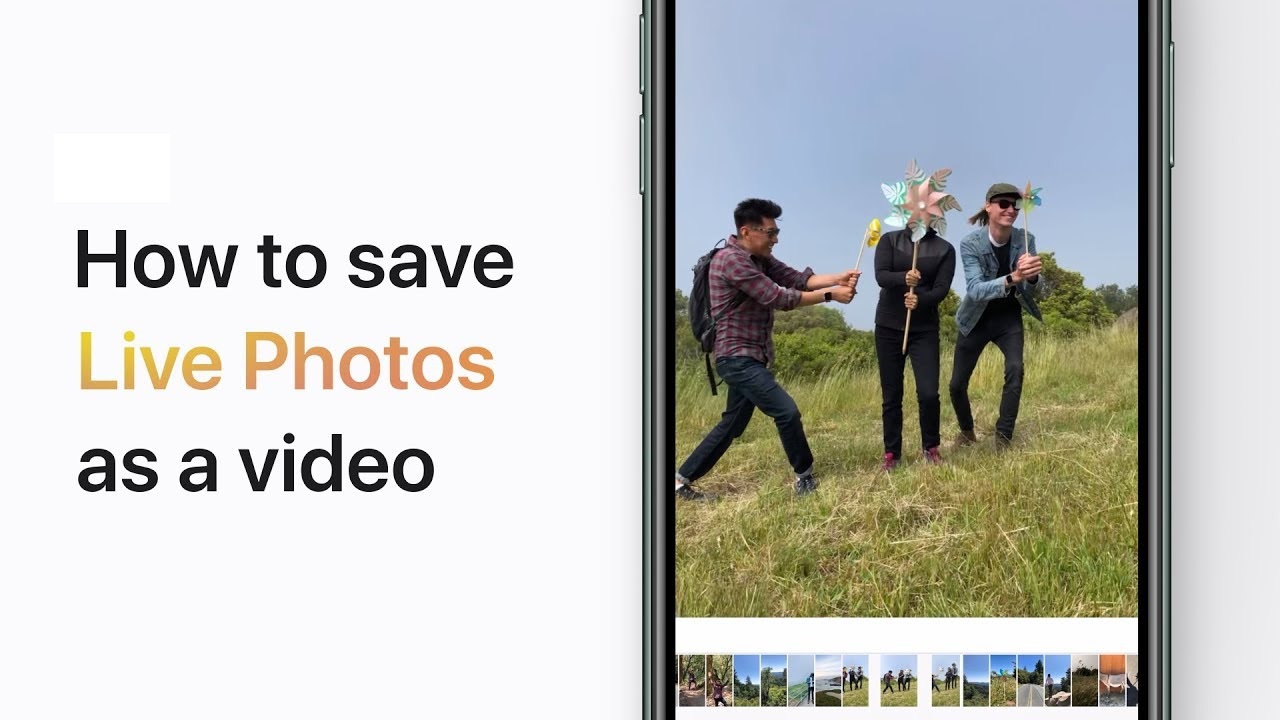
Apple made this conversion even easier with the release of iOS 13 in 2019, without requiring shortcuts or external apps.
In this article, we'll see how you can convert your live photos into videos using just your iPhone.
See also: Face ID is not enough to protect the iPhone: What else should you do?
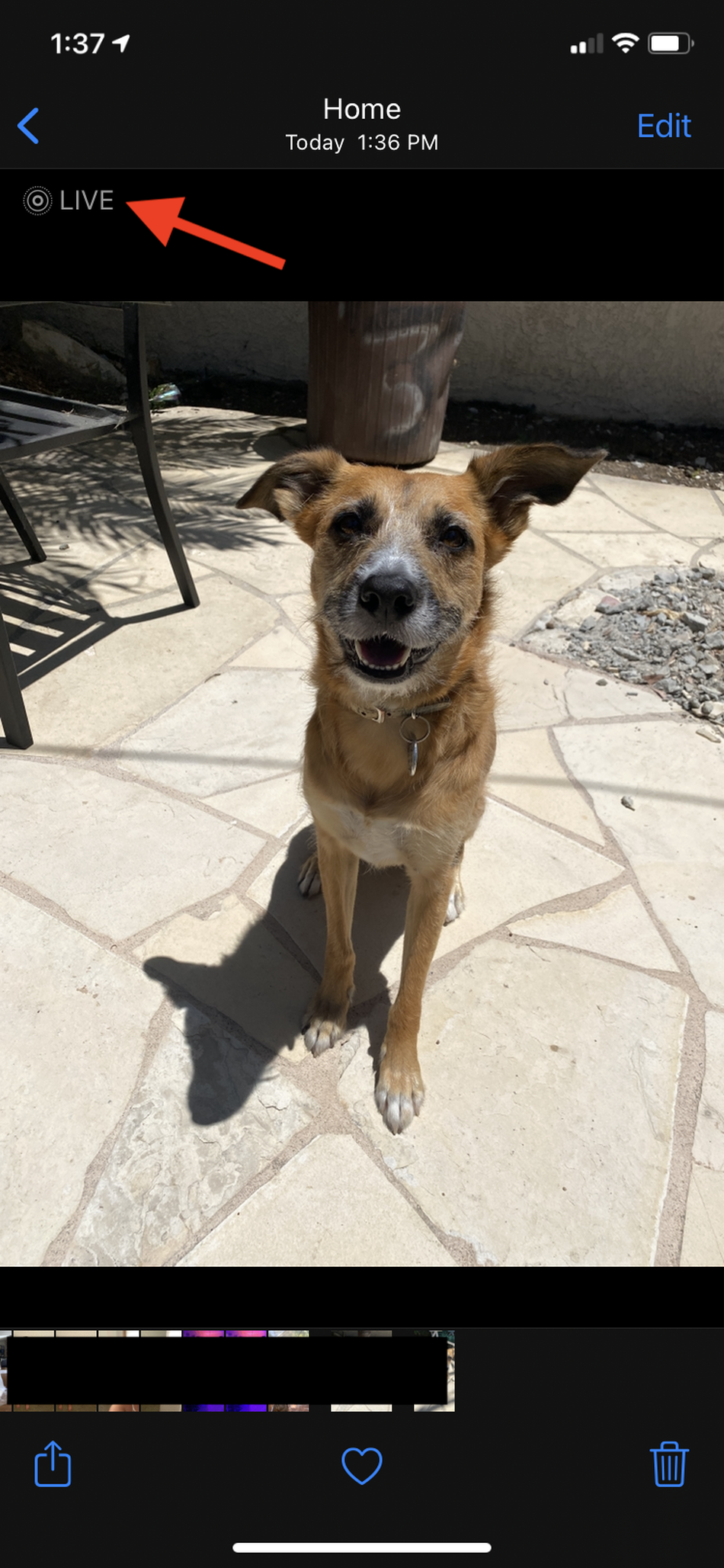
- Open the Photos and select your live photo. You'll know it's a live photo if it says "LIVE"with an image of concentric circles in the top left corner.
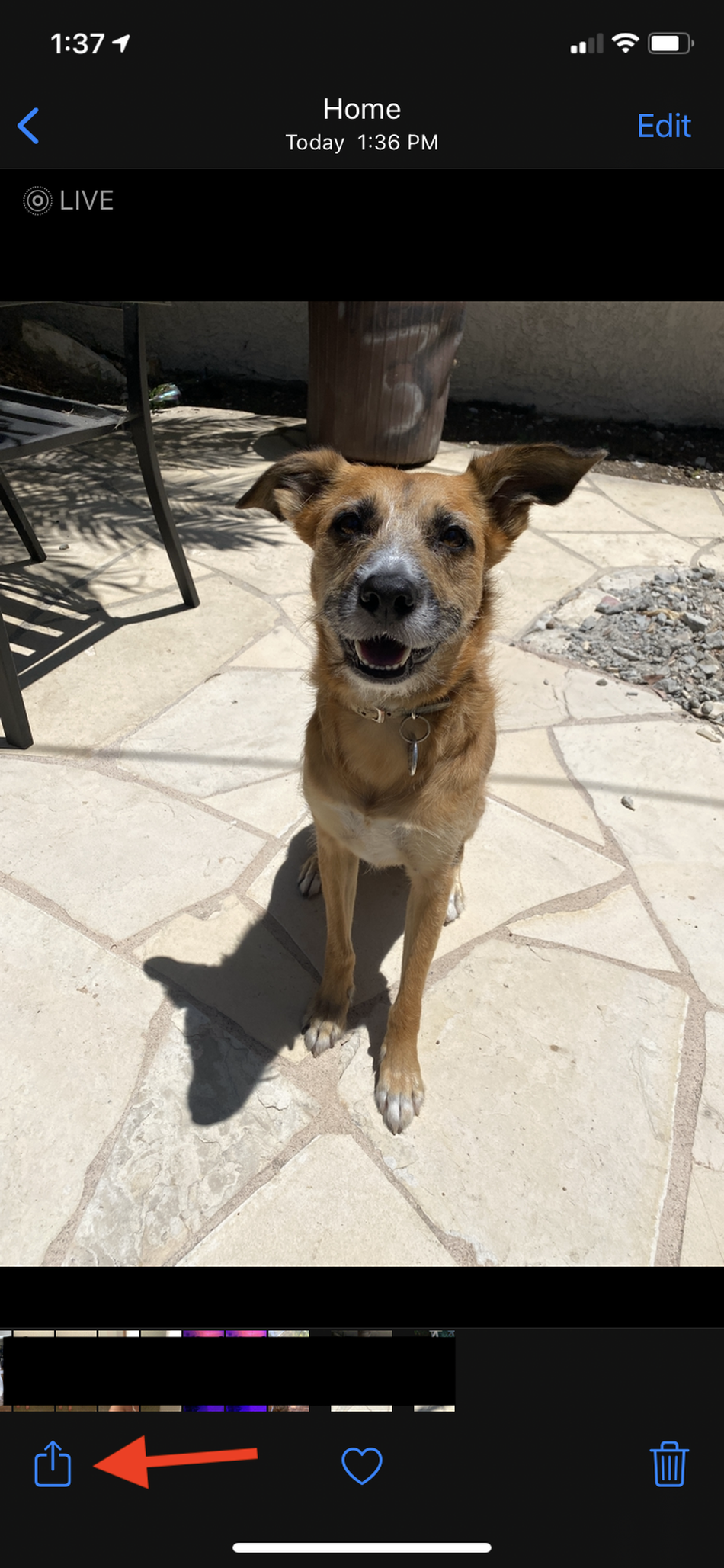
- Press the “Share” in the lower left corner.
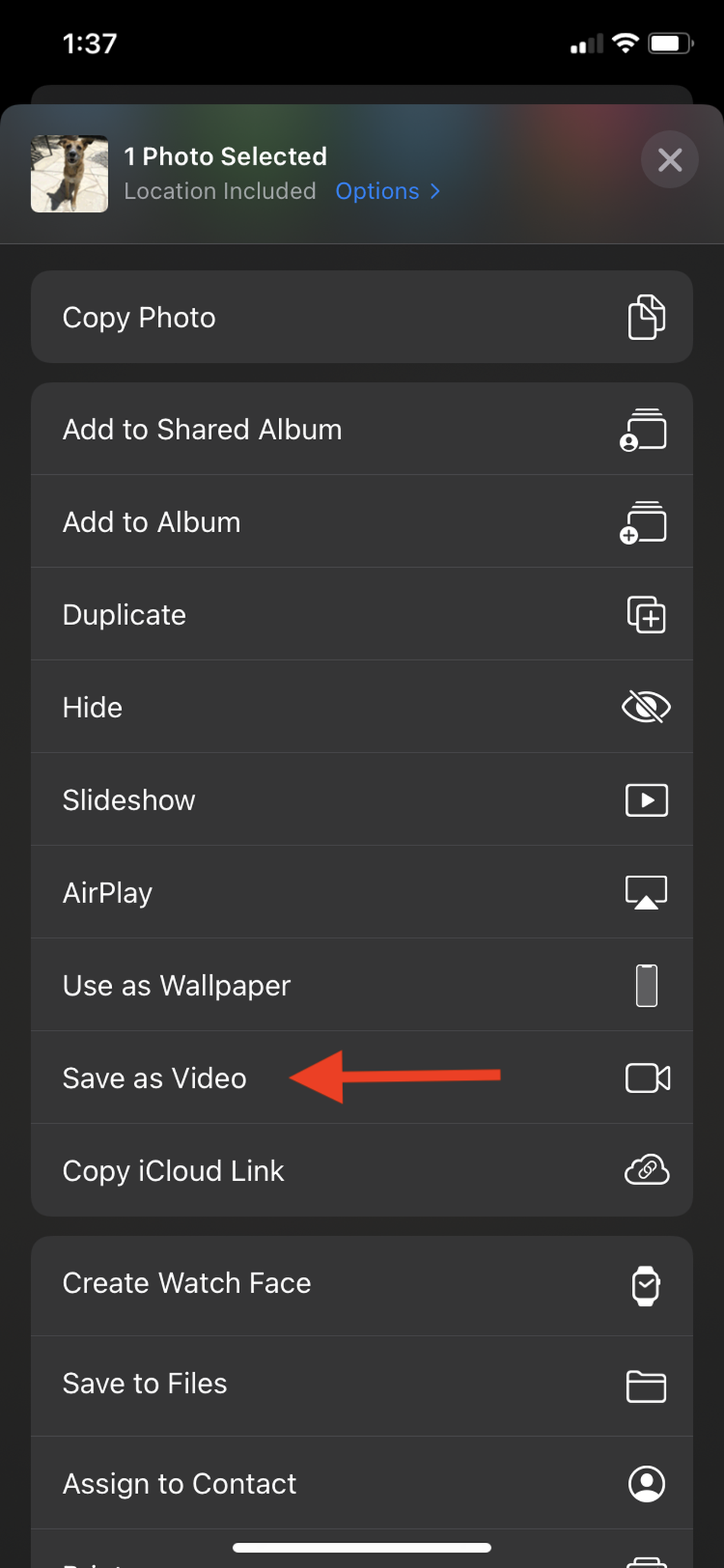
- Scroll down to the “Save as video” and press the button.
- Go back to “Recent” or “Albums” in the Photos app and scroll down to the most recent image.
Suggestion: New features released in Cortana for Outlook on iPhone
That's it! Now your live photo will reappear as a video, in the most recent photo location. From there, you can share the video wherever you want, as well as convert it to a .GIF.
Information source: mashable.com
